Adding Team Members to an MTA2

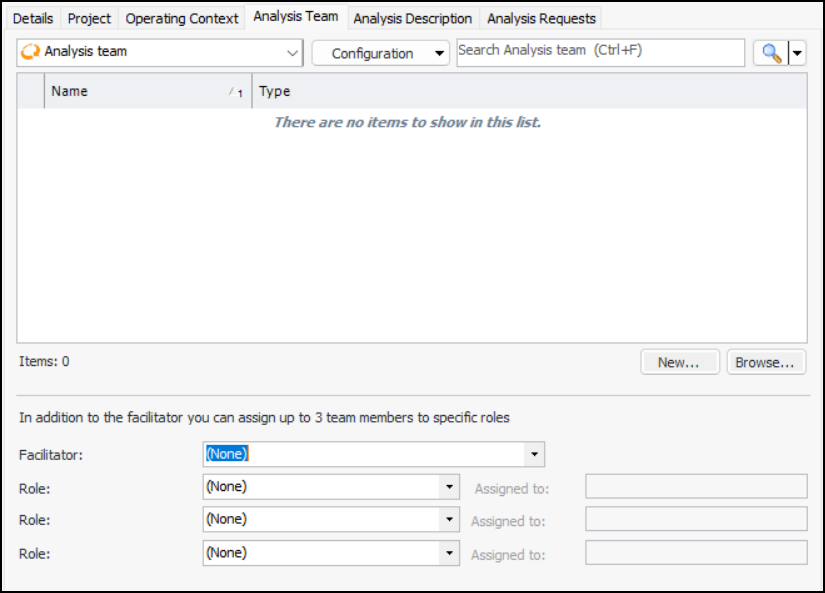
You can maintain a list of the team members who are working on the analysis. You can also designate one member as the facilitator of the team and assign up to three roles to team members.
Because it is common for some of the team members to be from external organizations or to be employees who otherwise have no contact with the APM system, it is not necessary for the team members to have APM employee records. For these consultants, you can record names, job titles, and companies or departments.

To Add Team Members

1.
From an open analysis, select the Properties view, General tab, Analysis Team tab.
2.
3.
To quickly add one or more employees to the team, click Browse. The Browse Employees dialog appears. Select the employees and click OK. They are added to the Analysis Team tab.
4.
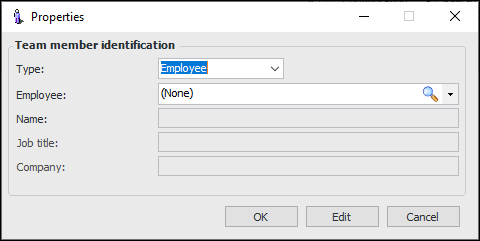
To create a team member record, click New. The Properties dialog appears.
5.
If the member does not have an APM employee record, select Consultant from the Type list and provide the member’s name, job title, and company or department.
6.
If the member has an APM employee record, select Employee from the Type list. Select the employee from the list or click the browse icon to select the employee or create a new record. The employee is added to the Employee box.
7.
Click OK to save the information and close the dialog.
8.
9.