Exiting APM or Switching Users

When you are finished using APM, you can log off and close APM at the same time. You can also exit APM and switch to another user.

To Log Off and Exit APM

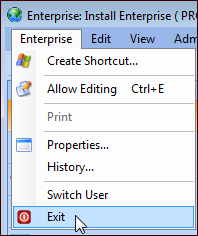
When you are ready to close the application, click the Enterprise or Site menu (depending on which main window is active), and click Exit.
If you have made changes to an object without saving it, APM prompts you to save or discard the changes. All open APM windows close, you are logged out, and the software shuts down.
Tip: You can also right-click an APM icon in the Windows system tray and click Close Window to exit the product.

To Switch Users

1.
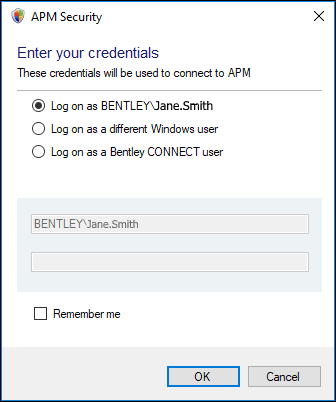
Click the Enterprise or Site menu (depending on which main window is active), and click Switch User. The APM client logs you out and shuts down. Your credentials are removed from memory (if you selected Remember me when logging on). The APM Security dialog appears, where you can log on as a different user. For example:
2.
Log on with your current Windows domain, login name, and password using Windows authentication. You can also click Remember me to save your credentials for the next time you launch the product.
Note: An APM user must already exist with this login name and the Windows authentication type.
Note: An APM user must already exist with this login name and the Bentley CONNECT authentication type.
To update your Bentley CONNECT password, click Manage my Bentley CONNECT account. The Bentley Sign In page appears.
3.
Click OK. The appropriate APM window appears.