
Linking a Consignment Inventory Group to an Existing Warehouse
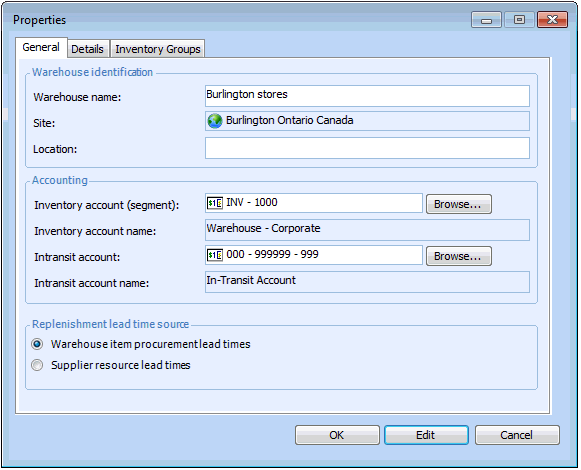
A warehouse inventory group specifies a group of items contained within a particular warehouse. Each warehouse can have one or more warehouse inventory groups. It is the warehouse inventory group that most users work with on a day-to-day basis.
The name of the warehouse inventory group is made up of a combination of the warehouse name and the name of the linked inventory group. The inventory group allows you to indicate that the warehouse items are either owned by your organization or are consignment inventory. Each supplier with whom you have a consignment agreement has its own inventory group.
To create the warehouse inventory group, you must link an inventory group to an existing warehouse. By linking different inventory groups to warehouses, you can set up warehouses that are only used for consignment inventory or that are mixed (have both consignment and regular inventory).

To Link a Consignment Inventory Group to an Existing Warehouse

1.
From the site’s Administration menu, select Resource Management Settings. The Inventory Settings dialog appears.
2.
Select the Warehouses tab. This tab shows a list of the warehouses for the site.
3.
4.
From the Warehouse menu select Properties. The warehouse Properties dialog appears.
5.
Select the Inventory Groups tab. This tab lists the groups that are currently linked to the warehouse.
6.
7.
To add a new inventory group, click New. Select the inventory group name and click OK.
8.
When you are finished, click OK to save the warehouse properties. Save and close the Warehouse window by selecting the Warehouse menu and then Close.