
|
|


APM Windows
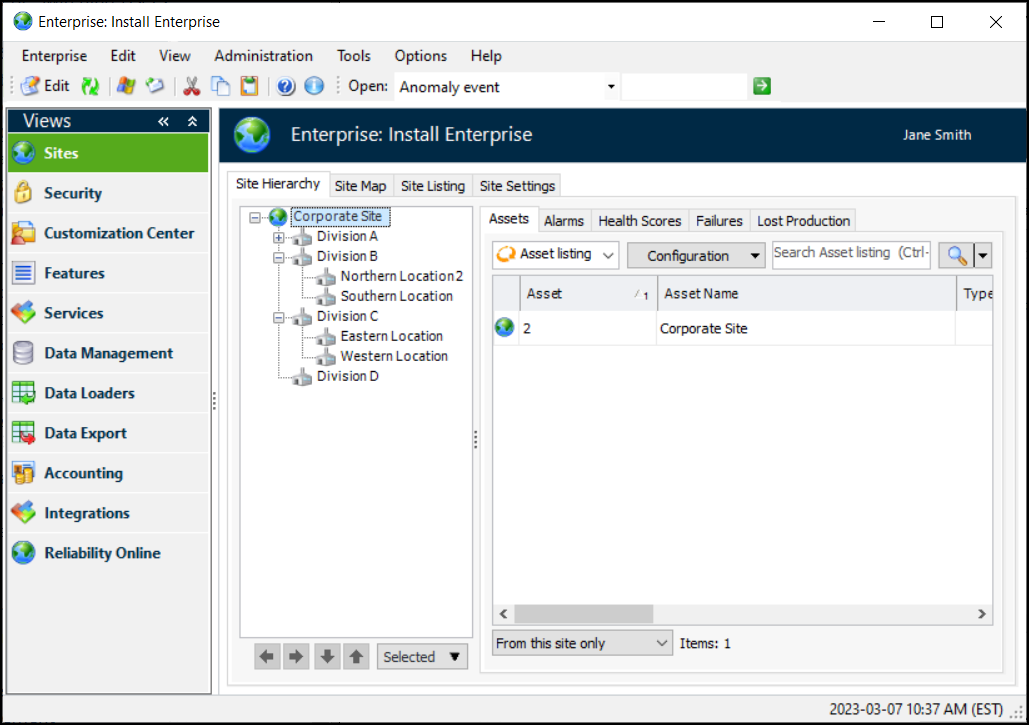
When you have logged on successfully, an APM window appears. If your user ID has been linked to an employee record, a site window opens, showing the site where your employee record was defined. If your user ID is not linked to an employee record, the Enterprise window appears. The following example shows an Enterprise window with multiple sites.Double-click a site in the list to open it. Here’s an example of a Site window that displays the basic elements of an APM window:
in the tool bar). In the Enterprise menu, click Properties. The Enterprise Properties dialog, General tab displays the area for the time zone.
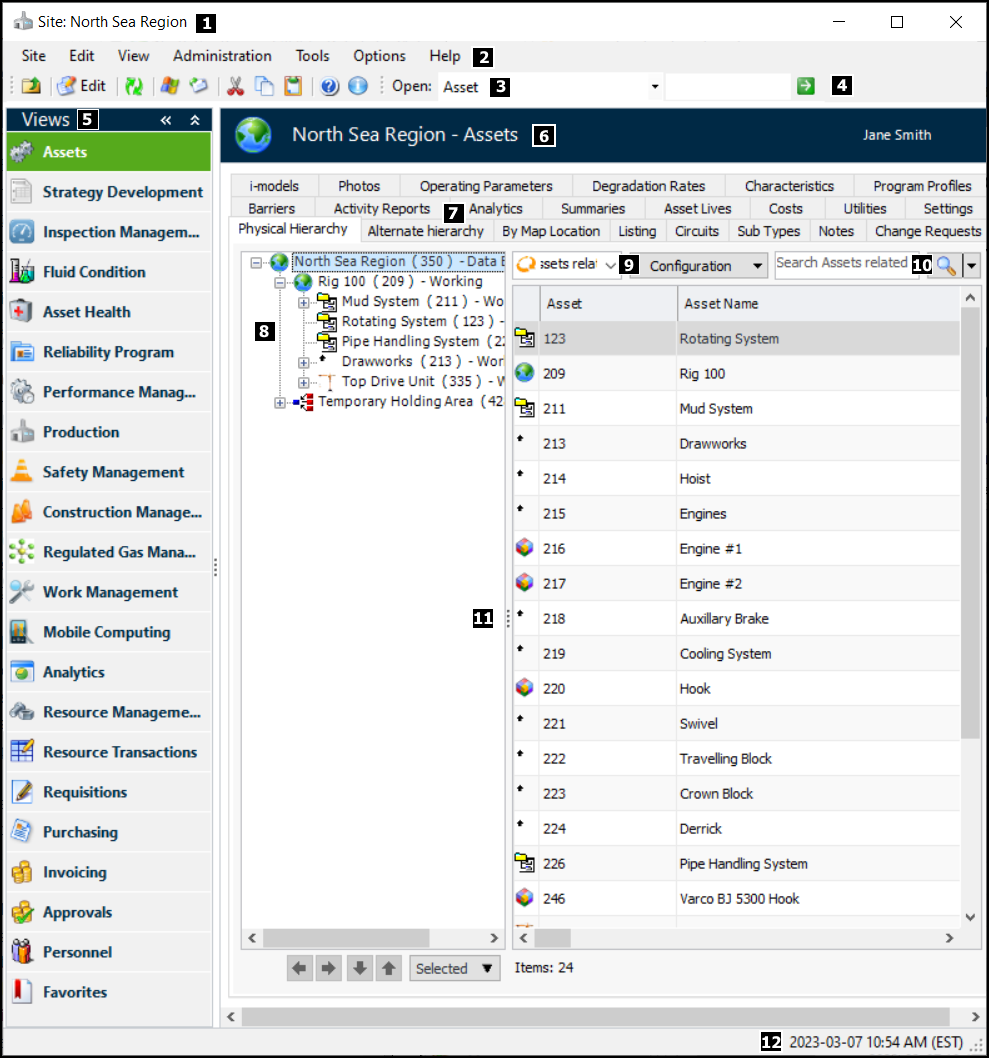
 to reposition the view bar from the top to the side or vice versa.
 to expand a branch.
 to collapse a branch.
 . Click the list on the button to select the column to search.