Moving Indicator Templates to a Different Site

When you create an indicator template, it is saved to the first site up the hierarchy that allows indicator templates. From time to time, you might want to move an indicator template to another site.
You can move an indicator template to another site providing that the name of the template is unique within each site. Otherwise, an error message will appear and you will be unable to move it.
This topic describes how to move an indicator template to a different site.

To Move an Indicator Template to a Different Site

1.
Select the site’s Inspection Management view, Indicators tab.
2.
Select the Templates tab. By default, the table shows the indicator templates for the site and above.
3.
4.
5.
In the Properties view, General tab, click Move.
Tip: You can also select the Tools menu, then Move Template.
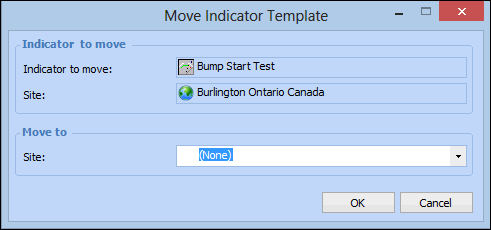
The Move Indicator Template dialog appears.
6.
In the Site list, select the target site.
7.
Click OK. The indicator template is moved to the new site.