|
Creating a Rule-based Indicator Template
To Create a Rule-based Indicator Template
1.
2. Select the Templates tab. By default, the table lists the indicator templates for the site and above.
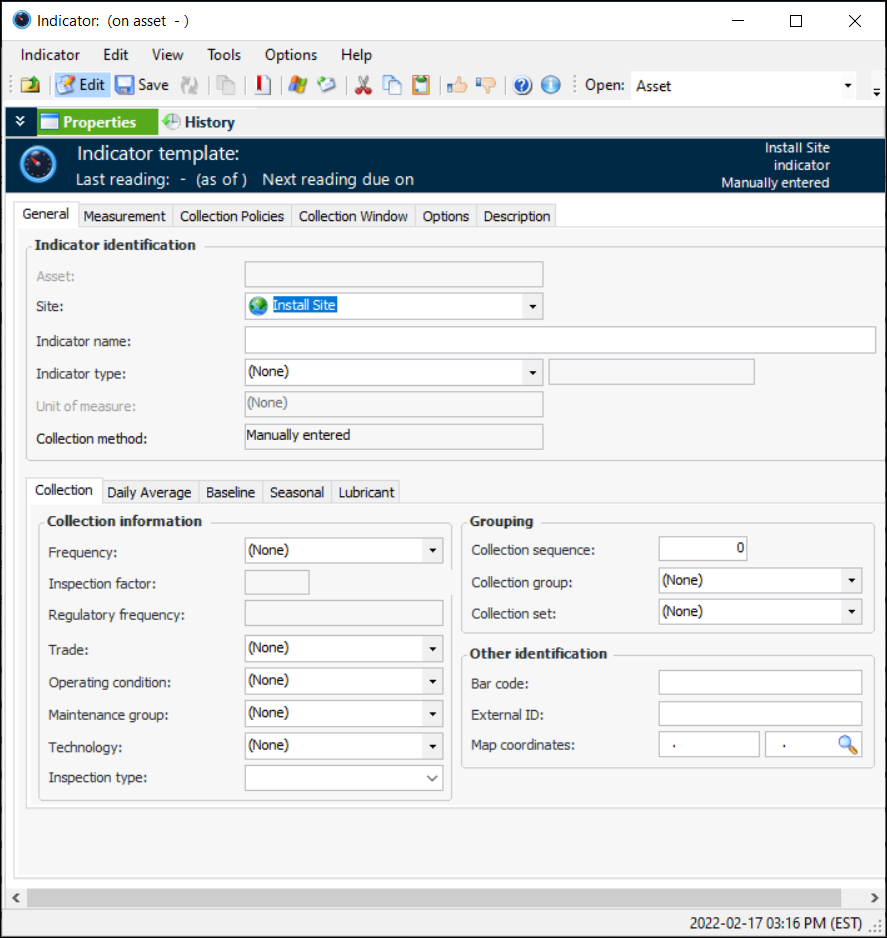
3. Click New. The Indicator template window appears.
4.
• Select a rule-based indicator type from the Indicator type list. When you select a rule-based indicator type, the Type of value box says “Rule-based.” The window changes to reflect the value type.
5. On the Collection tab, you can enter values that determine how often readings are expected and the next collection date. You can also enter information to make it easier to select this indicator when adding indicators to a work order task or standard task, when copying indicators to another asset, when setting up dynamic inspection routes, or when implementing reliability programs.
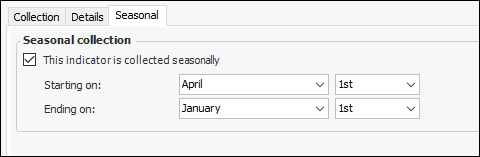
6. To specify the months during which readings should be taken, select the Seasonal tab. Click This indicator is collected seasonally and select the starting and ending dates. For example:
7. Select the Description tab to enter more information about the indicator.
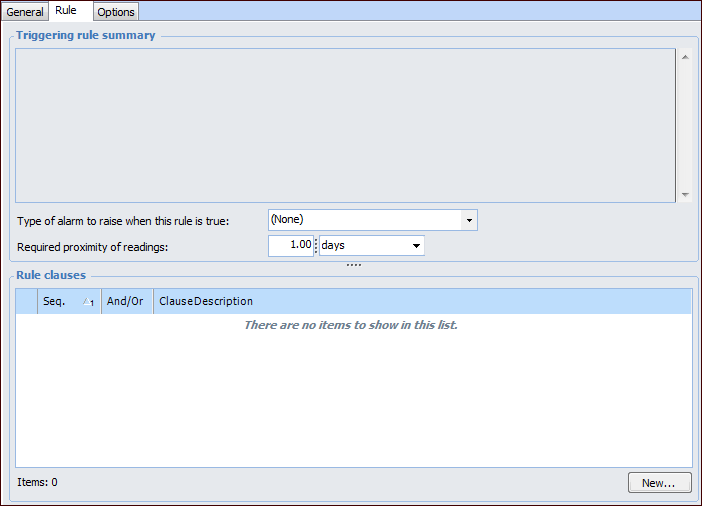
8. Select the Rule tab.
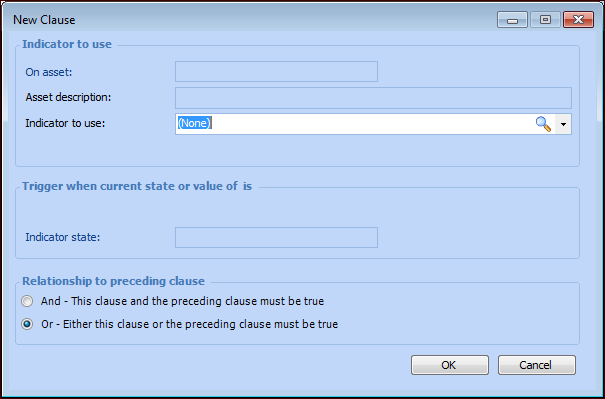
9. On this tab, you can set up a triggering rule. A triggering rule consists of one or more clauses. To create a clause for the rule, click New. The Rule Clause dialog appears.
10. From the Indicator to use list, select an indicator template to use for the clause.
11. If available, in the Trigger based on list, select whether the clause is evaluated based on the state or the value of the indicator. If you cannot change the setting in this list, it is because the selected indicator has either only states (for example, descriptive) or only values as readings (for example, numeric without states).
12. In the Operator list, select how the clause is evaluated.
14.
15. Select an alarm for the rule in the Type of alarm to raise if the rule is true list.
16. If necessary, you can change the Required Proximity of the rule inputs. By default, APM sets this to be 1.00 day. If any of the inputs are entered into the system outside of the required proximity time, APM will not evaluate the rule.