Creating a Descriptive Indicator Template

A descriptive indicator is an indicator that has a distinct set of values that can be detected but not measured in numbers. For example, if you have an indicator that measures tire condition, a list of possible values for the condition of the tires would be “Good Condition,” “Slightly Worn,” or “Threadbare.”
You can use indicator templates to quickly create indicators for many similar assets. For example, you could create an odometer indicator template for a fleet of trucks. You could then use the odometer template to create or copy an odometer indicator to each truck in the fleet. You cannot enter readings for indicator templates, only for asset indicators that are linked to a specific piece of equipment.
Indicator templates include all of the same information as actual indicators, except that they do not contain references to specific assets. You can use indicator templates to define the states and alarm settings for a group of asset indicators. For example, if you have a descriptive indicator for tire condition, you can standardize how employees record the tire condition for the entire truck fleet. You can also standardize the warnings or alarms that are triggered when certain tire conditions are recorded on the system.
If you change an indicator template, the changes only apply to new indicators created from the template. APM does not push the changes out to existing indicators based on the template.
APM provides many standard indicator templates, which you can use and revise as needed. To view templates, select the site’s Inspection Management view, Indicators tab, and Templates tab.

To Create a Descriptive Indicator Template
1.
Select the site’s Inspection Management view, Indicators tab.
2.
Select the Templates tab. By default, the table lists the indicator templates for the site and above.
3.
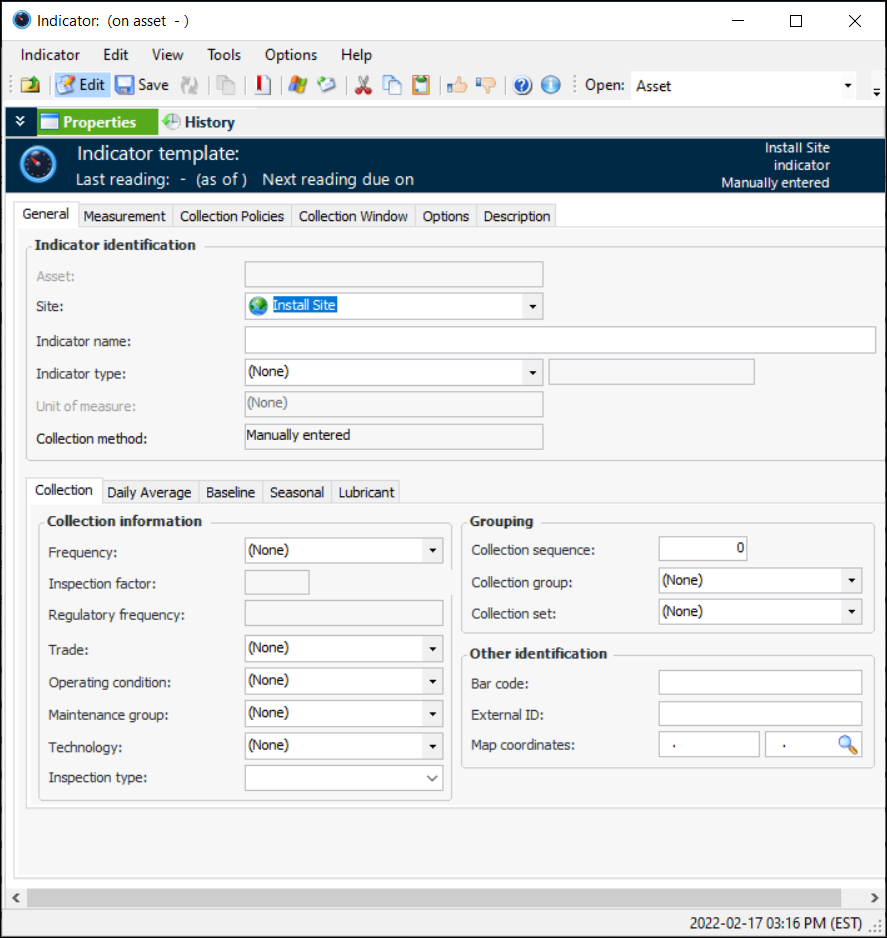
Click New. The Indicator template window appears.
4.
On the Properties view, General tab:
Select a descriptive indicator type from the Indicator type list. When you select a descriptive indicator type, the Type of value box says “descriptive.” The window changes to reflect the value type.
5.
6.
On the Collection tab, you can enter values that determine how often readings are expected and the next collection date. You can also enter information to make it easier to select this indicator when adding indicators to a work order task or standard task, when copying indicators to another asset, when setting up dynamic inspection routes, or when implementing reliability programs.
If you are creating the indicator from a strategy development analysis (MTA2, RCM2, RBI, CPR), the searching values (frequency, regulatory frequency, trade, operating condition, maintenance group, and technology) are automatically copied from the associated action plan, if the analysis’ indicator settings allow it. In this case, you need only verify the values.
Note: Any changes that you make to the searching values are not copied to the indicator’s associated action plan.
Review and select values, as appropriate:
Tip: If the technology is linked to an asset type that is used to collect indicator readings, you can identify the measurement device on indicator readings and checksheets.
7.
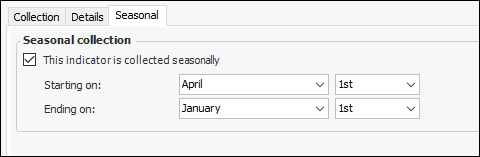
To specify the months during which readings should be taken, select the Seasonal tab. Click This indicator is collected seasonally and select the starting and ending dates. For example:
Reading due dates will reflect the seasonal settings.
8.
Select the Measurement tab and the Instructions tab to select collection requirements and enter instructions for taking indicator readings.
9.
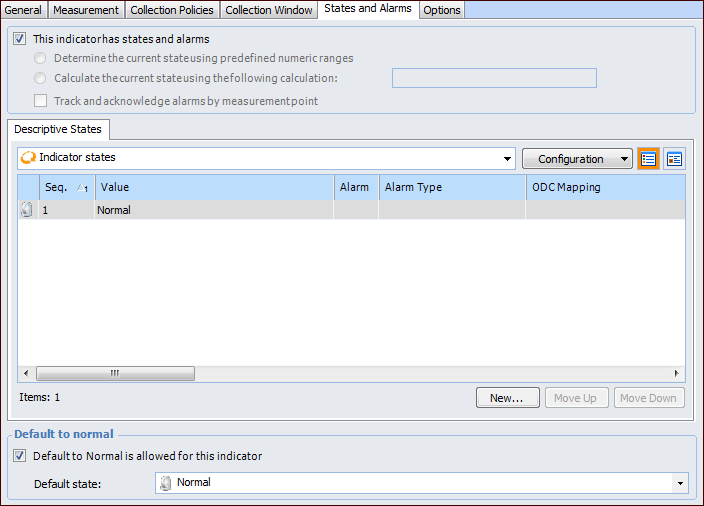
Select the States and Alarms tab.
On this tab, add the values that users can choose from when they enter a reading for an indicator created from this template. The “Normal” value is added automatically.
10.
If the indicator allows multiple measurement points, select Track and acknowledge alarms by measurement point if you want to allow each measurement point to be acknowledged individually.
11.
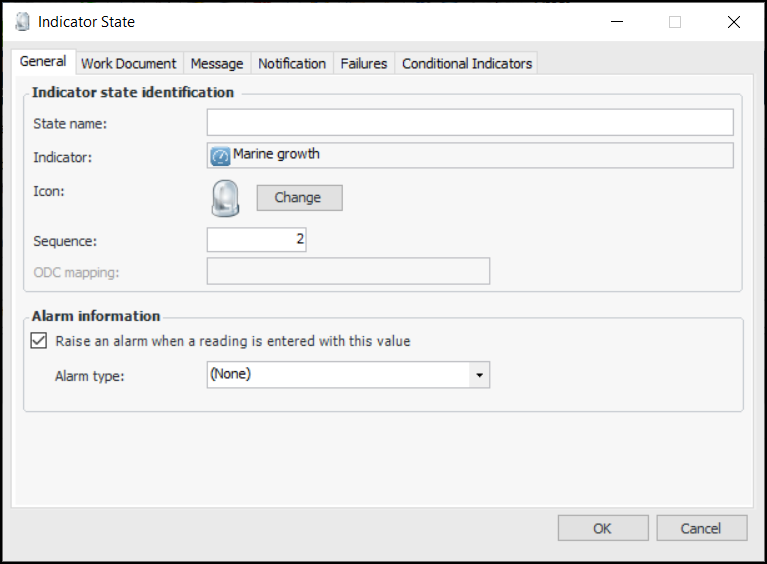
To enter a value, click New. The Indicator State dialog appears.
Optionally, you can have the system send an email to one or more employees when this indicator is in this alarm state. To set this up, click the Notification tab. Select one of the notification options, and then use the Browse button to select one or more employees.
Note: For this feature to work, each employee’s email address must be entered on the employee record.
12.
When you have finished defining the state, click OK in the Indicator State dialog. The state is added to the States tab.
13.
If the collection method is “manual”, the Default to normal allowed option is turned on by default. This means that, when a user enters readings for descriptive indicators, the Default to normal button is available. If you wish to disable this functionality, clear the option.
14.
If Default to normal allowed is selected, you can specify which non-alarm state is the default normal state by selecting it from the list.
15.
Tip: To create asset indicators using this template, see Creating Indicators from Indicator Templates.