Creating a Cumulative Indicator Template

A cumulative indicator is an indicator that tracks a value that increases over time. For example, an odometer is cumulative. Today’s reading will always be higher than yesterday’s reading. A cumulative indicator can be read as either an accumulated value (the value over the lifetime of the indicator) or as a consumed value (the difference from the last reading).
You can use indicator templates to quickly create indicators for many similar assets. For example, you could create an odometer indicator template for a fleet of trucks. You could then use the odometer template to create or copy an odometer indicator to each truck in the fleet. You cannot enter readings for indicator templates, only for asset indicators that are linked to a specific piece of equipment.
Indicator templates include all of the same information as actual indicators, except that they do not contain references to specific assets. You can use indicator templates to define the states and alarm settings for a group of asset indicators. For example, if you have a descriptive indicator for tire condition, you can standardize how employees record the tire condition for the entire truck fleet. You can also standardize the warnings or alarms that are triggered when certain tire conditions are recorded on the system.
If you change an indicator template, the changes only apply to new indicators created from the template. APM does not push the changes out to existing indicators based on the template.
APM provides many standard indicator templates, which you can use and revise as needed. To view templates, select the site’s Inspection Management view, Indicators tab, and Templates tab.
This topic explains how to create an indicator template for a cumulative indicator.

To Create a Cumulative Indicator Template
1.
Select the site’s Inspection Management view, Indicators tab.
2.
Select the Templates tab. By default, the table lists the indicator templates for the site and above.
3.
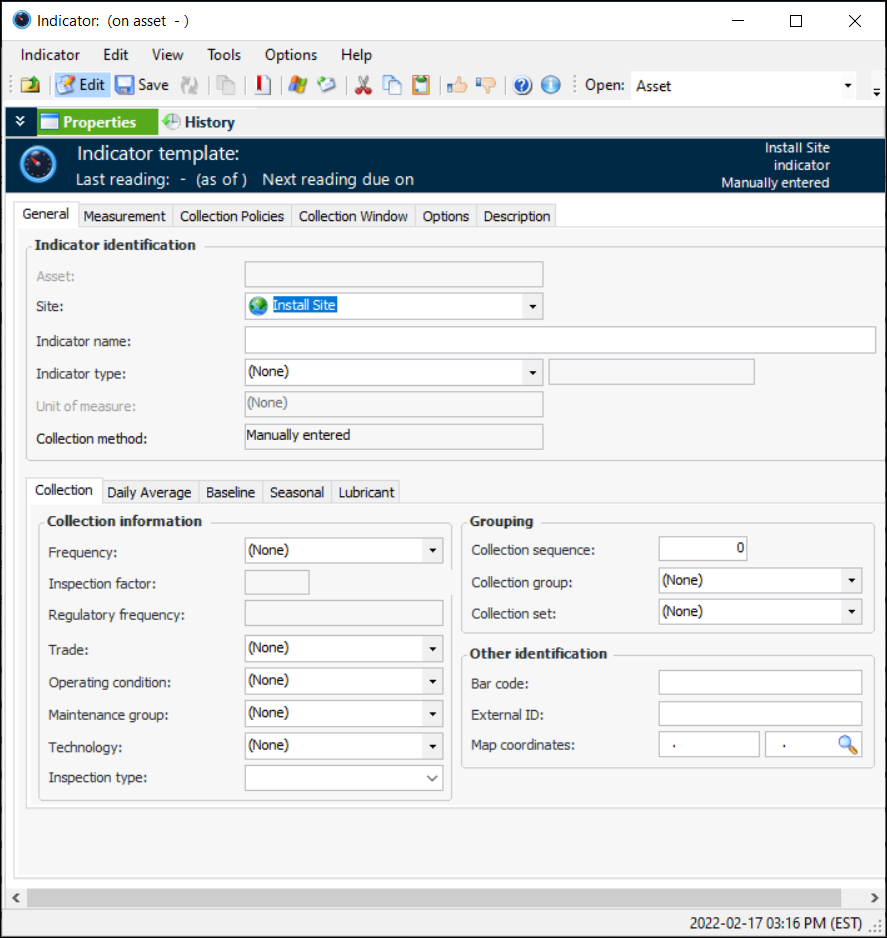
Click New. The Indicator template window appears.
4.
On the Properties view, General tab:
Select a cumulative indicator type from the Indicator type list. When you select a cumulative indicator type, the Type of value box says “cumulative.” The window changes to reflect the value type.
5.
Check that the value in the Unit of measure box is correct.
6.
Make a selection from the Collection method list:
If they are to be entered automatically by online collection devices, select Collected from an on-line source. The Online Data Source tab is added. See Configuring Indicators for ODC.
If the indicator readings will be collected on a different asset indicator, select Cascaded from another asset. When an indicator is created from the template, the user can select the other indicator.
If they are to be calculated, select Calculated using a formula. The Calculation tab is added. See Creating a Calculated Cumulative Indicator.
7.
On the Collection tab, you can enter values that determine how often readings are expected and the next collection date. You can also enter information to make it easier to select this indicator when adding indicators to a work order task or standard task, when copying indicators to another asset, when setting up dynamic inspection routes, or when implementing reliability programs.
If you are creating the indicator from a strategy development analysis (MTA2, RCM2, RBI, CPR), the searching values (frequency, regulatory frequency, trade, operating condition, maintenance group, and technology) are automatically copied from the associated action plan, if the analysis’ indicator settings allow it. In this case, you need only verify the values.
Note: Any changes that you make to the searching values are not copied to the indicator’s associated action plan.
Review and select values, as appropriate:
Tip: If the technology is linked to an asset type that is used to collect indicator readings, you can identify the measurement device on indicator readings and checksheets.
8.
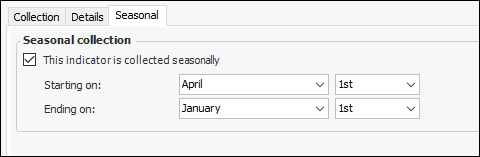
To specify the months during which readings should be taken, select the Seasonal tab. Click This indicator is collected seasonally and select the starting and ending dates. For example:
Reading due dates will reflect the seasonal settings.
9.
Select the Measurement tab and the Meter tab. On this tab you can set the measurement type and roll-over value or daily maximum values for indicators based on this template.
10.
In the Measured as list, select whether the indicator readings will be entered as accumulated values or as the difference since last reading. An example of an accumulated value is an odometer that measures the total number of miles traveled over the vehicle’s lifetime. An example of “difference since last readings” is the number of gallons of gas used since the last indicator reading.
11.
If the indicator uses an accumulated value, enter the Roll-over value for the indicator. This is the highest number that can be entered for the indicator. For example, on a vehicle the odometer might return to zero after 999,999.9 miles.
12.
If necessary, you can enter a Maximum total daily entry on the Limits tab for the indicator. This is the maximum total amount that can be entered in one day for this indicator.
13.