Creating a Calculated Indicator Template

A calculated indicator is an indicator that has its readings calculated using a formula, rather than entered manually by a person or electronically by an on-line system.
You can set up a calculated indicator to record information about an asset condition that is not directly available from a measuring device on the asset. For example, you could set up a calculated indicator to measure the efficiency of a pump. Because this is difficult to measure directly, you can create a formula that uses other indicators on the pump that you can measure. You can set up numeric, cumulative, and descriptive indicators as calculated indicators. You can use data from other asset indicators or from APM objects as part of the calculation.
If you set up calculated indicator templates, you can use them to create calculated asset indicators. This eliminates the need to define the calculation for each asset indicator. When you set up a calculation on an indicator template, you must define the variables using other indicator templates. This means that when you create an asset indicator from the template, you must update the calculation with the appropriate asset indicators.
Note: On indicator templates, you can only use other indicator templates in your calculation. When you use the template to create an asset indicator, you will need to reset the calculation so that it uses the correct asset indicators.

To Create a Calculated Indicator Template
1.
Select the site’s Inspection Management view, Indicators tab.
2.
Select the Templates tab. By default, the table lists the indicator templates for the site and above.
3.
Click New. The Indicator template window appears.
4.
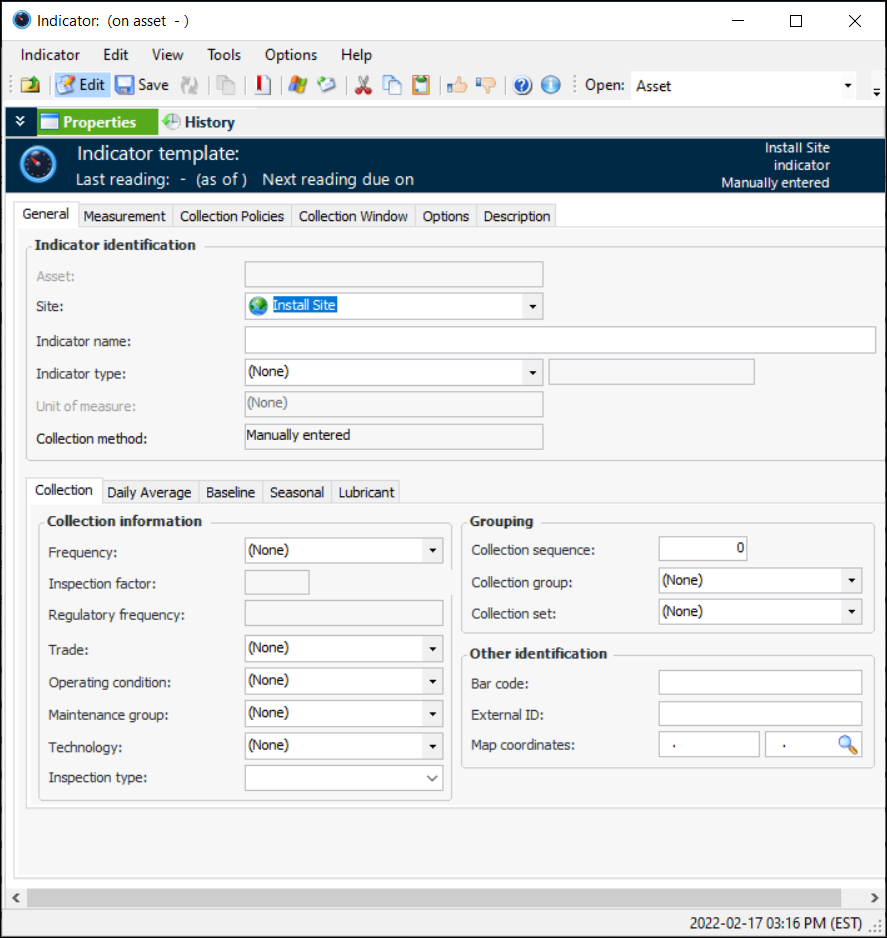
On the Properties view, General tab:
Select an indicator type from the Indicator type list. The window changes to reflect the value type.
5.
6.
In the Collection method list, select “Calculated using a formula.” The Calculation tab is added to the window.
7.
On the Collection tab, you can enter values that determine how often readings are expected and the next collection date. You can also enter information to make it easier to select this indicator when adding indicators to a work order task or standard task, when copying indicators to another asset, when setting up dynamic inspection routes, or when implementing reliability programs.
If you are creating the indicator from a strategy development analysis (MTA2, RCM2, RBI, CPR), the searching values (frequency, regulatory frequency, trade, operating condition, maintenance group, and technology) are automatically copied from the associated action plan, if the analysis’ indicator settings allow it. In this case, you need only verify the values.
Note: Any changes that you make to the searching values are not copied to the indicator’s associated action plan.
Review and select values, as appropriate:
Tip: If the technology is linked to an asset type that is used to collect indicator readings, you can identify the measurement device on indicator readings and checksheets.
8.
Select the Details tab if the indicator’s readings are to be represented with the gauge control. The target value defines the range of the gauge.
9.
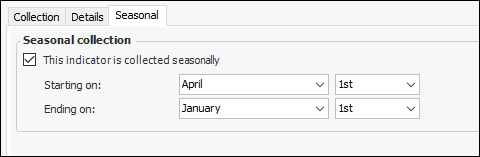
To specify the months during which readings should be taken, select the Seasonal tab. Click This indicator is collected seasonally and select the starting and ending dates. For example:
Reading due dates will reflect the seasonal settings.
10.
Select the Description tab to enter more information about the indicator.
11.
Select the Calculation tab.
12.
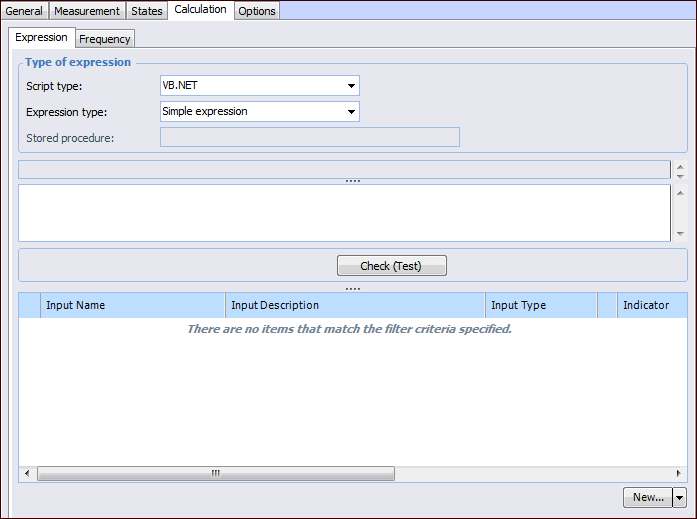
On the Expression tab, select the type of expression. A calculated indicator can be based on:
VB.NET – Inputs and functions defined on the Calculation tab can be used to create a formula that is calculated at run time. This is the default option
C# – Inputs and functions defined on the Calculation tab can be used to create a formula that is calculated at run time
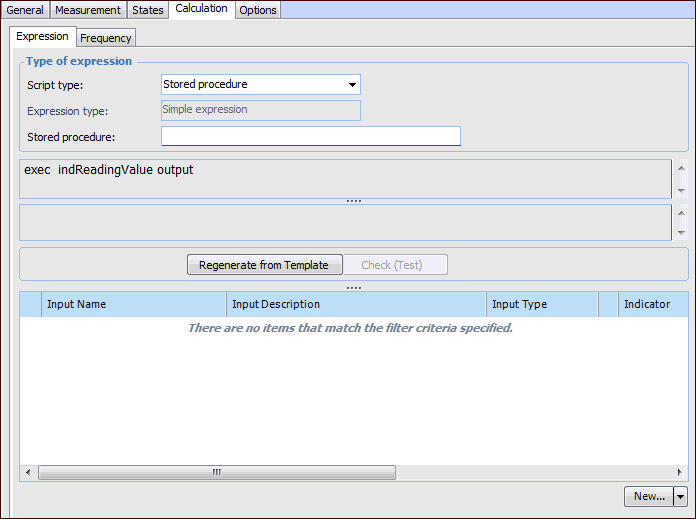
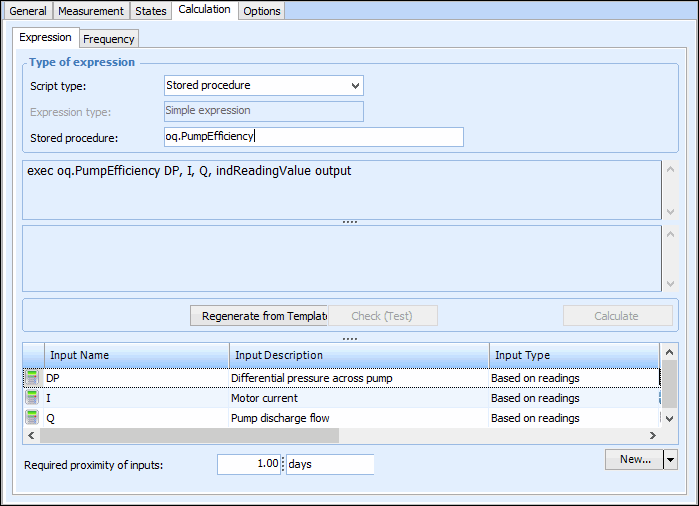
Stored procedure – The expression is provided in a stored procedure that receives its inputs at runtime and returns a value
13.
With the Complete class option, a starter script template is provided automatically, which you can edit as needed. You can also click Regenerate from Template to reset the formula to the starter script.
The template scripts include DebugData statements that you can augment to output trace messages when the Check (Test) or Check (Live) method is invoked to test the calculation.
Tip: You can view the template scripts by opening the Enterprise window, clicking the Administration menu and then Calculation options. For more information, see Defining Calculation Options.
14.
If the type of expression is VB.NET or C#, in the text box provided, type the mathematical formula that the indicator will use. You can use three elements in your formula:
Example:
To enter a calculation that takes the average of two indicators, you would type:
(Indicator1 + Indicator2) / 2
The variables “Indicator1” and “Indicator2” are placeholders for data from asset indicators. When the calculation is evaluated, APM will get the current values of the indicators.
15.
Provide the name of the stored procedure.
16.
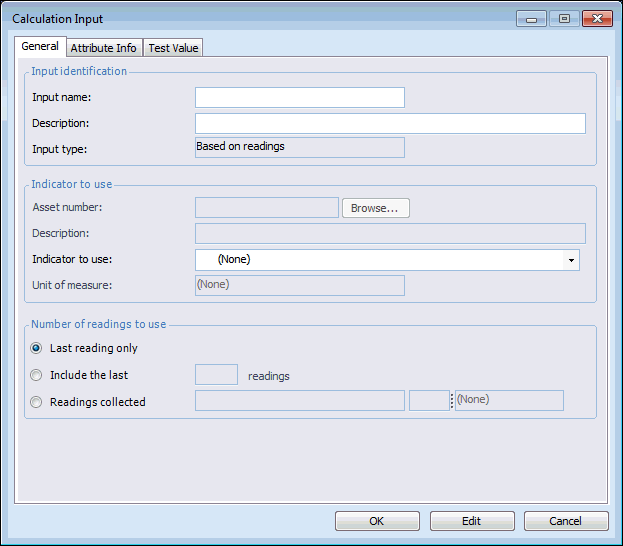
Note: On indicator templates that have reading-based inputs, you can only use other indicator templates in your calculation. When you use the template to create an asset or performance indicator, you will need to reset the calculation inputs so that they use the correct asset indicators.
For detailed instructions, see the following topics:
17.
18.
To use the test values on the inputs to complete a test calculation, click Calculate. You can use the result of this calculation to check that the expression is giving the desired results.
19.
When you have defined the calculation expression and inputs, you can click Check (Live). The test function uses the values from the inputs (for example, indicator readings) and displays the result in the Test Reading window.
Note: If you are using a C# complete class script and change the expression to a VB.NET complete class script (or vice versa), you must first click Regenerate from Template to regenerate the template to use the proper syntax.
20.
Ensure that the parameters in the stored procedure match the input names and that the procedure includes a return value parameter.
21.
If necessary, you can change the Required Proximity of the calculation inputs. This option appears in the Expression tab after you have added two or more inputs based on readings.
22.
Select the Frequency tab. In the Triggering mechanism section, select when and how the system triggers the calculation. If the calculation is to be triggered at a regular interval (based on a recurrence pattern), define the scheduled interval for the indicator.
For detailed instructions, see Defining an Indicator’s Calculation Frequency.
23.
On the States and Alarms tab, you can set up states and alarms for the indicator template. For detailed instructions, see Adding States and Alarms to an Indicator or Template.
24.
Tip: To create asset indicators using this template, see Creating Indicators from Indicator Templates.