Invoicing Overview

APM invoicing is used to match supplier invoices against the information in the APM procurement system (purchase orders and purchase order lines). The invoicing function allows invoices to be entered, matched, and balanced. Discrepancies are displayed immediately, and a user can make the necessary corrections or forward the invoice to the appropriate person to act on.
This topic discusses concepts related to invoice entry in the APM system. It covers:

Introduction to APM Invoicing

This section provides a brief overview of some of the key invoicing features in APM.

Three-Way Matching

Invoicing logic automatically ensures that you are paying only for the goods and services ordered, that the quantity invoiced matches what was received, and at the agreed upon price.

Price Tolerances

You can control the maximum price difference that can be accepted by invoicing clerks. Invoices with a price difference that exceeds your allowable value are routed for approval before the invoice can be posted.

Purchasing Activities

In addition to the traditional material receipts, the following purchasing activities can also be matched to an invoice’s lines:

Maintenance Costs and Inventory Value Updates

Invoicing is fully integrated with the other components of APM. Any differences between the purchase order and invoice price for direct purchases are immediately reflected in the work order, asset, and project costs. Differences between expected and invoiced taxes and extra charges are also tracked. Inventory values are also updated to reflect the difference between the purchase order and invoice price for inventory purchases.
Invoices that do not reference an APM purchase order and transaction can also be entered. If the invoice is charged to a maintenance work order or asset, the maintenance costs are updated.

Credit Memos

Credit memos are used to record a credit if the material invoiced was faulty, the wrong part was delivered, or the invoice was incorrectly entered.

Non-Purchase Order Invoices

APM invoicing can be used to enter all of your invoices. This includes invoices for employee expenses and miscellaneous purchases where a purchase order was not issued.

Invoice Reversals

You can create reversing invoices for posted invoices (including credit memos) that were entered in error or that have errors. The process includes reversing liabilities, PO lines, and inventory. You can also create a replacement for the original invoice.
TOP

Invoice Life Cycle

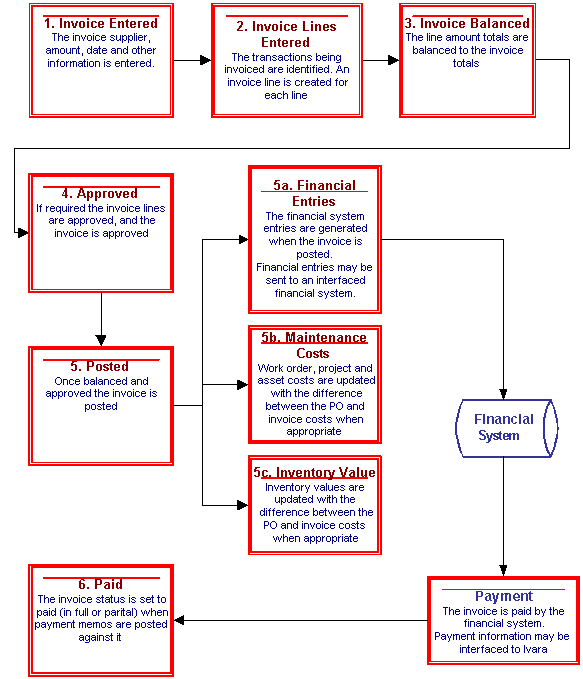
APM invoices have a well-structured life cycle that moves from initial creation through balancing, approval, and posting. The diagram below summarizes the invoice life cycle.
TOP

Price Differences and Tolerances

The invoice price does not always match the expected price from the purchase order line. There are a number of reasons why prices might differ, for example, if the purchase order was not updated when the supplier provided the correct price.
When you create an invoice line, the system sets the invoice line price to the purchase order line’s current price. If the invoice price differs from the default price, you can change the price to match the price on the invoice.
Price tolerances allow you to control what is an acceptable price change and what is an unacceptable price change. An invoice with an acceptable price change can be entered and accepted by the invoicing clerk. No further approval is required.
An unacceptable price change occurs when the difference between the purchase order price and invoice price exceeds your tolerances.
You can define separate price tolerances to control situations where the invoice price is higher than the purchase order price, and where the invoice price is lower than the purchase order price. To be within your tolerances, the change as a percentage and value must both be within your site’s tolerances.
You can also define tolerances for tax and extra charge lines. The expected amount on extra charge lines is the sum of the expected amounts from all of the invoice line extra charges for the same extra charge. For each individual invoice line, the expected extra charge amount is calculated from the purchase order line’s extra charge (if one is referenced). If there is no purchase order line referenced then the expected value is zero.
If you do not enter price tolerances for an invoice line type, the system allows any difference for that line type and does not require approval of that type of invoice line.
Note: The tolerances used are those entered for the site that owns the invoice. These may be different than the tolerances for the site at which the transaction was originally entered. Site tolerances can also be overridden at the resource level.
The price tolerances are defined as:
Percentage: the percent by which the invoice line price can differ from the purchase order line price.
Amount: the amount by which the invoice line can differ from the expected line price based on the purchase order price and quantity being invoiced.
For example, a purchase order line has an order quantity of 10 at a price of $2. An invoice line is entered for a quantity of five at a price of $2.25. In this case the price differences are:
If either the percentage or amount exceeds your tolerances, the line and invoice cannot be posted until one of the following occurs:

Service Acknowledgments

For service orders, you can enter the amount of any additional charges as part of the service acknowledgment. When an invoice line is matched to a service acknowledgment, the system creates an extra charge line for the additional charges entered on the acknowledgment. The extra charge line is automatically prorated to the service invoice line. The type of extra charge used for additional service charges is set on the site’s invoicing settings.
For example, a service order is issued for a contractor to come on site and perform a task. The order is for 8 hours at $50/hour. The service acknowledgment is entered for the hours worked. An additional charge of $80 is entered on the acknowledgment for the cost of the materials the supplier used. In this case the invoice's expected amount of the invoice is $480 (the purchase order price of $50/hour plus the extra charge of $80).

Consignment Invoices and Price Tolerances

By definition, the line price for a consignment usage cannot be changed. Consigned resources are issued at the supplier's current price and this is the price paid by the customer. However, timing problems may create situations where an issue is recorded before the supplier's new price is entered. This results in the resource being issued at the wrong price.
Therefore the invoice line price can be changed for consignment invoices. When the price is changed on a consignment invoice line:

Fixed Price Purchase Order Lines and Price Changes

A fixed price purchase order line is from a purchase order that references a purchasing contract with fixed pricing. By definition, fixed price contracts have zero tolerance for price changes. If you change the purchase order price from that on the contract, the purchase order must be approved. If the invoice price is changed, the invoice line must be approved. The invoice line will be routed for approval based on the purchase order’s buyer.
TOP

Automatic Balancing Threshold

The automatic invoice balancing threshold can simplify the process of entering an invoice when there is a small difference between the supplier's invoice total and APM's expected total. These differences are usually caused by differences in the number of decimal positions or rounding rules in the two systems.
For example, assume that three pens have been purchased at a price of $0.33 each. In the supplier’s system, the price has been recorded to three decimal positions as $0.333. In APM, the price was entered simply as $0.33. On the supplier invoice, the cost of the pens is $1.00 (3 X 0.333 = $0.999 which would be rounded up to $1.00). Because APM has a price of just $0.33, the expected price is only $0.99. For this example, APM has been configured to only allow two decimal places for the price. Therefore, the price cannot be changed on the invoice.
The invoice balancing threshold will force the APM amount to equal the supplier's invoice amount as long as the difference between the two totals is within the threshold defined for the site. In this case, the APM invoice total would be forced to $1.00.
Each site in your organization might have a different automatic balancing threshold.
TOP

Balancing an Invoice

Before an invoice can be posted, it must be balanced. To be balanced, the total invoice amount (as entered from the supplier’s invoice) must equal the sum of the line amounts, including remitted extra charges and remitted tax lines.
This table shows an out-of-balance invoice:
This table shows a balanced invoice:
If an invoice is out of balance and the difference is above the balancing threshold, you can take one or more of the following steps:

Automatically Balancing an Invoice

APM will automatically balance an invoice if the amount by which the invoice is out of balance is within the site's threshold.
For example, an invoice is entered for $100. The invoice has two lines: one for $50.00, the second for 50.02. Rather than requiring the invoicing clerk to review the lines and determine the source of the problem APM automatically corrects the problem by applying an adjustment to the first line. The resulting invoice appears as:
Automatic balancing applies to all invoices. This includes consignment invoices, and invoices with lines that are not matched to an existing liability. The value of the difference is always applied to the invoice's first line, and is tracked in the 'balancing adjustment amount' on the invoice line.
Note: Automatic balancing is calculated and shown on the lines after the invoice has been posted.
Although the value of the balancing difference is entered in the site’s currency, the system treats the value as a non-currency amount when comparing it to the invoice difference. The value of the balancing difference is always calculated in the supplier’s currency. The difference between the invoice amounts and line totals must be within the site’s balancing tolerance for APM to automatically adjust the invoice.
Currency example 1:
Currency example 2:
TOP

Approvals

Two levels of approvals are supported for invoices: invoice approval and invoice line approval.

Invoice and Credit Memo Approval

Invoice approval approves the invoice as a whole for payment. Typically, an invoice is approved by the person responsible for the account to which the invoice costs are charged.
Most invoices do not require approval. The costs were approved when the requisition and/or purchase order was created. However, invoice approvals can be used to:
Invoice approval can be activated by invoice type. Because the invoice type defines whether the invoice is a regular invoice or credit memo, you could require that credit memos be approved, while not requiring approval for invoices.
For invoices, approval route selection is based on the GL accounts charged. The approval route’s automatic approval threshold amount is used to automatically approve low value invoices.

Invoice Line Approval

Invoice line approval is used to approve the individual lines on an invoice. Line approval is used when the invoicing clerk cannot accept an individual line because the price difference exceeds the defined tolerances. This situation requires an additional level of approval.
If an invoice line is entered and its price difference exceeds the tolerances, the following behavior occurs:
Approval route selection is based on the purchase order line’s buyer.
Approver limits are based on the value of the difference between the purchase order line and invoice line. For example, if the purchase order line value is $1,000 and the invoice line value is $1,500, the line must be approved by an approver with an approval limit of $500 (the difference between the purchase order line and the invoice line).

Credit Memo Line Approvals

If you are entering a credit memo line that is matched to a return transaction, the system uses the regular line price tolerances to determine if approval is required. However, since the line is for a credit, the system uses the ‘price increases’ tolerance when the price is lower on the credit line than it was on the return transaction; and the system uses the ‘price decreases’ tolerance when the price is higher on the credit line.
For example, you returned 10 items to the supplier at a price of $10.00 each. When you enter the credit memo line you discover that the price was really $10.50. Since your organization is getting a larger credit due to the increase price, the system uses the ‘price decreases’ tolerance to evaluate the line.

Invoice Line Approval for Extra Charge and Tax Lines

Invoice line approval can also be used to approve an invoice’s extra charge and tax lines. Approval for these lines works in the same way as regular invoice line approval: if the value of the line is different than the expected price and the difference exceeds the tolerances, the line must be approved.
Extra charges and taxes included on the invoice that were not identified on the invoice’s purchase order are assumed to have an expected price of zero; the extra charge or tax was not identified as being applicable for the purchase order.
Extra charge and tax lines on invoices that do not reference a purchase order do not have to be approved. Only extra charges and taxes on purchase order invoices require approval.

Using Invoice and Line Approval Together

When both invoice and invoice line approvals are being used together, the workflow is as follows:
TOP

Invoice Lines

An invoice line contains the details of the invoice. An invoice line can be matched to a source invoiceable liability (for example, receipt, service acknowledgment) or have no source (that is, not matched to a purchasing source transaction). Each line contains the same information: what is being invoiced (resource), quantity, price, amount, and where the costs are being charged.

Invoice Line Tax Information

Tax information is entered at two levels on the invoice:

Invoice Line Extra Charge Information

Extra charge information is entered at two levels on the invoice:

Invoice Line Distribution Information

The invoice line’s distribution information identifies where the invoice costs are being charged. Normal purchasing distribution is supported: an invoice line can be distributed to a work order task, asset, cost type, warehouse item inventory, and/or general ledger account. An invoice line can be distributed to multiple distribution entries.
The distribution for lines that are matched to a transaction originates with the transaction’s distribution. For example, the distribution for a line associated with a purchase receipt defaults to the distribution on the receipt’s purchase order lines. The defaulted distribution can be overridden on the invoice line with the following restrictions:
TOP

Invoice Liability Records

In APM, liabilities contain the information relating to the four types of resource transactions that can be matched to invoice lines:
You can create invoice lines from liabilities. Invoice liabilities identify:

Purchasing Events and Invoice Liabilities

The system creates an invoice liability when each of the following events occur:
In addition, the invoice liability records are updated when the following events occur:

Creating Invoice Lines from an Invoice Liability

When an invoice line is created from an invoice liability the transaction information is copied from the liability invoice to the new invoice line. Some of the information cannot be changed on the invoice line. The invoicing clerk simply verifies that the information is correct. Price, quantity, charges, taxes and distribution can be changed on the invoice with the restrictions described below.

Updating the Invoice Liability when the Invoice is Posted

The invoice liability is updated when the invoice is posted:
TOP

Prorating Taxes and Extra Charges

Prorating is the process by which the value of a tax or extra charge is distributed over the invoice’s lines. For example, an invoice contains a freight line for $100. The invoice contains two lines, each for $500. Prorating the $100 freight charge results in the cost charged to each line to be increased by $50. Therefore $550 would be charged to the work order or account associated with each line.
The general rules for prorating are:
The results of the prorating are seen in the maintenance adjustments for each invoice line.
Using the example of the $100 freight charge and the two $500 lines, if the lines have an applicable freight charge identified on them, APM would use the calculation defined on the extra charges to determine how much to charge each line. For example
If the amount of the charge (or tax) cannot be completely prorated using the lines' charge definitions, APM distributes the remaining value based on the percentage of the line's value.
For example, a freight charge is being prorated over 3 lines:
If necessary, APM increases or decreases the lines' calculated value to ensure that all of the charge is distributed.
Another example is an invoice with a $40 freight charge and two $500 lines, where both of the lines have an applicable freight charge of 5%. The initial calculation would result in a charge of $25 being added to each line. This exceeds the invoice's freight charge by $10. The system then removes $5 from each of the two line’s charges, resulting in only $20 being charged to each line.

Example 1: A Freight Charge to Applicable Lines Only

In this example, a freight charge is being prorated. The user has selected the 'prorate to applicable lines only' option.
The freight charge is for $100.
First APM attempts to honor the lines' freight calculation rules:
At this point only $90 of the $100 freight charge has been prorated. The remaining $10 needs to be prorated. Since the charge is only being applied to the applicable lines, APM recalculates the amounts charged to lines 1, 2 and 3.
The total value of the lines the charge is being distributed to is $400. This results in the following amounts being added to each line’s charge:
The full amount of the freight charge has now been prorated over the applicable lines.

Example 2: A Freight Charge to All Lines

In this example, a freight charge is being prorated. The user has selected the 'prorate to all lines' option.
The freight charge is for $100.
First APM attempts to honor the lines' freight calculation rules where freight has been identified as applicable. The calculations are the same as the previous example:
At this point only $90 of the $100 freight charge has been prorated. The remaining $10 needs to be prorated. Since the user has selected the all lines option, the $10 is prorated over all of the lines.
The total value of all of the lines is $600. The remaining $10 is prorated to each line based on each line’s percent of the total value.
The full amount of the freight charge has now been prorated over the lines.

Example 3: A Freight Charge to All Lines With No Applicable Lines

In this example, a freight charge is being prorated to all lines. No lines have been identified as having freight as an applicable charge. In this case the amount is distributed over all of the lines.
The freight charge is for $90. The total value of the lines the charge is being prorated to is $600. Each line is charged a percentage of the $90 equal to the line's percentage of the total value of all lines.
 

Example 4: A Tax Charge to All Lines

Taxes are prorated in more or less the same manner as extra charges. The only differences are:
In this example, a state tax charge is being prorated to all lines. The invoice contains four material lines and a fifth line for a freight charge. The freight charge is also being prorated to all lines.
The tax rate is 8%. The invoice is for $1,000. The tax on the invoice is $80.
After the tax has been prorated, the freight charge is prorated. Since the amount being charged has been increased by $8.00 tax, a total of $108 freight charges is prorated.
TOP

Credit Memos

A credit memo is used to credit your organization for a previously entered invoice. Common reasons why a credit memo is issued are the wrong price was charged on the original invoice, the quantity was incorrect on the original invoice, the wrong material was shipped, or the material was sub-standard and was returned.
A credit memo works in the same way as an invoice, except that normally you can enter lines with negative amounts.
Both quantity and price adjustment credits are supported in APM. A quantity credit is entered when your organization is receiving a credit for some or all of the quantity previously invoiced. A price adjustment is used when the credit is adjusting the price at which the material was originally invoiced.
When creating a credit memo for items that have been returned to the supplier, you must first have created a return receipt transaction to record the quantity that was returned. Then you can create a credit memo line matched to the return transaction.
When a supplier issues a credit for materials that are not being returned, you can enter a price adjustment line to the credit memo. For example, you could use this process when your organization was overcharged for materials delivered on the original invoice.
TOP

Posting Invoices

An invoice can be posted when all of the following conditions are met:
APM automatically posts an invoice when any of the following events occur:
An invoice is only automatically posted if all of the prerequisites for posting are met. For example, an invoice batch that contains five invoices is posted. All of the invoices are balanced. One of them requires approval, while another invoice has one line with a price discrepancy that requires approval. When the batch is posted:
An invoice and its lines cannot be redrafted after the invoice has been posted. However, non-financial information can be changed on a posted invoice, as long as the financial entries have not been sent to an interfaced financial system.
TOP

Updating Maintenance Costs

Maintenance costs are updated with the information from the invoice lines. Maintenance costs are updated for any line that is having its costs distributed to a maintenance account (either a work order task or an asset) when either the amount charged or distribution information (work order task, asset, cost type) has changed.
Invoice adjustment type resource transactions are created to update the maintenance costs. Invoice adjustment transactions are only created in the situations listed below. In these examples, for simplicity the term 'receipt' is used to refer to the transaction that is being invoiced. The functionality is the same for the other types of transactions that are invoiced: service acknowledgments, equipment rentals and consignment usage.
1.
2.
3.
4.
5.
TOP

Updating Inventory Balances

Invoice lines that are matched to an inventory receipt update the inventory balances if the amount charged on the invoice differs from the amount charged on the receipt. When this occurs, an invoice adjustment type of resource transaction is generated. The adjustment value on the transaction is set to the difference between the invoice and the receipt:
TOP

Invoice Financial System Entries Information

The invoice line distribution identifies the “accounts” (that is, the work order task, asset, cost type, warehouse, and GL account) that are charged with the cost of the line. This is the full amount of the charge. It does not reflect the amount that was charged when the materials were received. The invoice line distribution is what the invoicing clerk sees and works with when entering the invoicing.
The invoice financial system entries identify the accounts and amounts to be updated in the financial system to reflect the difference between the receipt and the invoice. This assumes that you are already interfacing purchasing receipts to your financial system. Financial system entries are generated when an invoice is posted.
Note: If necessary, you can change the site settings so that full financial system entries are generated for invoice lines, instead of the default behavior described above. This would reflect the full amounts and accounts charged on the invoice. However, you would only use this setting when you are not interfacing purchase receipts to your financial system.
Depending on the nature of the changes between the receipt and the invoice, the financial system entries can consist of:
The examples that follow illustrate the entries that are generated in each of the different cases.

Invoice as Received

This is the simplest case. The invoice and receipt are identical - the invoice price is equal to the value at which the material was received and the same accounts are being charged.
The receipt values are:
The invoice line and distribution values are:
The following financial system entries are created
No entries are generated for the work order, asset and account charged since the values from the receipt match the information on the invoice.

A Price Change on the Invoice

In this case the material is invoiced at a different cost than what was used on the receipt. The price difference could be for any of the following reasons:
Any of these reasons can result in a different amount being charged on the invoice than the value that was charged on the receipt.
The receipt values are the same as the previous example:
The invoice line and distribution values are entered as shown below:
The following financial system entries are created
Note that the value charged to the work order, asset and GL account is equal to the difference between the receipt and invoice - one dollar. The receipt already charged the other $100.

The Distribution is Overridden on the Invoice

In this case the distribution is overridden on the invoice. That is, a different work order, asset, and/or account is charged.
The receipt values are the same as the previous examples:
The invoice line and distribution values are entered as shown below. Note that the work order task has been changed. This resulted in changes to both the asset and GL account.
The following financial system entries are created as shown below. In this case the amount that was charged to the work order, asset, and GL account at the time is cleared with the negative charge (row 3). The full amount of the invoice is charged to the work order, asset and GL account identified on the invoice (row 4).

No Source Transaction Matched to the Invoice Lines

In this case the invoice line is entered without a matching source transaction.
The invoice line and distribution values are:
The following financial system entries are created. Since the invoice was not matched to a source transaction, an entry to clear the RNI accrual is not required. The example also shows that invoice lines that are not matched to a source transaction can be charged to a work order, asset or GL account as per usual.

Information Contained in Invoice Financial System Entries

The following information is defined at the invoice financial system entry level:
TOP

Holds

After purchased items have been received, you can hold them from being invoiced. For example, you might want to do this if the material is still being inspected or if it was damaged. When you hold a liability, you cannot create an invoice line for the liability or post an invoice line that was already created. You can later release the hold so that the invoice can be created.
After an invoice has been created, you can hold it from being posted. For example, you might want to do this if the material is still being inspected or if it was damaged. When you hold an invoice, you cannot post the invoice lines. You can later release the hold so that the invoice can be posted.
You can also hold an invoice from being paid. This allows the invoice to be posted but prevents the creation of an invoice payment record.

Invoice Batches

An invoice entry batch is a collection of invoices that are being entered and balanced as a group. The purpose of the batch is to ensure that all of the invoices have been entered and that the amounts entered are correct. The use of invoice batches is optional.
If an invoice is included in a batch, the invoice cannot be posted until the batch is balanced and posted.
The following information is entered for each batch:

Balancing a Batch

Before an invoice batch can be posted, it must be balanced. To be balanced, the number of invoices and their value must equal the totals entered for the batch. The invoice batch totals and status are displayed on the Invoice Entry Batch window.
If all of the batch’s invoices have been entered and the batch is still out of balance, the reason could be one of the following:

Invoice Batches with Invoices with Different Currencies

For the purpose of balancing an invoice batch, no currency conversion is performed. The batch total is entered as a numeric value, not as a currency amount. The invoices’ amounts are totaled and balanced to the batch total simply based on the numeric value of the invoice.
For example, an invoice batch is entered consisting of three invoices. The batch value is entered as 300.00. The following invoices are entered for the batch:
The batch is in balance.
TOP

Invoice Payment Memos

While APM does not include check-writing capability, attributes are included in the invoicing function for payment information. This allows your organization to use a custom interface to send the payment information to APM. This will allow APM users to be aware of the status of the payment of an invoice. For example, if a planner is being questioned by a contractor as to the status of an invoice, the information will be readily available within APM.
No processing is associated with the invoice payment information within APM other than to set the invoice line and invoice status to partially or fully paid.
TOP