Inventory

You can use APM to manage your inventory stores. To do this, create resources, such as materials and tools, and then stock them in a warehouse as warehouse items. Items stocked in inventory can be picked using pick lists and counted using count sheets. You can also include parts lists for kits, such as safety kits with bandages, gauze, and antiseptics.
This topic explains resources, warehouses, warehouse inventory groups, and warehouse items, as well as other concepts in the APM software that relate to inventory. You will need to understand these concepts to implement and maintain the inventory function in APM.
To learn about consignment inventory in APM, see Consignment Inventory.

Resource Catalog

You can add materials and tools that are used in work orders to the resource catalog. You can also set up trades and outside services as resources in the catalog. Once you have set up resources, you can add them to your work orders in the planning stage.
In the Resource Catalog view, users can find and organize the resources required to support the work being done on the site. When resources are used or committed to work orders, APM creates resource demands on the system.
TOP

Warehouses

APM uses warehouses to track inventory and inventory transactions. A large site might have multiple locations where inventory is stored. Each location can have different material or different demands for the same material. It is not uncommon for a main warehouse to be the main supplier to satellite warehouses. For these reasons, you can set up multiple warehouses, transfer material between warehouses, and maintain detailed transaction records.
There are no limits to the number of warehouses that you can create, and in complex sites, there may be a large number. As a general rule, if a storage location is uncontrolled, you should not set it up as an APM warehouse because it would be almost impossible to maintain an accurate transaction history.
Warehouses enable you to see the stocked items, issue items, receive items, check replenishment status, count inventory items, and view warehouse transactions.
TOP

Inventory Groups

An inventory group allows you to define specific information about a group of items in inventory. You can indicate that items are either owned by your organization or consignment inventory. For consignment inventory groups, you must identify the consigning supplier.
You must have at least one inventory group in the system, typically, the group for your regular, owned inventory. This inventory group is used to track inventory purchased under normal purchasing agreements; that is, inventory purchased at the time of receipt.
To track consignment inventory, you must also create an inventory group for each supplier with whom you have a consignment agreement.
Inventory groups are not used on their own but must be linked to warehouses to create warehouse inventory groups.

Warehouse Inventory Groups

A warehouse inventory group specifies a group of items contained within a particular warehouse. Each warehouse can have one or more warehouse inventory groups. It is the warehouse inventory group that most users work with on a day-to-day basis.
The name of the warehouse inventory group is made up of a combination of the warehouse name and the name of the linked inventory group. The inventory group allows you to indicate that the warehouse items are either owned by your organization or are consignment inventory. Each supplier with whom you have a consignment agreement has its own inventory group.
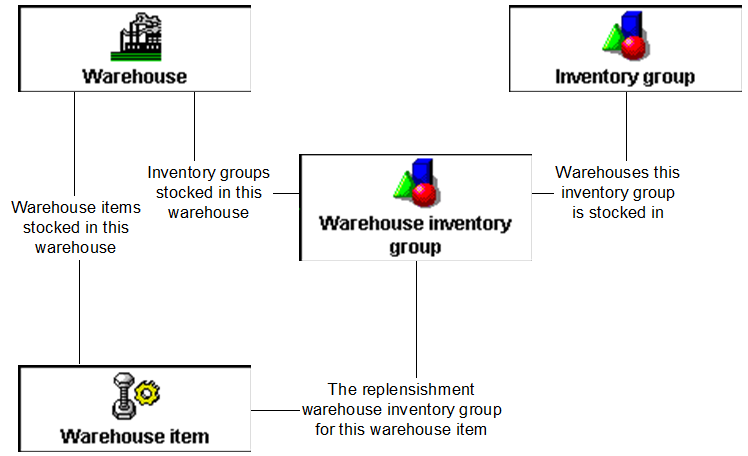
The following diagram shows the relationships between the warehouse, inventory group, and warehouse inventory group objects. In the system, warehouse items are stocked in warehouses; however, for replenishment purposes, each warehouse item must refer to a warehouse inventory group. It is this reference that determines whether the item is part of consignment or regular inventory.

Warehouse Items

To make use of the inventory function, you must link items in the resource catalog to a specific warehouse. You can do this by creating warehouse items for each warehouse. When you create a warehouse item, you can enter the locations where the warehouse staff can find the item and a picking method for the item (for example, manual or forklift). This information is included when the item is placed on a pick list. You can also select a count group for each item. You can use count groups to filter warehouse items when creating count sheets.
You can set up replenishment rules for warehouse items. APM uses these rules to determine when you need to get more stock. If the resource is a consignment item, you must select the appropriate consignment inventory group as the inventory group for receiving the replenishment orders.
Warehouse items can also be set to have a manual replenishment review. For example, a manual review would be appropriate when you stock seasonal or high value materials. When an item needs to be replenished, you can set APM to create either a purchase order or a request to transfer stock from another warehouse.

Replenishing Inventory

In the replenishment rules for a warehouse item, you can set a replenishment point. For example, if you have a warehouse item called Battery AA, you might set the replenishment point to 50. APM tracks the number of AA batteries in the warehouse and the demand for the batteries. When the “available balance” of Battery AA falls to 50 or lower, a replenishment purchase order or transfer request is placed. This occurs when a user selects to replenish either a warehouse or a warehouse item.
You can think of the replenishment point as the “safety stock” quantity, plus the quantity required to satisfy expected demand during the replenishment lead time. If the warehouse item can be reserved, the system uses the reserved demand quantity instead of calculating the lead time demand. If the warehouse item cannot be reserved, then you can estimate the lead time demand using the following formula:
Lead Time Demand = Average Monthly Demand x (Time To Process Order + Time To Procure Item + Time To Put Away Item) / 30
You can set a warehouse to either use the time to procure set on each warehouse item or to use the time set on the supplier resources.
You can use replenishment requisitions to maintain the inventory levels of warehouse items. Each warehouse item can be set up for either automatic or manual replenishment review.
When you run the Generate Replenishment Requisition method for a warehouse, APM reviews the warehouse items set for system replenishment and then automatically creates replenishment requisitions for warehouse items that have reached the set replenishment point.
You can also manually generate replenishment requisitions for warehouse items that use either an automatic review or a manual review. You must manually generate the requisition for items whose replenishment rules indicate a manual review.
Replenishment requisitions use the supplier or warehouse information indicated in the purchase from or transfer from section of the replenishment rules tab for the warehouse item.
If the inventory group selected in the replenishment rules is a consignment inventory group, the item is treated as a consignment resource and the requisition is a consignment requisition.
If selected on the supplier resource price (the Replenishment review not required option), purchase orders can be automatically created for warehouse items being replenished.
TOP

Inventory Reserves

Future demand for inventory material can be factored into the replenishment process through the use of inventory reserves. The only purpose of inventory reserves is to influence the inventory replenishment cycle, facilitating just-in-time delivery of inventoried resources.
Reserves do not place an allocation on inventory material. That is, placing a reserve on inventory materials does not prevent the system from issuing the reserved quantity to other users.
If a resource is stocked in a warehouse, it can be flagged as participating in the inventory replenishment process as reserved demand, rather than average demand. When a resource is identified as reserveable, all resource demand for warehouse issues or warehouse transfers of that warehouse item is reviewed during the warehouse replenishment process.

Replenishment Calculation

When you generate a replenishment requisition, the system compares the warehouse item’s available quantity to the replenishment point quantity. If the available quantity is equal to or less than the replenishment point quantity, the warehouse item is included on the replenishment requisition with the appropriate replenishment quantity.
When calculating the available quantity, the system subtracts the reserved demand quantity from the quantity on hand, even though the reserved quantity has not yet been issued. This allows the system to predict the quantity that will be needed before a replacement order can be processed, shipped, and stocked. In this way, the warehouse can stock less material, ordering and receiving it on an as-needed basis.

Resource Demand

When a warehouse item is reserveable, the system reviews demands for that warehouse item to determine when it participates as an inventory reserve. Resource demand can originate from two places: work order requirements and requisitions.
The rules used to determine when a reserve is placed are:
1.
2.
3.
4.
The availability date is calculated by adding the total lead time required to replenish the warehouse item to the current date. The date the material is required is defined on the originating work order task or requisition.
For example, if today is March 24th, the total lead time is four days, and the material is required on or before March 28th, the required quantity is reserved. If the material is required after March 28th, no reserve is placed.

Reserve Placement Timing

Reserves are placed on a warehouse item when any of the following occurs:
Note: If the work order or requisition is later redrafted, deleted, or closed, the reserve is removed.
When the warehouse item is issued or transferred, the previously reserved quantity is removed.
TOP

Counting Inventory

You should periodically check that your inventory balances are accurate using a physical count of the items on hand. Any difference between the value of the inventory in APM and the value of the actual quantity on hand must be recorded in the general ledger. When you need to adjust your inventory following a physical count of stock, you can post the difference to an account such as Inventory Shrinkage Expense.

Warehouse Inventory Groups

Inventory counts are based on warehouse inventory group balances. This means that you count the quantity of an item associated with a warehouse and specific inventory group. In most cases, each warehouse item has a balance in one inventory group per warehouse. In this case, a single count is entered.
However, sometimes there may be multiple inventory groups for the same warehouse and item: a regular inventory balance and a consignment inventory group, for example. In these cases, you must enter two counts: one for each inventory group.

ABC Codes

You can set up ABC codes for warehouse items. These codes specify how often an item should be physically counted. There are generally-accepted formulas to determine how to rank items, but usually you use a combination of the number of inventory turns and the item’s value. An “A” item could be an item with a low annual usage but a high value, or it could be a high annual usage, but a low-value item. Either way, the yearly cost is high, making it an “A” item. “A” items should be counted more often than “B” or “C” items because monitoring these items more closely can result in significant cost savings. A “C” item is the opposite of an “A” item, in that it has a low yearly cost.

Count Groups

You can use count groups to filter and sort warehouse items to be counted on count sheets. Count groups are created in the site’s Inventory settings. Each warehouse item can be assigned to one count group. When you create a count sheet, you can select a count group from which to select items to count. Alternatively, you can view count sheet items by count group.

Count Sheets

A count sheet is a report that lists parts to be counted. You can print the count sheet, count the items, and then enter the results into the system.
Once the count has begun, the items identified on the count sheet are locked in APM and cannot be issued from inventory. Any transactions for the items are held until the count has been completed.
After you have entered the results, you can process the count sheet. APM then uses adjustment transactions to update the inventory values.

Sequencing Count Sheet Items

When items are added to a count sheet, APM assigns them sequence numbers based on the warehouse properties. That is, items can be ordered either by count group and pick sequence or by inventory location. You can change the order of the items on the count sheet using the sorting properties of the “Count sheet items by count sequence” configuration. When they are in the required order, click Order as Sorted. APM re-assigns the sequence numbers to match their order in the table.
Note: Once the count sheet has been downloaded to a mobile device, the sequence numbers cannot be changed in APM Mobile Count Sheets.
 
You can assign ABC classifications to items that you keep in inventory. The ABC classification identifies how often the item should be physically counted. “A” items have a high annual usage cost and need to be counted the most frequently. “C” items have a low annual usage cost and need to be counted the least frequently. Once inventoried items are assigned ABC classifications, you can create count sheets based on that classification.
There are generally accepted formulae to determine the ranking of an item, but it is usually a combination of the number of inventory turns and the item's value. For example, either an item that has low annual usage but a high dollar value or an item with high annual usage and a low dollar value could be an “A” classification. Since the annualized usage cost in both situations is high, the item is of highest importance when performing physical counts. Monitoring these items more closely can result in significant cost savings.
TOP

Reviewing Never-Used or Slow-Moving Warehouse Items

When an item is issued from a warehouse, the system updates the “last issued” date. You can use this date to filter and sort lists of warehouse items in order to review items that are issued infrequently. In addition, the site’s Resource Management view contains configurations of warehouse items sorted “By date last issued”.

Bar Code Labels

You can print storage labels containing bar codes for your warehouse items. These bar-coded labels allow you to use the bar code scanners with mobile devices to identify items when performing physical counts.
Three types of labels can be printed:
If you are printing labels for a serialized item, the system prints a separate label to identify each serialized item that is in inventory. This only includes serialized units that have the following statuses:

Printer Requirements

The default label reports that come with APM are designed to be printed using a label printer. Generally, these printers accept self-adhesive labels from a continuous-feed roll. In this type of setup, each label is considered a separate page. The label reports provided are designed to print 1 x 4 inch labels.
Bar code label reports have been designed for resource numbers of 10 characters or less (for example, 999-999-999). If you use longer numbers, you may need to customize the label reports to fit the longer bar codes.

Customizing Label Reports

If necessary, you may customize the default label reports. However, you will not be able to customize them to print more than one label per page. There are seven separate reports that are used to print storage labels. Five of these belong to the Warehouse Item class; one belongs to the Warehouse class; while another belongs to the Serialized Unit class.
Warehouse item reports:
Warehouse report:
Serialized unit report
TOP

Inventory Transactions

If you open the transaction view of a warehouse, you will see the complete transaction history for that location. This gives you the ability to see all transactions including issues, returns, transfers, transfer receipts, adjustments and purchase receipts.
TOP

Inventory Accounts

There are two accounting settings that control how inventory offset accounts are derived: inventory offset account derivation, and the resource-specific offset account derivation for inventory. These settings are entered at the enterprise level and are the same for all sites.
GL account derivation for inventory: this setting controls how inventory offset accounts are derived. You can use any of the following for inventory offset accounts:
If you choose “None” for both of these settings, APM will not record an offset account on inventory transactions.
For example, you could choose to combine segments using Warehouse for the first part, and Category for the second part. If a user creates a material issue from Warehouse 1, the offset account is derived as follows:
Material: Regulator
Resource category: Valves - Control
 
Resource-specific GL account derivation for inventory: this setting controls whether users can override the derived inventory offset account on individual resources (GL Account Derivation tab, Inventory Accounts tab). When the derived account is overridden, users can select:
If the first part is set to “None”, the offset account cannot be overridden on resources.
For example, you could choose to combine segments using Site account segment for the first part, and Resource account segment for the second part. If a user creates a material issue for a resource with an override, the inventory offset account is derived as follows:
Material: Regulator
In addition, there are some special purpose accounts that are used in inventory transactions:

Consignment Account

The Consignment Usage Not Invoiced account (CNI), is used as the offset account on consignment issues. This account is similar to the purchasing account Received Not Invoiced (RNI). If necessary, you can use the same account for both purchasing receipts and consignment issues. Simply identify the same account for both uses. You must select a whole GL account number.

Serialized Inventory Account

The Holding Account for Serialized Units is used to hold the value of issued units:
The Holding Account for Serialized Units account overrides the account that would normally be derived based on the work order task, asset, and cost type. This account must be a whole account number.

Tools Account

The Offset Account for Tools Usage Transactions is used to hold the value of issued tools as follows:
The Offset Account for Tools Usage Transactions account overrides the account that would normally be derived based on the work order task, asset, and cost type. This account must be a whole account number.
TOP