Reviewing and Posting Count Adjustments

When you process a count sheet, the system creates adjustment transactions for warehouse items that have a count that is different from the on-hand quantity.
If the warehouse’s properties are set to review count adjustments, the adjustment transactions are not posted when the count sheet is processed. This allows you to review the adjustment transactions before posting them. If the warehouse’s properties are also set to allow charging adjustments to other accounts (including work order or assets), you can change the charging account on each adjustment transaction before it is posted. Once reviewed, the transactions must be posted manually.

To Review and Post Adjustments

1.
2.
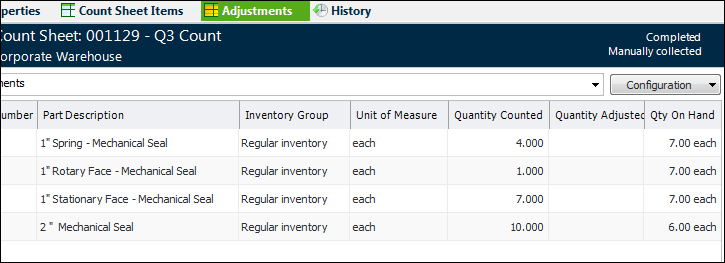
To see where adjustments were made as a result of the count, select the Adjustments view. This count sheet view shows a list of adjustment transactions that resulted from the count. If the warehouse’s properties are set to review count adjustments, the adjustment transactions will not yet be posted.
3.
4.
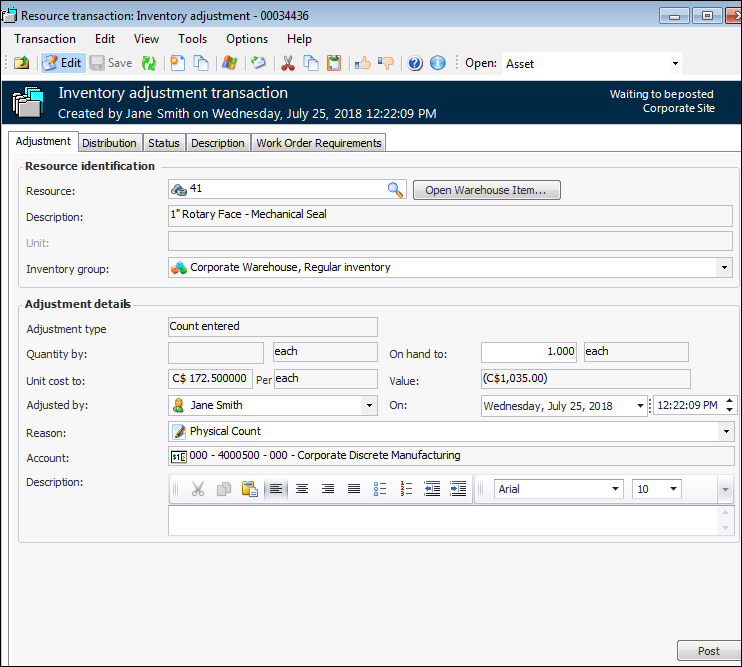
Review the transaction, and make any appropriate changes. On the Adjustment tab you can edit the following information:
5.
On the Distribution tab you may be able to edit the charge type:
If charging to a Work order, click Browse. Select the work order in the selector dialog and click OK. You can select a task on the work order using the Task list.
If charging to an Asset, click Browse. Select the asset in the selector dialog and click OK.
You might be able to override the selected GL account. To change the GL account, select Override the account. Click Browse, select the appropriate account, and then click OK.
6.
When you are ready, on the Adjustment tab click Post. The system posts the transaction.
7.
Repeat steps 3 to 4 to review and post all of the transactions.
Tip: To post multiple transactions, select the transactions on the count sheet Adjustments view, right-click and select Post Transaction.
8.
You can delete an adjustment by right-clicking it and selecting Delete. When you delete an adjustment, you will need to re-count the warehouse item on a new count sheet.
9.