Printing a Label for a Serialized Inventory Unit

You can print storage labels containing bar codes for your warehouse items. These bar-coded labels allow you to use the bar code scanners with mobile devices to identify items when performing physical counts.
Three types of labels can be printed:
If you are printing labels for a serialized item, the system prints a separate label to identify each serialized item that is in inventory. This only includes serialized units that have the following statuses:

Printer Requirements

The default label reports that come with APM are designed to be printed using a label printer. Generally, these printers accept self-adhesive labels from a continuous-feed roll. In this type of setup, each label is considered a separate page. The label reports provided are designed to print 1 x 4 inch labels.
Bar code label reports have been designed for resource numbers of 10 characters or less (for example, 999-999-999). If you use longer numbers, you may need to customize the label reports to fit the longer bar codes.

To Print Storage Labels for a Warehouse Item
1.
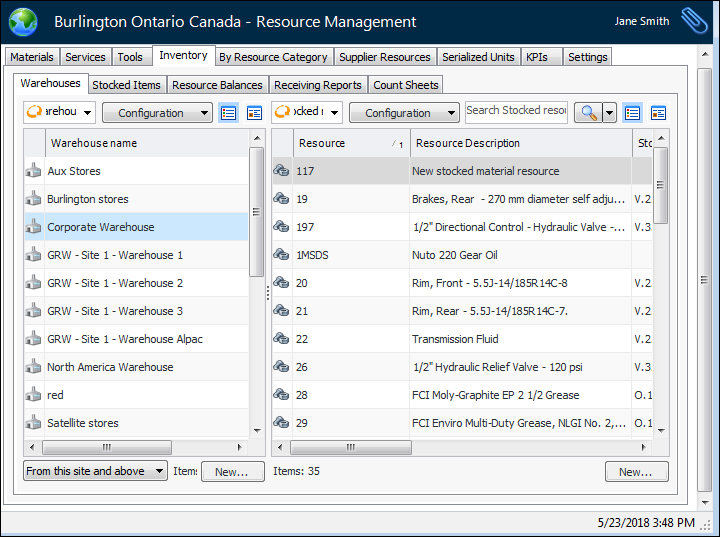
In the Site window, select the Resource Management view and then the Inventory tab.
2.
Select the Warehouses tab. This tab shows a list of your site’s warehouses.
3.
4.
5.
On the Properties view, select the Units tab.
6.
7.
8.
Click OK. The system prints the label on the selected printer.