Picking Parts for a Work Order or Requisition

You can create pick lists for the inventory items that are required to perform a work order or to fulfill a requisition.
If you cannot pick all of the parts required for the work order or requisition, you can pick some of the parts and then adjust the quantity on the pick list. When the rest of the parts are available, you can create a new pick list for the remaining parts on the work order or requisition.

To Pick Parts for a Work Order or Requisition
1.
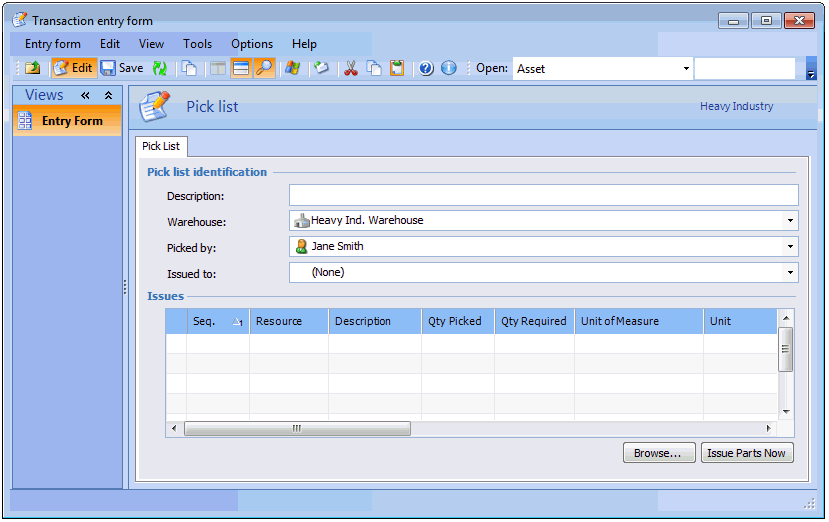
From any main view on the site, select the Tools menu and select New, then Resource Management, and then Pick List. The Transaction Entry Form window appears.
2.
In the Pick List Identification section, enter a description of the pick list, select the warehouse where you will be picking the material, the person picking the material, and the person the material will be issued to.
3.
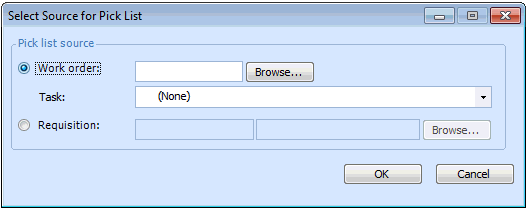
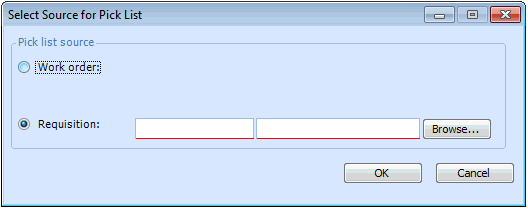
Click Browse. APM displays the Select Source for Pick List dialog.
4.
To pick parts for a work order, select the Work order option and click Browse. The Work Order Selector dialog appears. Select the work order and click OK. From the Work order task list, select the task you are picking parts for and click OK. The items requested on the task are added to the pick list.
To pick parts for a requisition, select the Requisition option and click Browse. The Requisition Selector dialog appears. When you create a pick list for a requisition, the status is changed to “Open” and the requisition can no longer be changed. Select the requisition and click OK. To close the dialog, click OK again. The items requested on the requisition are added to the pick list.
5.
6.
Tip: To export the pick list, right-click an issue, and select Export to Excel. APM opens a Microsoft Excel and inserts the contents of the pick list into a spreadsheet.
7.
Tip: You can also change the quantity picked by pressing F2 and then tabbing to the Quantity Picked column. Press Tab until your focus is in the box that you want to edit. Make your change in the open box, then press Tab again to move to the next box.
8.
9.