Issuing Materials

You can issue any material and charge it to a work order, account, or directly to an asset.

Overriding GL Accounts

APM automatically derives a GL account for charges to an asset or work order task based on the site’s accounting settings. You can override the derived maintenance GL account for labor, direct purchases, and inventory usage charged to an asset or work order. When the account number is overridden, the replacement account number is used on subsequent documents and transactions (work order requirements, timecards, issue transactions, purchase order lines, and receipts). The option to override a GL account is available only if the work type has been set up to allow the override.
If you need to issue several different materials for a work order or a requisition, see Picking Parts for a Work Order or Requisition.
For more information on issuing consigned inventory, see Issuing Consigned Inventory.
For more information about issuing serialized inventory, see Issuing Serialized Units.

To Issue Materials

1.
In the Site window, select the Resource Management view and then the Inventory tab.
2.
On the Warehouses tab, select the warehouse that you want to issue items from. The warehouse items stocked in this warehouse are displayed in the table on the right.
3.
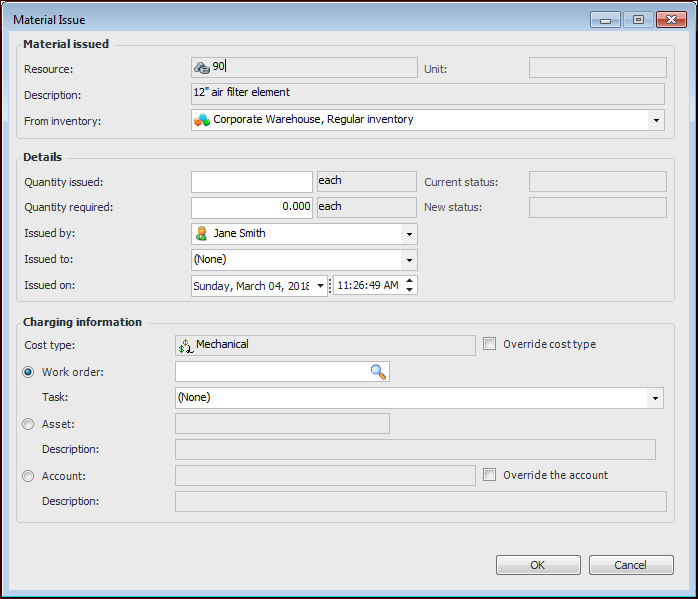
Right-click the item that you want to issue and click Issue Item. The Material Issue dialog appears.
4.
In the Material issued area, complete the following information:
5.
In the Details area, complete the following information:
6.
In the Charging info area, complete the following information:
If charging to a Work order, click the browse icon. Select the work order in the selector dialog and click OK. You can select a task on the work order using the Task list.
If charging to an Asset, click the browse icon. Select the asset in the selector dialog and click OK.
If charging to an Account, click the browse icon. Select the account in the selector dialog and click OK. You might be able to override the selected GL account. To change the GL account, select Override the account. Click Browse, select the appropriate account, and then click OK.
7.
When you are finished entering information, click OK. APM posts the new transaction and makes the appropriate inventory adjustments in the warehouse.