|
Creating a Parts List for a Resource
To Create a New Parts List for a Resource
1. Select the site’s Resource Management view.
2. To add a parts list to a materials resource, select the Materials tab. The table shows a list of all material resources.To add a parts list to a tool resource, select the Tools tab. The table shows a list of all tool resources.
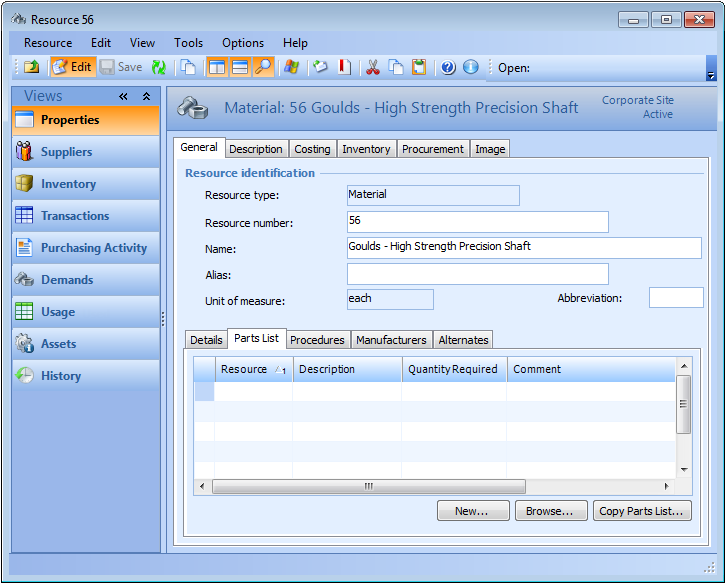
5. On the Properties view, General tab, select the Parts List tab. This tab shows the current parts list for the resource.
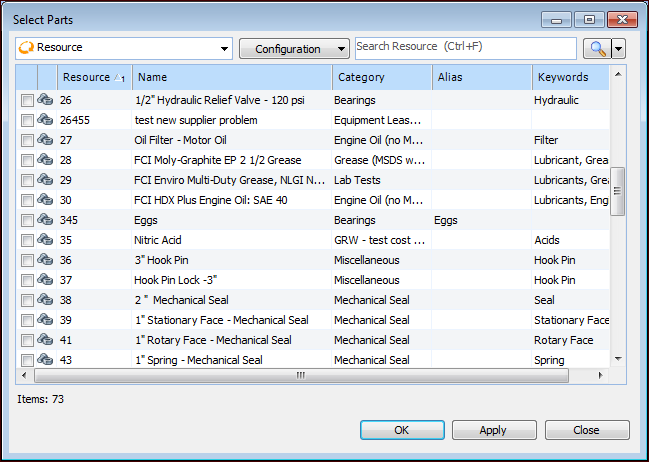
6. Click Browse. The Select Parts dialog appears.
7. Select the parts that you want to add to the material or tool and click OK. APM adds the selected parts to the resource’s parts list.
8. To adjust the required quantity of any part on the list, select the line in the table and press F2. The Quantity Required value can now be edited. Enter the new quantity and click outside of the cell.To Copy a Parts List from Another Resource
1. Select the site’s Resource Management view.
2. To add a parts list to a materials resource, select the Materials tab. The table shows a list of all material resources.To add a parts list to a tool resource, select the Tools tab. The table shows a list of all tool resources.
5. On the Properties view, General tab, select the Parts List tab. This tab shows the current parts list for the resource.
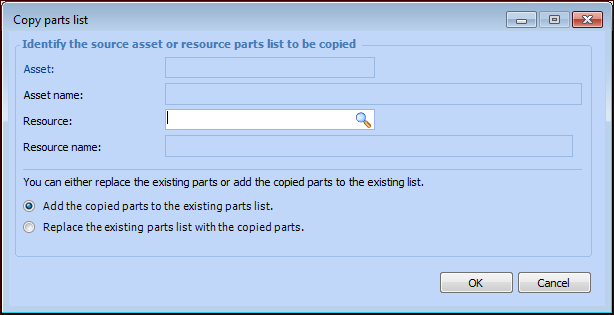
6. Click Copy Parts List. The Copy Parts List dialog appears.
10. Click OK. APM copies the parts list from the target resource. If you selected to replace the parts list, APM replaces the parts list with the copied list.
11. To adjust the required quantity of any part on the list, select the line in the table and press F2. The Quantity Required value can now be edited. Enter the new quantity and click outside of the cell.