|
Creating a Count Sheet
Warehouse Inventory Groups
ABC Codes
Count Groups
Count Sheets
Sequencing Count Sheet Items
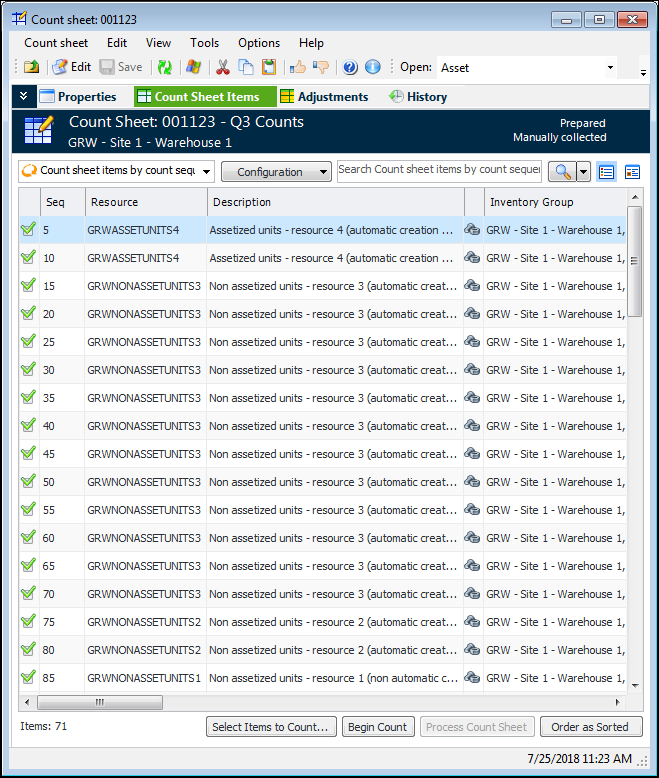
When items are added to a count sheet, APM assigns them sequence numbers based on the warehouse properties. That is, items can be ordered either by count group and pick sequence or by inventory location. You can change the order of the items on the count sheet using the sorting properties of the “Count sheet items by count sequence” configuration. When they are in the required order, click Order as Sorted. APM re-assigns the sequence numbers to match their order in the table.To Create a Count Sheet
1.
2. On the Warehouses tab, double-click the warehouse that you want to count materials in. The Warehouse window appears.
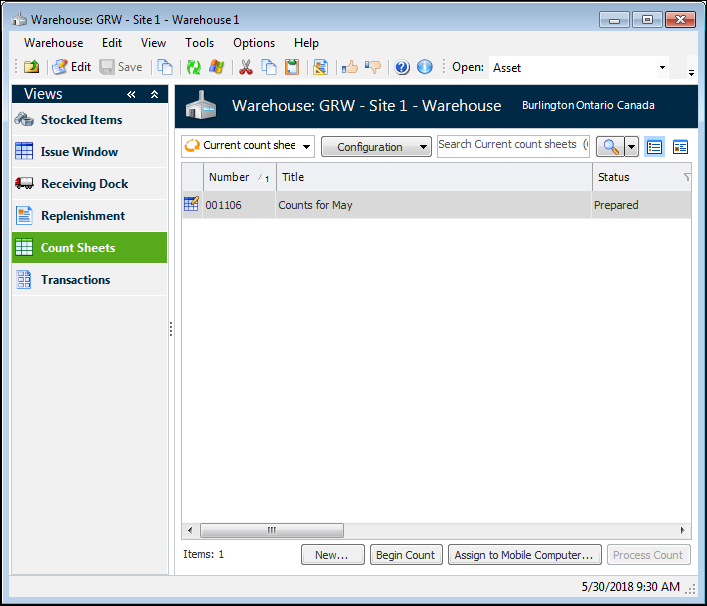
3. Select the Count Sheets view. Current count sheets are listed. For example:
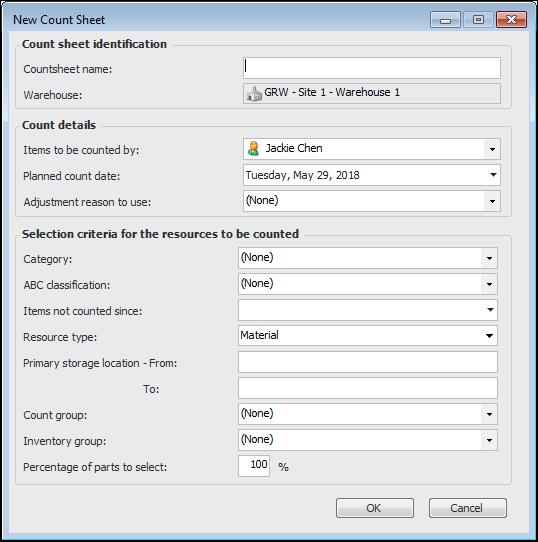
4. Click New. The New Count Sheet dialog appears.
Material: Choose this option to count only material resources.Tool: Choose this option to count only tool resources.Both: Choose this option to include both materials and tools in the count.
7. To create the count sheet, click OK. APM selects the parts using your criteria and opens a new count sheet.
8. If you want to change the list of items on the count sheet, click Select Items to Count. The Change Selection Criteria dialog appears. Enter the new selection criteria and click OK.
• To do a manual count, click Begin Count. APM locks the items identified on the count sheet so that they cannot be issued from inventory. Any transactions for the items are held until the count has been completed.Note: If you clicked Begin Count too soon, you can return the status of the count sheet to “Prepared”. To do this, from the Tools menu, select Undo Begin Count.Tip: To export the count sheet, right-click in count sheet list and select Export to Excel. APM opens Microsoft Excel and inserts the contents of the count sheet into a spreadsheet.