Viewing SAP Plant Maintenance Data in APM

When APM has been configured to interact with SAP Plant Maintenance, there are several locations in APM where you can find SAP information, including site views, object windows, table configurations, and reports.
This topic explains the features available for viewing, filtering, and browsing SAP information. It explains:

SAP Portal View

When interoperability is activated for a site, the SAP Portal view is added to the Site window. The SAP Portal view provides the following tabs and sub-tabs:
Monthly planning summaries list functional locations and equipment and provide counts of their downtime, recorded and completed notifications, planned and unplanned maintenance orders, and more. Summaries tabs are available in the Assets, Work Management, and SAP Portal views.

Other Site Views that Display SAP Information

Interoperability settings at the enterprise and site levels determine the SAP information available on sites. In the Enterprise window, Integrations view, you can create interoperability profiles to be assigned to individual sites. Profile settings determine which of CMMS objects, APM objects, or AWEIS Interop objects are available in the site’s Reliability Program and Work Management views. In the site’s interoperability settings, you can select the plants used to filter lists of SAP objects. For more information, see Selecting SAP Plants to Filter Lists.
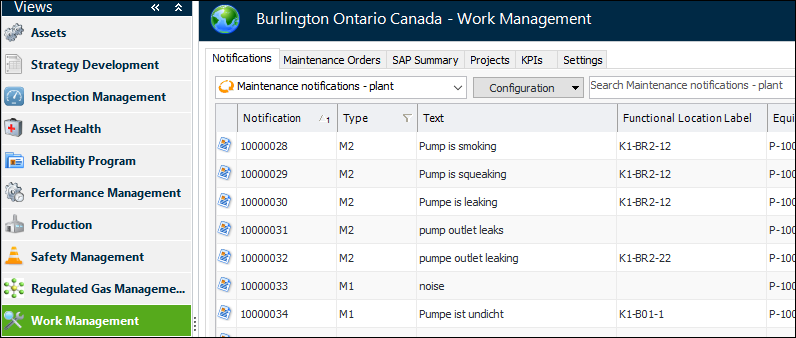
The site’s Assets, Reliability Program, and Work Management views display SAP objects in tables. For example, here is the Work Management view when the site’s interoperability profile specifies that only CMMS work documents are in use:
The site views include the following tabs and sub-tabs:

Selecting SAP Plants to Filter Lists

SAP plants are used to filter lists in tables and browse dialogs.

To Select SAP Plants for Filtering

1.
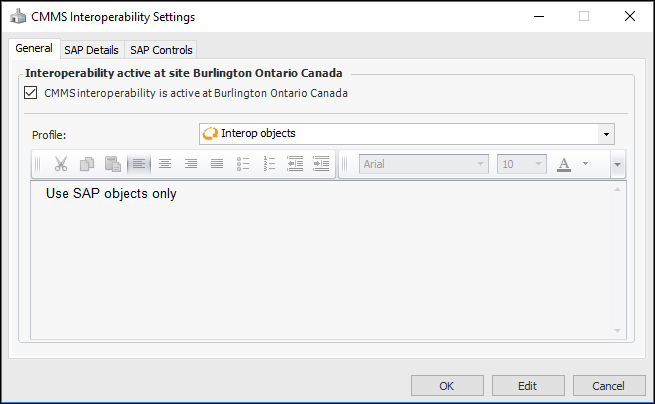
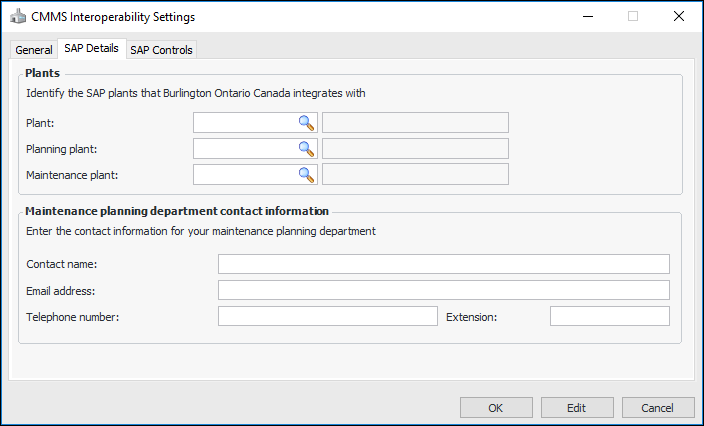
In the Site window, click the Administration menu, Interoperability and Integration Settings, and then CMMS Interoperability. The CMMS Interoperability Settings dialog appears. For example:
2.
Select the SAP Details tab.
3.
Plant – Select a plant for task lists, equipment, and notifications
Planning plant – Select a planning plant for maintenance items, equipment, and functional locations
Maintenance plant – Select a maintenance plant for task lists to add to action plans and for equipment and functional locations
These plants are used to filter lists of objects in views on the Site window. They provide default filters when you are selecting task lists and maintenance items for action plans. They also provide the source for importing equipment and functional locations into APM from SAP using data loading.
4.
Note: For more information about site interoperability settings and profiles, see APM Interoperability Guide for SAP Plant Maintenance.

Search for SAP Information

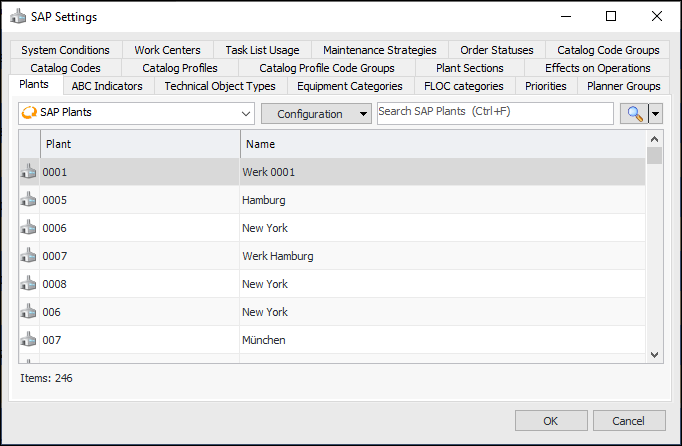
You can quickly search for SAP information such as system conditions, plants, and catalog code groups. In the Site window, click the Administration menu, Interoperability and Integration Settings, and then SAP CMMS Interoperability Settings to open the SAP Settings dialog:
You can use the quick search bar to locate values on the tabs, filter and sort on columns, and export tables to Microsoft Excel®, and so on.

Windows for SAP and APM Objects

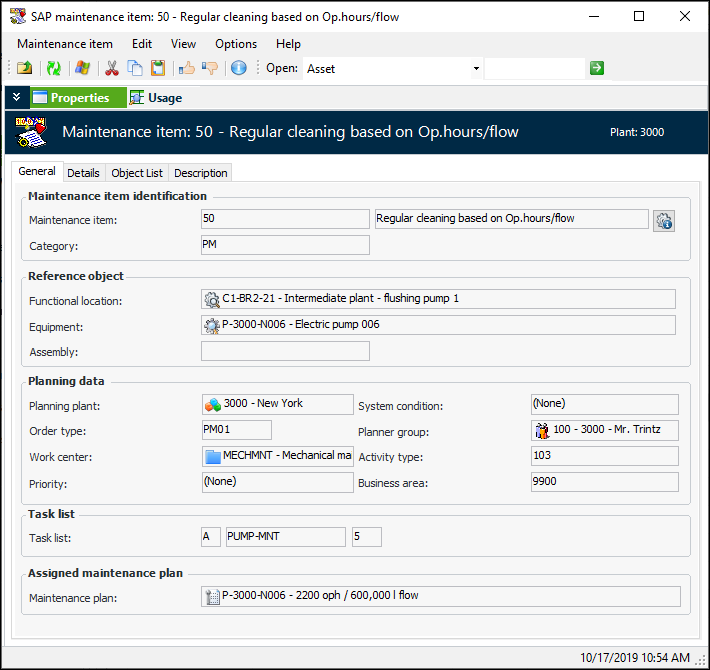
Most of the SAP objects shown in APM have read-only property windows that display the item’s attributes. Here is an example of an SAP Maintenance Item:
The Details tab, if available, displays more information about the item. The Object List tab displays two tables, one showing the functional locations and the other the equipment records. The Description tab shows the long text description from SAP.
Note: APM shows the first 10,000 characters of SAP long texts.
Select the Usage view to see the checksheets, maintenance orders, notifications, standard tasks, action plans, and proposed tasks that reference the item. These tabs are available for maintenance items, maintenance plans, general task lists, equipment task lists, and functional location task lists.
When an APM asset references either an SAP equipment or functional location, information about the SAP object is available in the Asset window. Select the Properties view and SAP tab to view the reference. Select the SAP Properties view to see detailed information about the SAP object.
In the SAP object’s window, the Asset Properties view displays information about the asset that references it.
For more information, see Working with Assets and SAP Plant Maintenance Information.
Similar information is available in Standard Task and Maintenance Item windows. And when a checksheet is created from a standard task linked to an SAP maintenance item or task list, the standard task’s SAP information is copied to the checksheet. You can view it in the Properties view, Source tab.

Browsing for SAP Objects

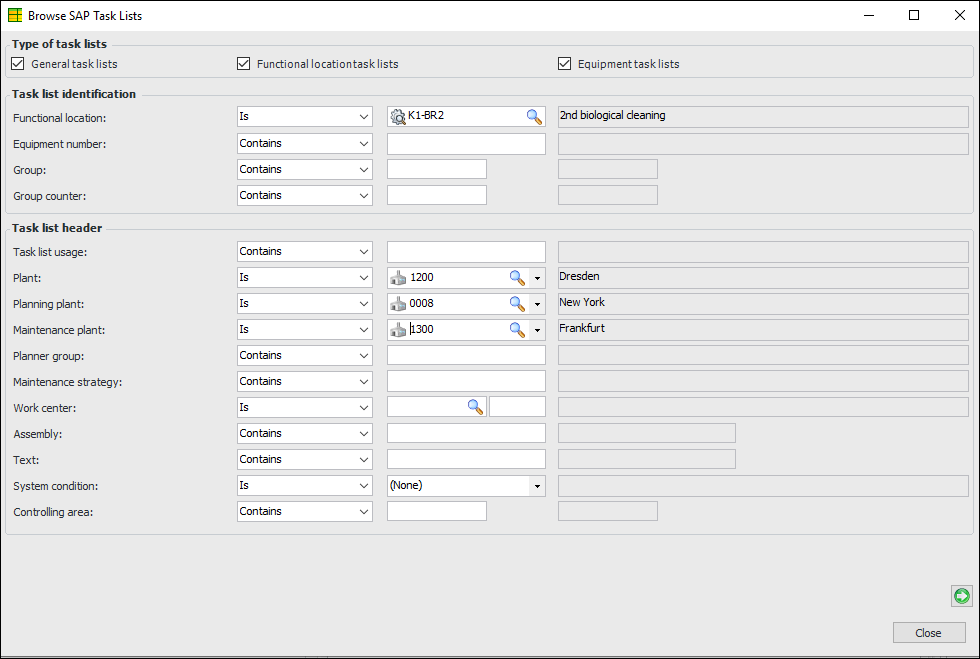
When browsing for an SAP object to reference, you can select filters to narrow the search for a matching object. For example, here is the Browse SAP Task Lists dialog:
Note: When alternate labeling for functional locations is enabled in SAP and the APM site’s interoperability profile, you can only choose from “Is” and “Is blank” conditions when browsing for SAP functional location task lists and operations.
The plants selected in the site’s interoperability profile are automatically copied into the browse dialog as filters.
When you have set the filtering options, click to display the list of objects. You can then select an object and click OK to add it to the APM object you are working with.
Tip: To return from the list to the filter dialog, click .

SAP Objects Flagged as Inactive or for Deletion

When an SAP functional location or equipment is flagged for deletion, flagged as inactive, or both, a banner appears in the property windows of the SAP object and its linked asset in APM. Here is an example of the Asset window:
In the Asset window for this example, the SAP tab shows the SAP status as “Inactive and deleted”.
Banners also appear in the windows for other APM objects that reference flagged SAP objects. For example, Standard Task and Checksheet windows display banners if their linked SAP objects are flagged.
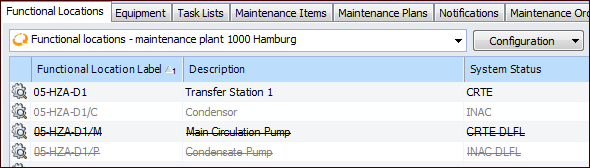
When a flagged functional location or equipment is listed in a table or browse dialog, the row formatting indicates its status:
For example:
Some functions are not available for SAP objects that are flagged for deletion (or flagged for both). For example, you cannot create an indicator, strategy development analysis, or standard task for an asset with these flags. Similarly, you cannot add a reading for an indicator on a flagged asset. When browsing for indicators to add to a checksheet, if you select an indicator for an asset that is flagged, it will not be added to the checksheet.
When an SAP object is flagged as inactive, a warning message is issued when you launch actions like creating an RBI analysis.
Task lists, task list operations, maintenance items, maintenance plans, and maintenance order components that have been flagged in SAP are also flagged in APM using banners and row formatting. APM issues warnings or errors for some actions. For example, an error will prevent you from acknowledging an indicator alarm with a task list that is flagged for deletion in SAP.
When you are creating a strategy development analysis and choose to include the primary asset’s descendants from the hierarchy, APM skips any child assets that are linked to SAP objects that are flagged for deletion or flagged for both. The descendants of the skipped asset are also skipped. Note that if you browse for assets to add to an existing analysis or create an analysis asset (MTA2), APM cannot prevent you from selecting an asset linked to a SAP object flagged for deletion.

SAP Data in Strategy Development Analysis

Information about the SAP equipment or functional location associated with the analysis asset is available in the MTA2, RCM2, RBI, SIF, and HAZOP analyses. In particular:
The System Information view in the Strategy Development Analysis window contains information about the analysis asset’s referenced SAP equipment or functional location. For example, you could select the Assets tab and then the Maintenance History tab to see the associated functional location’s notifications, maintenance orders, object lists, operations, and monthly planning summaries

Working with SAP Data in Table Configurations

This section provides some information and suggestions for working with SAP data in tables.

Limitations on Using SAP Data in Tables

There are a few limitations on viewing SAP data in APM:

Add SAP Data to Configurations and Custom Reports

You can add simple join paths to SAP data in configurations and custom APM reports. For example, you could add referenced functional locations to a table of assets by taking these steps:
In the site’s Assets view, Listing tab, copy the “Asset listing, by asset number” configuration with the name “Assets with functional locations”
Click Browse to add a column and then select the join path to the SAP Functional location class
Click OK to close the Configuration dialog. Select your configuration in the list
The column is populated with the functional locations for each asset that is linked to one. Note that you cannot use filter and sorting criteria on the column, and the column cannot be included in the search bar function.
If you are creating a custom report or customizing a standard report, you can include APM objects and their linked SAP objects. For example:

Work Document System Property

The Work Document System property is available for alarm acknowledgments, checksheets, and inspection reports. The property identifies whether work documents are managed in APM, SAP Plant Maintenance or another CMMS.
You can add the “Work document system” column to configurations for checksheets, inspection reports, and acknowledgments. When you are transitioning to interoperability with SAP, you might find it helpful to view, filter, and sort by this property in tables.

SAP Status Column

Several table configurations include the SAP Status column. Possible values for this column are Active, Inactive, Deleted, and Inactive and deleted.
You can include this column in your own asset configurations, but you cannot add filter or sorting criteria on it.

Functional Location Alternate Labeling

When alternate labeling for functional locations is enabled in SAP and the APM site’s interoperability profile, the functional location label is shown in tables, lists, browse dialogs, property windows, and so on.

Search for Upper Case Text in Tables
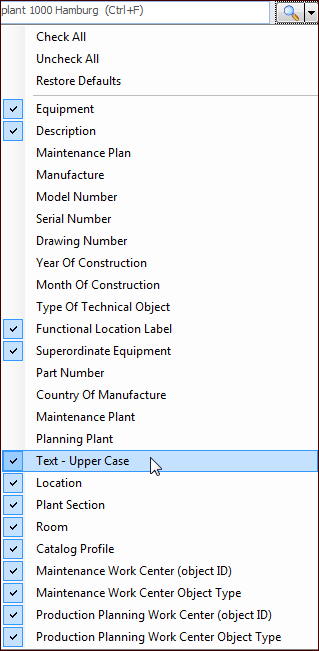
You can search for upper case text (all caps description) in table configurations that list SAP equipment or functional locations. The Text (upper case) column is selected by default in the search list. For example: