Launching APM, Selecting a Time Zone, and Creating Users

When you launch APM for the first time after installing the software, setting up the database, and configuring a thick-client instance, you will need to set the enterprise time zone and set up APM users.
This topic explains how:
For information about creating employees and linking them to user IDs, see Creating an APM User ID.
To learn more about APM user privileges, logging on as an APM administrator, and security profiles, see Security.
For information about time data, see UTC, Enterprise Time, and Site Time Zones.
When you install the APM software, basic APM databases are copied to the Bentley\AssetWise Performance Management\SQL Server and \Oracle directories. When you have restored the install database (apminstall.bak), it provides a starting point for you to enter your organization’s data.
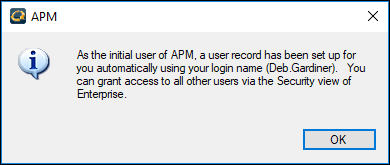
The install database does not contain employees or users. The first time that you run APM and connect to this basic database, the initial APM user is created using your Windows or Bentley CONNECT login name. This user can then create more APM users.
 
The initial user is assigned the end-user privilege.
There are two main types of APM user privileges:
End-user: This is the basic privilege for all users. Users can do everything in APM except customize the software, create custom reports, create customer-level table configurations, create purging rules, and use the Security Setup mode.
Administrator: This privilege is used by APM administrators and personnel who need to customize the software, create custom reports, activate CMMS integration, or set up and assign security profiles. Users with this privilege can perform Customer-level customizations, create shareable table configurations, work with purging rules, and use the Security Setup mode.
For information about assigning user roles for APM workflows, see Assigning Roles to APM Users.

To Log on to APM

1.
2.
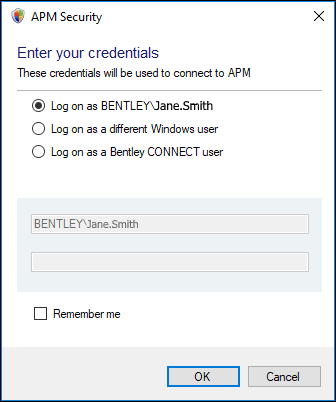
Log on with your current Windows domain, login name, and password using Windows authentication. You can also click Remember me to save your credentials for the next time you launch the product. Click OK.
Log on as a Bentley CONNECT user. You can also click Remember me with this option. Click OK. The Manage Permission page appears. Click Yes, Allow.
Note: If you are using a Bentley-hosted deployment, you must log on as a Bentley CONNECT user.
Note: The first time that you log on to APM as a Bentley CONNECT user, the client requests access to your information. Click Accept. The Bentley Sign In page opens, where you can enter your email address and password and click Sign In.
Tip: For APM client and server instances, Bentley CONNECT and OpenID Connect information is shown in advanced settings in the Settings Editor, under the Mandatory Settings node.
Tip: If you wish to exit APM and log on as a different Windows user, click the Enterprise or Site menu (depending on which main window is active), and click Switch User. The APM client logs you out and shuts down. Your credentials are removed from memory (if you selected Remember me when logging on). The APM Security dialog appears, where you can log on as a different user.

To Create the Initial APM User

1.
2.
Click OK. The Get Enterprise Time Zone dialog appears.
For instructions, see “Activating APM Software” in APM Installation Guide.
Note: The first time that you start APM after it has been activated, “Trial” might appear in the title bar. The activation status changes to “OK” automatically once the first usage log file has been sent to SELECTserver.

To Select the Enterprise Time Zone

1.
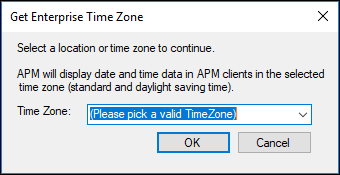
When you click OK in the initial user message, the Get Enterprise Time Zone dialog appears. Select the location that you wish to use for the enterprise. This location’s time zone (for example, standard and daylight saving time) will be used to display date and time data in APM clients.
Note: You might find more than one value in the Time Zone list that you can use to set the enterprise time. For example, you could select by continent/city (America/Toronto) or country/time zone (Canada/Eastern). APM uses your selection to determine the top time zone for that location.
2.
Click OK. The Enterprise window appears.
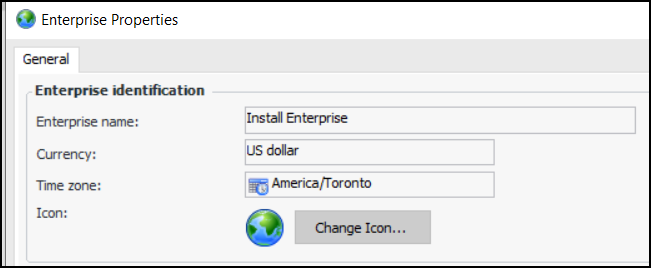
Tip: You can view the enterprise time zone after logging on to APM. In the Enterprise window, click the Enterprise menu and then Properties. The top time zone appears on the General tab. For example:

To Add APM Users

1.
In the Enterprise window, select the Security view, the Users tab and then the Users tab.
2.
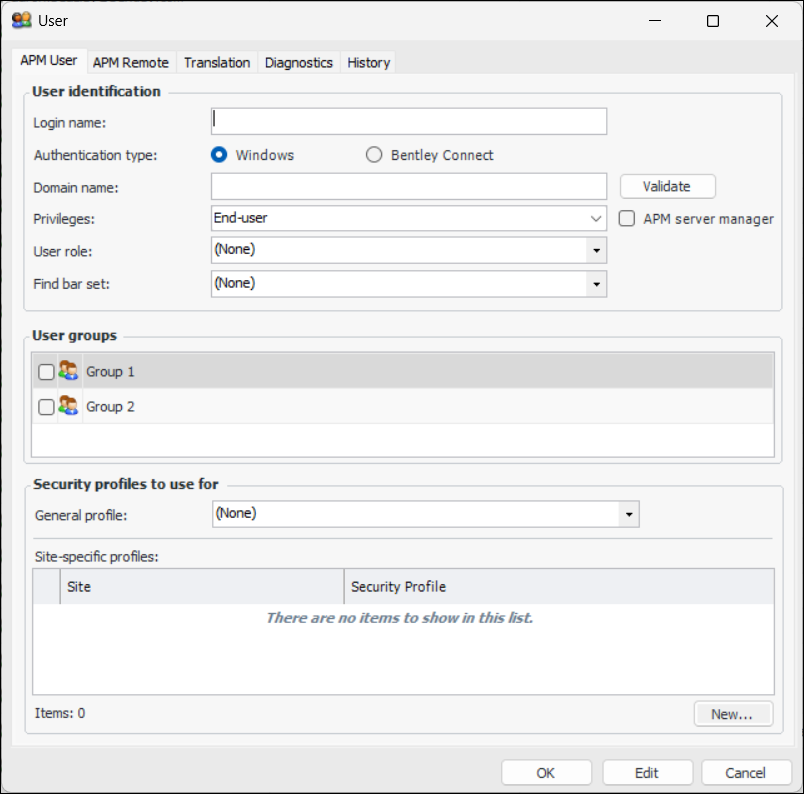
Click New. The User dialog appears.
 
3.
Enter the login name. This name must be the same as the user’s Windows login name or Bentley CONNECT login name (username@domain.com).
4.
Select the authentication type: Windows or Bentley Connect.
Note: In a Bentley-hosted implementation, users must use Bentley CONNECT credentials.
Note: For on-premise installations with users who login with Bentley CONNECT authentication, each user can receive a Bentley welcome email to encourage them to sign in. For instructions for setting this up, see “Setting up Email” in APM Installation Guide.
5.
6.
In the Privileges box, “End-user” is selected by default. If you are adding a user who needs to create and assign security profiles, create table configurations, or customize the software, select “Administrator” from the list.
7.
Note: Administrators must launch APM using a thick-client instance, and the instance shortcut must include “ -admin”. When creating a shortcut for the instance in APM Configuration, you can have “ -admin” added automatically.
8.
Note: After you have created security profiles, you will need to add the appropriate ones for each user. Users who are not linked to any security profile have full access to the system. For more information, see Security.
You will also need to link each user to an employee record. To create employee records, see Adding an Employee.
For more information about adding APM users, see Creating an APM User ID.