Indicator Collection Dates: Calculations, Windows, and Compliance Tracking

This topic explains how APM calculates indicators’ next collection dates, as well as the indicator collection policies that allow you to influence next collection dates.
It also explains how you can set up the indicator’s collection window to define early and late collection periods. You can track collection compliance using table configurations, sidebar dashboards, and KPIs.
This topic covers:
Note: Collection policies and windows are not available for rule-based indicators, calculated indicators, cascaded indicators, and indicators collected from an on-line source.

How Indicator Collection Dates are Calculated

In APM, the indicator’s next collection date is based on its collection frequency, regulatory frequency, or degradation information. The earliest date derived from these three sources is used as the indicator’s next collection date. (Only the sources that apply to the indicator are considered. For example, if the indicator does not collect degradation information, the date is based on the either the collection or regulatory frequency.)
This section explains how the inputs from the indicator and its readings affect the next collection date calculation. It also considers how collection dates can be overridden manually, by failure mode analysis, and alarm acknowledgments. Finally, it explains how recalculation of collection dates is triggered.

Indicator and Reading Inputs

The following indicator inputs affect the next collection date:
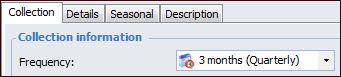
Located in the Indicator window’s Properties view, Collection Policies tab. For example:
Located in the Indicator window’s Properties view, General tab, Collection tab. For example:
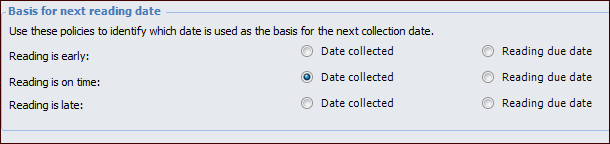
After the first reading is collected, the following reading inputs can be used to calculate the next collection date:
The Reading is early and Reading is late options are used with the indicator’s collection window.

Next Collection Date Calculation

The indicator’s next collection or inspection date is based on the earliest of the following calculated dates, assuming that the indicator uses all three inputs.

Overriding the Calculated Next Collection Data

The calculated next collection date can be overridden in these ways:
This functionality is controlled by one of the RBI analysis’ failure mode settings. Update indicator next collection date with failure mode’s next inspection date must be selected.

Triggering the Recalculation of Next Collection Date

The indicator’s next collection date is recalculated when any of the following events occur.

Readings

Expected Frequency

Degradation Information

Regulatory Frequency

Indicator Collection Inactive/active

Indicator Collection Window

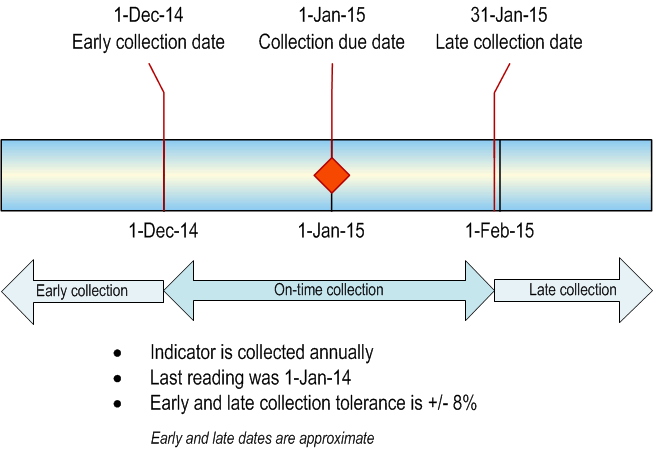
The indicator’s collection window defines early and late collection periods. Collection tolerances can be based on a calendar period or as a percentage of the indicator’s frequency. This example shows early and late collection dates based on 8% of the indicator’s frequency of one year:
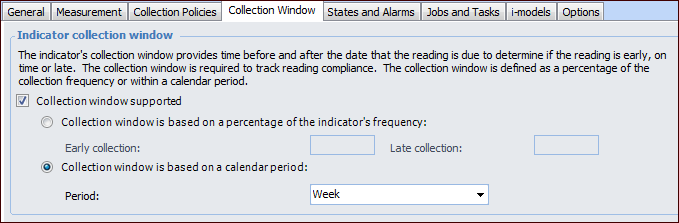
Setting up the collection window involves selecting the Collection Window tab. For example:
The collection window can be based on a calendar period: day, week, month, or year. For this example, “Week” is selected, so the window uses the week that the reading is due. The early collection date is the first day of the week (Monday) and the late collection date is the last day (Sunday).
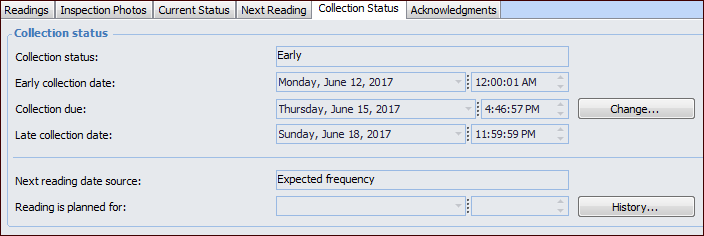
To view the collection window, select the Readings view, Collection Status tab in the Indicator window. This tab shows the collection window dates and the date source:
In this example, the indicator’s frequency is three months. The Collection due box shows the date three months from when the last reading was collected. The early collection date is the first day of the week on which the reading is due, and the late collection date is the last day of that week. The collection status “Early” is based on the current date, which precedes the early collection date.

PM Generation Profiles

To support indicator collection windows, PM generation profiles can be filtered on frequencies. This allows you to trigger work orders based on early collection dates, while retaining the due dates based on the indicator’s date. For example, to create a yearly profile, you could include the 1 year (Annually) frequency and use a trigger horizon of six months. This creates the work orders six months before they are due.
Note: You can also use filters for technologies and operating conditions in PM generation profiles.

When a Frequency’s Recurrence Pattern Changes

If you change a frequency’s recurrence pattern, you can update the collection windows of indicators that use the frequency. In the Indicator window, select the Tools menu and click Refresh Collection Pattern. The indicator’s next reading due date and time are updated to use the new pattern. To update two or more indicators, select them in one of the tables in the site’s Inspection Management view. Right-click and click Refresh Collection Pattern.

Compliance Tracking

We recommend setting up the scheduled action Update Indicator Collection Window Status to run at scheduled intervals. This ensures that compliance data is up to date.
Several key performance indicator (KPI) templates are available to monitor collection compliance, including:
There are also several other ways to monitor collection compliance for indicator readings.
On the Site window, Inspection Management view, Indicators tab, By Asset Hierarchy tab, you can choose from these table configurations to review the collection status of indicators:
Tip: These configurations are also available on the Asset window’s Inspection Management view, Indicators tab. Select either the Listing or By Asset tab.
On the site’s Inspection Management view, Indicators tab, you can also select the Collection Policies History tab to view audit information about indicators with collection windows.
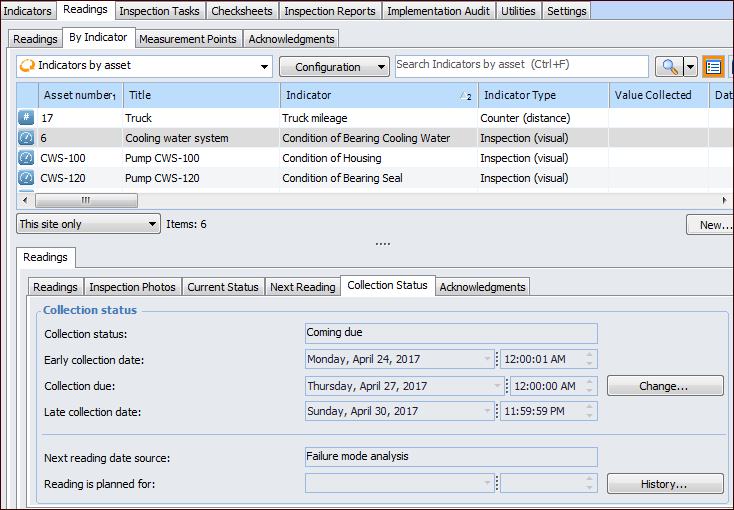
On the site’s Inspection Management view, Readings tab, By Indicator tab, you can select an indicator in the top table to view detailed information about its readings, current status, next reading, and collection status in the Readings tab below. For example:
Note: When an indicator with a collection window is marked “Inactive”, its collection status is set to “Collection is inactive” (or “Not applicable”) and the collection window is suspended until the indicator is reactivated.
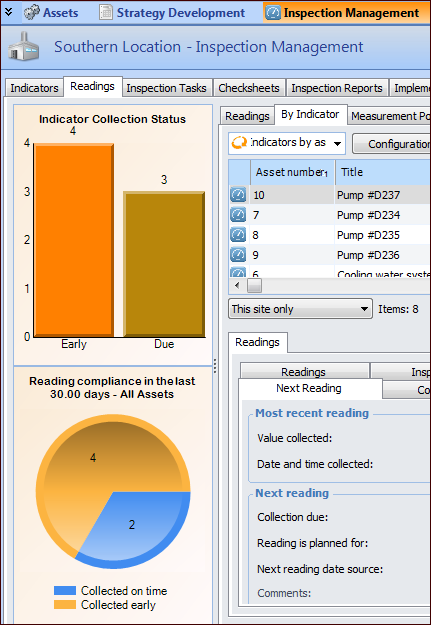
A site sidebar provides a summary of collection activity. The “Indicator collection status and reading compliance” sidebar is available on the APM standard sidebars definition. Assign this definition to your employee record to see the Indicator Collection Status and Reading compliance charts on the site’s Inspection Management view, Readings tab. For example:
Audit information about collection information is available in the Indicator window’s History view and the site’s Inspection Management view, Indicators tab.

Compliance Horizon

The site’s indicator reading compliance horizon affects table configurations and collection statuses. For example, a horizon of 30 days determines the number of readings represented in the compliance chart (above). The horizon also helps planners schedule collection tasks by forecasting the indicators that are coming due for collection. If the early collection date is in the future but the current date is within the horizon, the indicator’s collection status is “Coming due”.
You can set the compliance horizon in the site’s indicator settings. After changing the horizon value, select the Tools menu, click Indicators and then Update Collection Window Status. This command updates indicator collection windows, table configurations, and charts.