Setting Inspection Options for a Standard Task

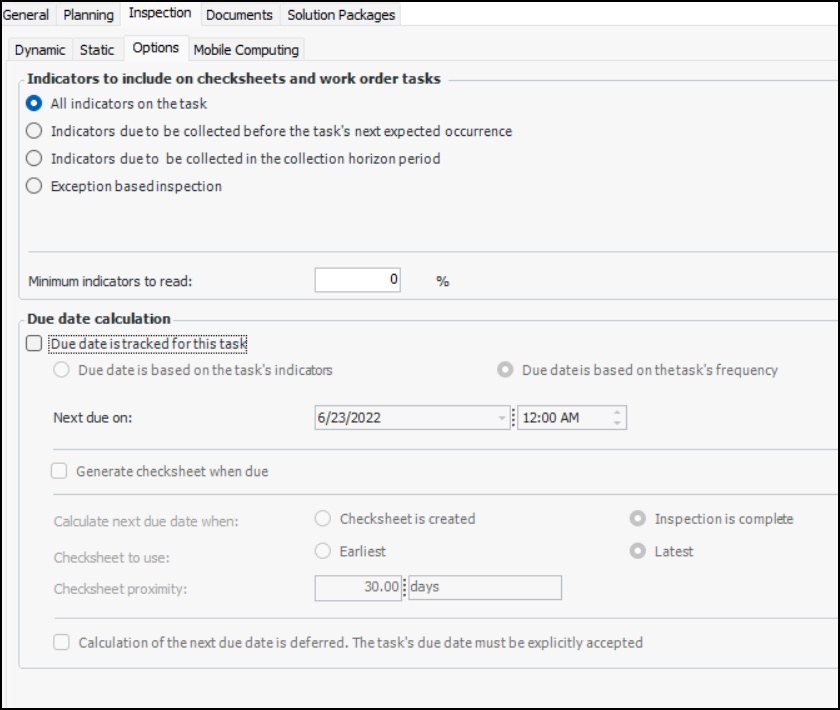
When setting up indicators on a standard task, either using a dynamic inspection route or by manually adding indicators, you can set options for including indicators on checksheets and work order tasks. You can also set options for calculating the standard task’s due dates.
Note: If you are changing a standard task that was created from a task template, see Editing a Standard Task that is Based on a Template.

Indicators to Include

There are four options for selecting the indicator readings to included on checksheets and work order tasks:
With this option, you can also specify planning lead time, which is the amount of time needed between generating the list of indicators and taking the readings. For example, you might generate checksheets two days ahead of time to allow the work to be planned and scheduled. When the list of indicators is generated, the start date of the task cycle is offset by the planning lead time.
For example, consider a monthly task with a five-day lead time. The system calculates the collection end date by adding the planning lead time (five days) and the task’s frequency (30 days) to the current date. All indicators with a “next reading due date” that falls before the end date are included in the list of indicators to read.
In addition, you can specify the minimum percentage of indicators that must be read before the checksheet can be processed.

Due-Date Calculation

When setting up a standard task, you can turn on automatic due-date calculation and then select between:
Note: Standard tasks with frequencies based on a recurrence pattern do not support due-date calculations.
Note: If due-date calculation is not turned on, you can only set the task’s next due date manually.
Setting the task’s due date can also be deferred. The calculated date is then classified as “pending” and must be manually accepted. For more information, see Working with Standard Task Due Dates.
When AWEIS is active, you can defer due-date calculation until the standard task’s checksheets are either created or completed.
Note: Variable due date calculations is a “generally available” product feature. You must first enable feature 117 to use the functionality in APM. In the Enterprise window, select the Features view and the Enabled Features tab. Click Browse, select “Ability to define standard task due date calculation until inspection is complete” and click OK. If APM is running as a smart client, click Refresh Enabled Features on the server. Then restart the client to use the functionality.

To Set Inspection Options

1.
2.
3.
On the Properties view, select the Inspection tab and then the Options tab.
Note: The Inspection tab does not appear unless the standard task’s work type allows indicator information.
4.
All indicators on the task – All of the standard task’s indicators are included in the list of indicators to read whenever the task is triggered. This option is handy for repair tasks, for example.
Indicators due to be collected before the task’s next expected occurrence – Only indicators that are due to be collected before the next expected triggering of the task are included in the list of indicators to read. This option is handy when the next expected triggering of the task is determined by the standard task’s expected frequency.
Indicators due to be collected in the collection horizon period – Only indicators with frequencies within the selected collection horizon are included. If you select this option, specify the collection horizon.
Exception based inspection – Only readings that are mandatory, for indicators where the previous reading resulted in an alarm, or for indicators where the alarm on the previous reading was acknowledged with “monitor” or a work document and the document is not closed.
Due date is based on the task’s indicators – The task’s due date is set to the earliest collection due date of its indicators. The date is recalculated whenever an indicator is added to the task, an indicator is removed from the task, an indicator’s collection date changes, or an indicator’s collection status changes to Active or Inactive
Due date is based on the task’s frequency – The task’s due date is calculated by adding the frequency duration to the date when the task was last triggered
Specifies whether the earliest or latest checksheet is used to calculate the due date. For example, if Latest is selected, when the last checksheet is marked as “Inspection complete”, the due date is based on the closing date plus the standard task’s frequency.
If Earliest is selected, the earliest of the checksheet closing dates plus the frequency becomes the next due date.
5.