Using the Indicator Mass Update Wizard

You can copy properties from one indicator to a group of other indicators using the Indicator Mass Update wizard. For example, you could modify indicator states on an indicator template and then copy the states to all of the indicators that are based on that template. Or you could copy search values, such as trade, maintenance group, or PdM technology from one indicator to several other indicators.

To Use the Indicator Mass Update Wizard
1.
2.
Click the Tools menu and then Copy Values To.
Tip:  You can also right-click the source indicator wherever you find it in a list and then click Copy Values To.
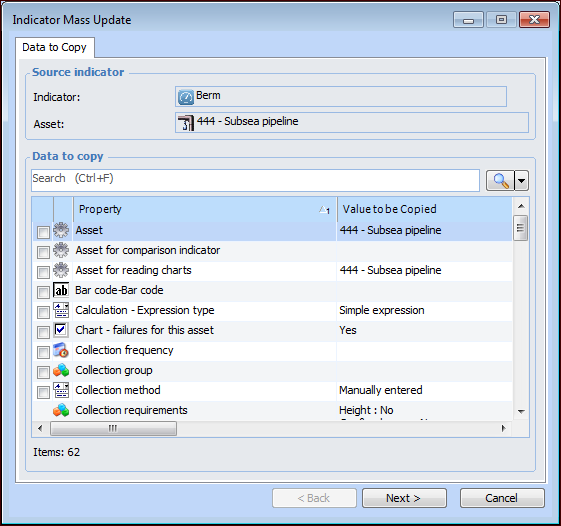
The Indicator Mass Update wizard appears, displaying the Data to Copy page. This page lists only the data members that are available to copy, for example, attributes, collections, and simple references. For example:
If you are copying from an indicator template, the Asset box does not appear.
3.
Note: Dependencies might exist between a data member that you select and another data member. For example, to update a numeric indicator’s states, its “Indicator states exist” attribute must be set to “Yes”. If you don’t know that all of the targets’ have states, also copy the “Indicator states exist” attribute from the source indicator. For information about dependencies between data members, see Overview of the Mass Indicator Update Wizard.
4.
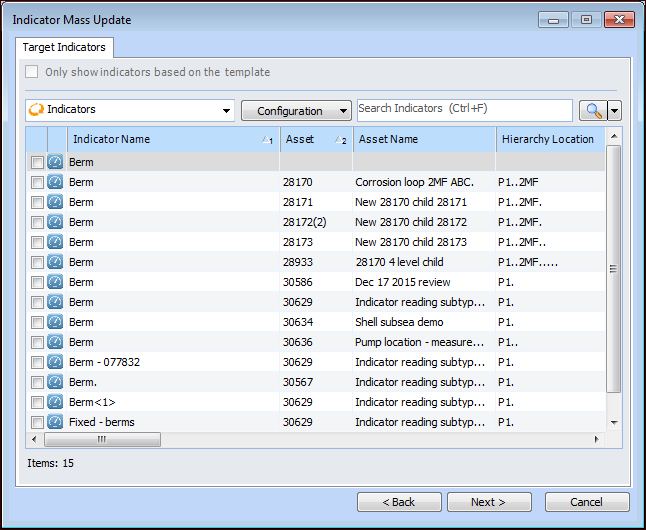
Click Next. The Target Indicators page appears. This page lists all of the indicators of the source indicator’s type that are located at the same level or lower in the site hierarchy.
Note: If you are copying values from an indicator template, you can limit the target indicators to those based on the template.
Note: You cannot copy properties to indicator templates using the wizard.
Tip: To select multiple indicators, select their rows and click one of their check boxes. All of the selected indicators are marked to be targets.
5.
6.
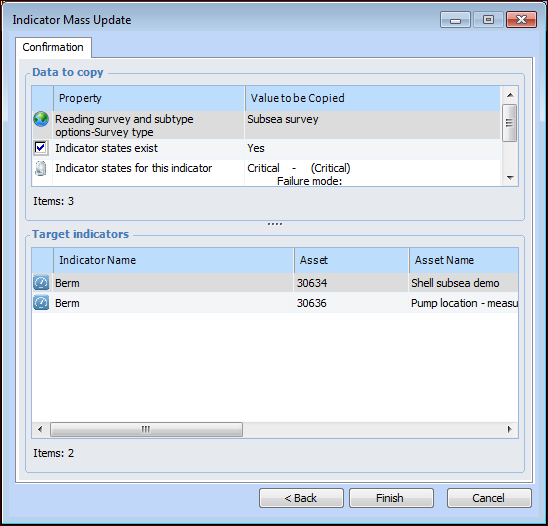
Click Next. The Confirmation page appears, listing the values that you chose to copy and the target indicators.
7.
Review the values to be copied and the target indicators. To remove an indicator from the list, right-click it and click Remove. To add another value or target, click Back to return to the previous pages.
8.
When you are ready, click Finish. A progress dialog appears.
If you wish to stop the process, click Cancel. Stopping the wizard will not undo any changes that have been applied up to that point. However, it will stop the update request from being applied to any of the remaining unprocessed indicators. When this occurs, the status of the Indicator Mass Update request is shown as “Stopped”. A log of the indicators that were successfully updated is saved with it.
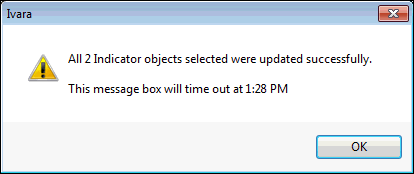
When the update process is complete, a message appears indicating the number of target indicators that were successfully updated and the number of failures, if any. For example:
9.
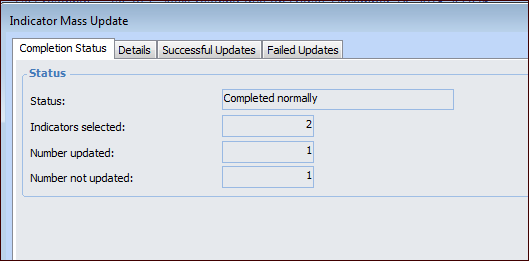
Click OK. The wizard displays the Completion Status page. For example:
The Details tab displays the properties that were copied and lists the target indicators. Select the Successful Updates or Failed Updates tab to view detailed information about the target indicators.
10.
You can view a list of the mass update requests and open individual requests. For more information, see Viewing Indicator Mass Update Requests.
For information about the reasons for update failures, see Troubleshooting Indicator Mass Update Requests.