Deactivating Reading Collection on an Indicator

You can mark one or more indicators as inactive, meaning that readings should not be collected for them. This is useful when there will be an extended shutdown period during which asset indicator readings are not required. When an indicator is inactive, its next reading due date changes to the date and time when it was deactivated.
Tip: In the site’s Inspection Management view, Indicators tab, By Asset Hierarchy and Listing tabs, select the Indicator details configuration to view the collection status of indicators. Inactive indicators are shown in gray. The Collection Status column shows indicators as “Collection is active” or “Collection is inactive”.
Only active indicators are included when:
On the site’s Inspection Management view, Indicators tab, the “Collection is inactive” configuration is available in the tables in the By Asset and Listing tabs.
This topic explains how:

To Deactivate Collection of an Indicator

1.
2.
On the Tools menu, select Mark Collection as Inactive.
3.
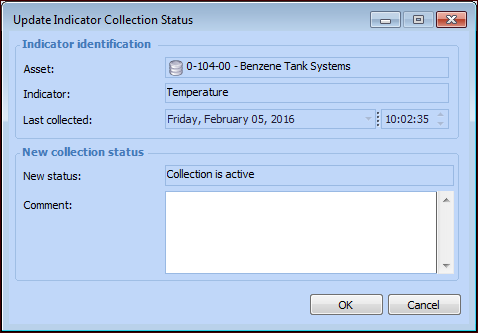
The new status appears as “Collection is inactive”.
4.
In the Comment box, you can enter an explanation of why the indicator collection status is changed.
5.
Click OK. The Update Indicator Collection Status dialog closes. The next reading due date is changed to the current date and time in the indicator’s banner. The History view displays the status change and the comment.
Note: Indicators with an inactive collection status are not included in an asset’s indicator collection report.

To Reactivate an Indicator

1.
On the Site window, select the Inspection Management view, Indicators tab, and the By Asset Hierarchy or Listing tab.
2.
3.
Right-click the indicator and click Mark Collection as Active. The Update Indicator Collection Status dialog appears.
The New status box shows “Collection is active”.
4.
In the Comment box, you can enter an explanation of why the indicator collection status is changed.
5.
Click OK. The Update Indicator Collection Status dialog closes. The next reading due date changes accordingly in the indicator’s banner. The History view displays the status change and the comment.

To Update Collection Status for Multiple Indicators
1.
On the Site window, select the Inspection Management view, Indicators tab, and the By Asset Hierarchy or Listing tab.
Tip: Set the recursion filter as required (for example, “Selected asset and below”).
2.
3.
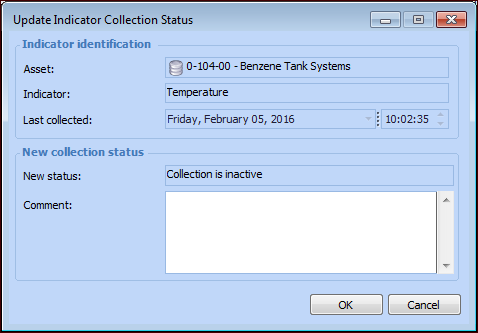
The Update Indicator Collection Status dialog appears.
4.
Enter a comment and click OK. The status and the comment that you enter in the dialog are applied to all of the selected indicators and can be viewed in each Indicator window in the History view.