Changing an Indicator’s Next Collection Date

You can change the collection date for a manually-collected active indicator. For example, if you are forced to defer a reading (because an incorrect reading was entered or the asset is unavailable), you can ensure that the indicator reading is taken the next time that the task is due.

To Change an Indicator’s Next Collection Date

1.
Select the site’s Inspection Management view, Indicators tab, and the Listing tab.
2.
3.
4.
Select the Readings view and the Next Reading tab.
5.
Next to the Collection due box, click Change.
Tip: You can also click the Tools menu and then click Change Next Reading Date.
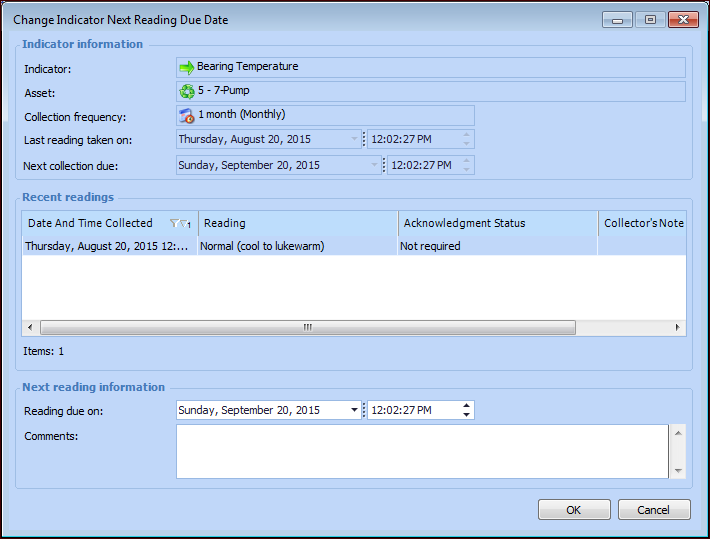
The Change Indicator Next Reading Due Date dialog appears. For example:
6.
In the first Reading due on box, select a date from the calendar. In the second box, enter the time at which the reading is to be taken.
7.
In the Comments box, enter the reason for changing the due date.
8.
Click OK.