Viewing Audit Information About Indicators

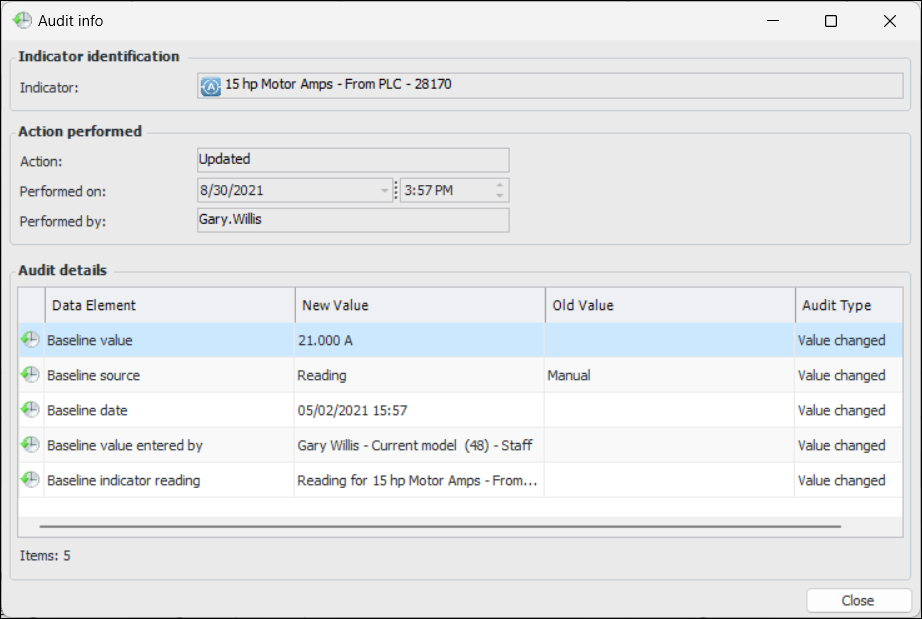
You can view historical changes made to an indicator on the History view in the Indicator window. You can also view changes to all of an asset’s indicators. The following changes to the indicator are logged:
Note: Only manual changes are recorded for the Next reading due date.
For indicators with collection policies, the following data elements are logged:
Tip: To view audit information at the site level, select the Inspection Management view and the Indicators tab. The Indicator History tab provides table configurations for Audit information by indicator and date performed and Audit information by date performed. The Indicator States History tab lists indicators, their states, and the actions performed. Select the Collection Policies History tab to view audit information about indicators with defined collection policies.
Tip: You can also generate indicator collection audit reports for assets. For more information, see Working With Indicator Collection Audit Reports.
This topic explains how to view an individual indicator’s history as well as the audit information for all of an asset’s indicators.

To View Audit Information for an Indicator

1.
From the site, select the Inspection Management view.
2.
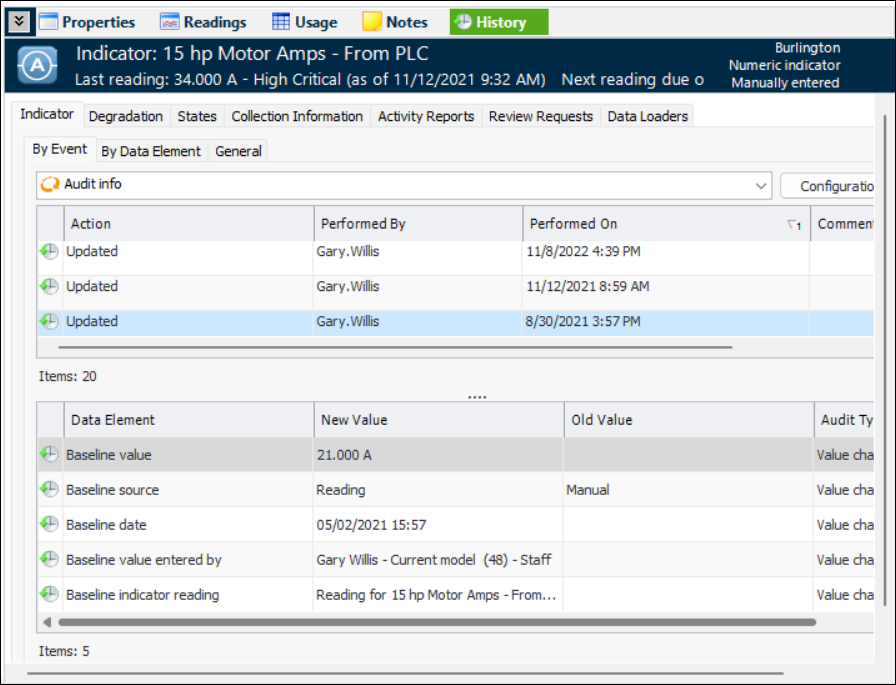
Open the indicator. In the Indicator window, select the History view, Indicator tab, then the By Event tab. This view lists the changes that have been made to the indicator. For example:
Note: The Collection Information tab is displayed only for indicators with defined collection policies.
3.

To View Audit Information for an Asset’s Indicators
1.
Open the asset and select the Inspection Management view, Utilities tab.
2.
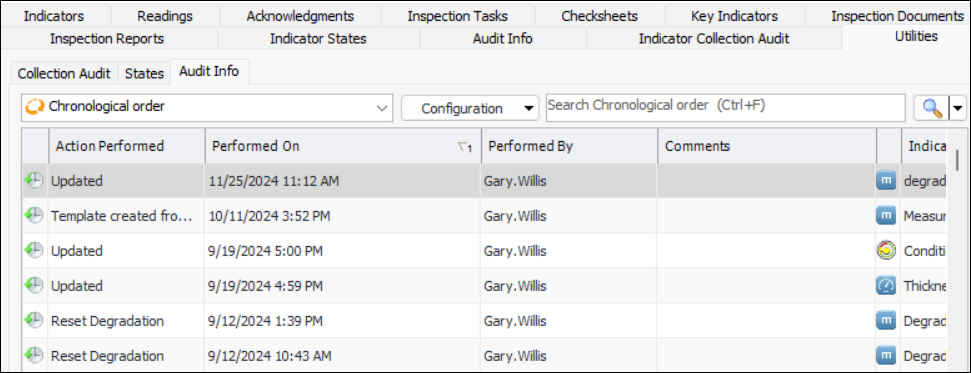
Select the Audit Info tab. The Chronological order table configuration lists the actions taken on all of the asset’s indicators. For example: