|
Checking the Current State of Indicators
To View Indicators from the Site
1.
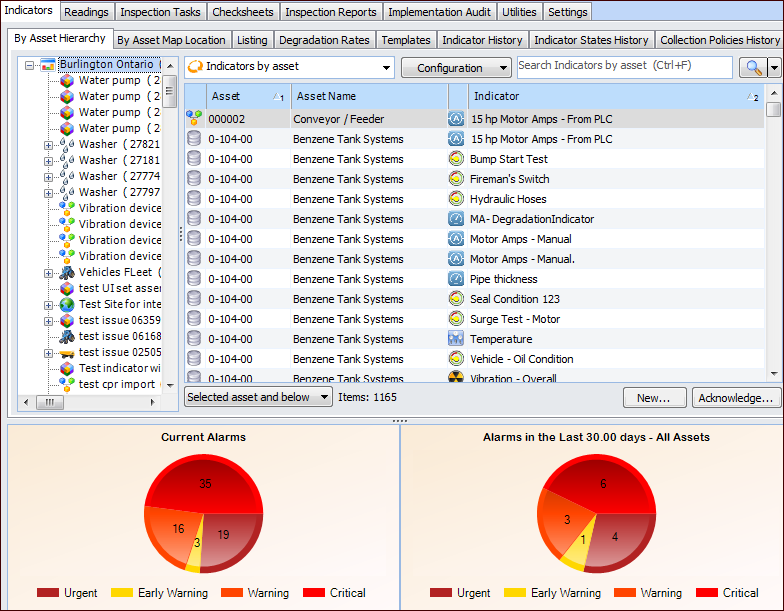
• Select the By Asset Hierarchy tab. The physical hierarchy is shown in a tree on the left. If there are alarms or warnings on indicators, you can see them here. Alarms and warnings that are serious enough show up on parent assets in the hierarchy. Note that the hierarchy might not display all alarms and warnings on parent assets, depending on how APM has been set up for your organization.
• Select the By Asset Map Location tab. The assets are displayed in geographically in a map on the left.
3. Tip: The alarm gauges on this tab are displayed when “APM standard sidebars” is selected as your employee record’s site sidebars set. For more information, see Adding an Employee.
4. You can acknowledge any of the warnings or alarms displayed on the tabs. Right-click the indicator and click Acknowledge Alarm. For detailed instructions, see Acknowledging Indicator Alarms and Warnings.To View Indicators from an Asset
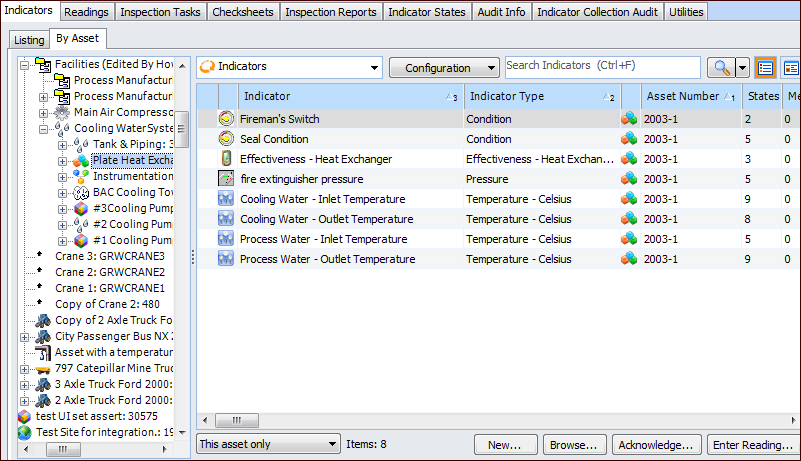
2. Select the Inspection Management view, Indicators tab. On the By Asset tab, you can view the asset’s hierarchy. Select an asset to view its indicators and alarms in the table to the right. Alarm statistics are shown below the table. For example:
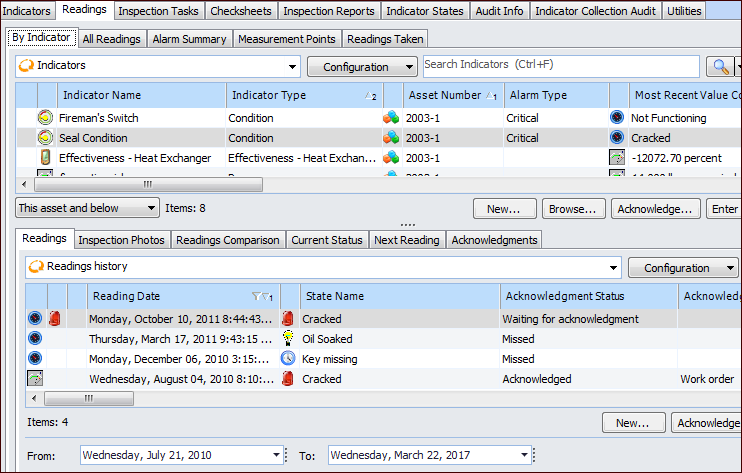
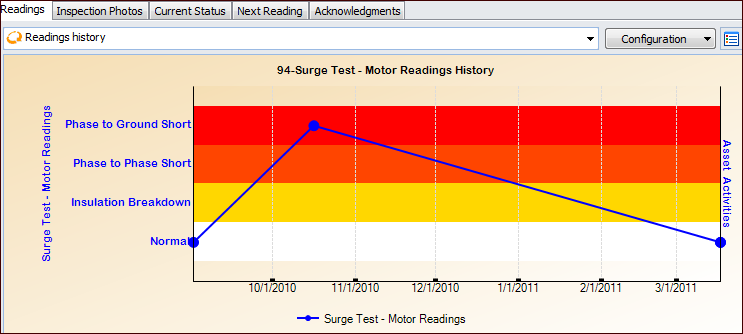
3. Select the Readings tab. On the By Indicator tab, select an indicator in the table to view information about readings. For example:You can adjust the number of reading displayed by changing the From and To dates at the bottom of the Readings tab.Select the chart view () on the lower Readings tab to display the readings in a graph. If an indicator has alarm states set up, they are represented by horizontal colored bars on the graph. For example:
4. You can select the Inspection Photos, Current Status, Next Reading, and Acknowledgments tabs to view more information about the indicator.
5. You can acknowledge any of the warnings or alarms displayed for the indicators. Right-click the indicator or reading and click Acknowledge Alarm. For more detailed instructions on acknowledging alarms, see Acknowledging Indicator Alarms and Warnings.
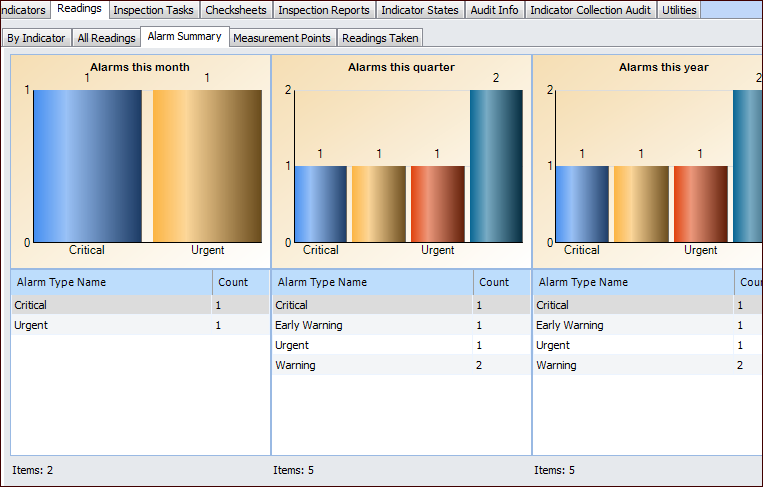
6. On the Readings tab, select the Alarm Summary tab. This tab summarizes indicator readings according to the current month, quarter, and year. For example: