Requesting Follow-up Work for an Indicator Reading

When entering or reviewing non-alarm (that is, normal or acknowledged) indicator readings from a checksheet, asset, or site, you can request a work document for follow-up work.
If you are using AssetWise Enterprise Interoperability (AWEIS) to exchange data with a CMMS (for example, SAP Plant Maintenance), the site’s interoperability profile determines whether APM work requests and work orders or requests for work are used.
If APM is configured to interact with a SAP Plant Maintenance system using APM external data packages, the site’s interoperability profile determines whether APM work requests and work orders or SAP maintenance orders and notifications are used.
Once created, follow-up APM work orders and work requests must go through the normal planning and approval processes in the same way as other work orders and work requests.
Tip: To view the follow-up work documents that have been created for the indicator reading, open the Indicator Reading dialog and select the Follow-Up tab. You can also view follow-up tasks for all readings on a checksheet. In the Checksheet window, select the Inspection Summary view, the Summary tab, and the Summary of Actions Taken tab.
This topic explains how:

To Request a Follow-up APM Work Document

1.
Open the Indicator Reading dialog and select the Follow-Up tab. Select the Work tab and click Create Follow-Up Work.
In the Checksheet window, select the Readings view, Readings tab. Right-click the reading and click Request Follow-up Work.
Select the site’s or asset’s Inspection Management view, Readings tab. Locate the reading on the Readings or By Indicator tab. Right-click the reading and click Request Follow-up Work.
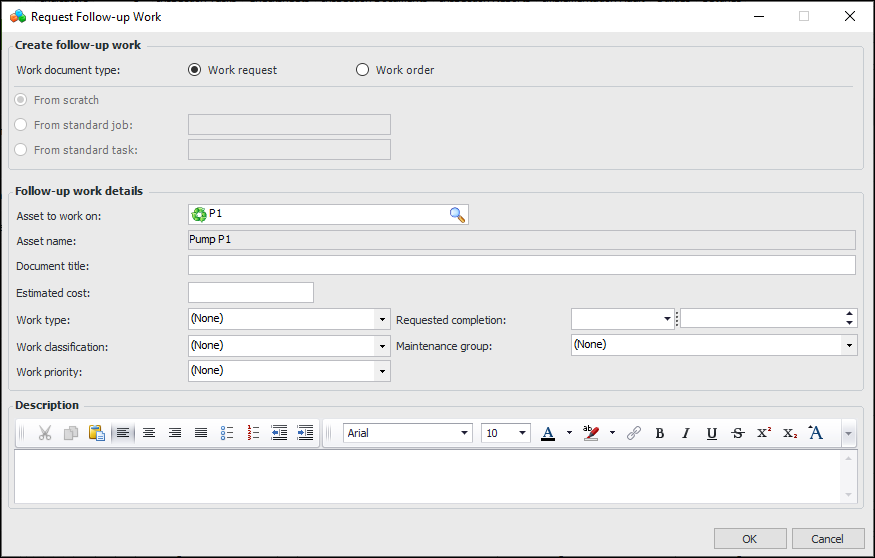
The Request Follow-up Work dialog appears. Here is an example when APM work documents are used:
2.
3.
If you selected Work order, select the method for creating the document. The options are:
From scratch – Add a new work order. See step 4.
From standard job – Browse to select the appropriate standard job. Select the requested completion date.
From standard task – Browse to select the appropriate standard task. Select the requested completion date.
4.
If the site settings specify that work documents must be approved, Send for approval to is selected by default. Select the approval route
5.
Click OK. The Request Follow-up Work dialog closes. The document window appears.

To Request an AWEIS Follow-up Request for Work

1.
Open the Indicator Reading dialog and select the Follow-Up tab. Select the Requests for Work tab and click Create Follow-Up Work.
In the Checksheet window, select the Readings view, Readings tab. Right-click the reading and click Request Follow-up Work.
Select the site’s or asset’s Inspection Management view, Readings tab. Locate the reading on the By Indicator tab. Right-click the reading and click Request Follow-up Work.
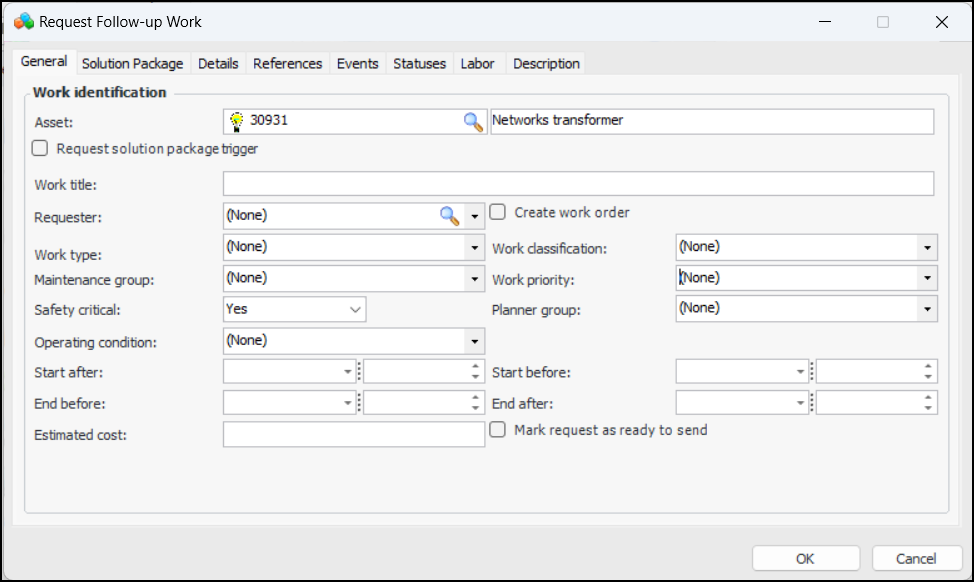
The Request Follow-up Work dialog appears:
For more information, see Creating a Request for Work from Scratch.
2.
When you have finished, click OK to save the document and close the window. The follow-up request is added to the Follow-up tab with the interop status “Ready to send”.

To Request a Follow-up SAP Maintenance Order

1.
Open the Indicator Reading dialog and select the Follow-Up tab. Select the Work tab and click Create.
In the Checksheet window, select the Readings view, Readings tab. Right-click the reading and click Request Follow-up Work.
Select the Site’s or asset’s Inspection Management view, Readings tab. Locate the reading on the By Indicator tab. Right-click the reading and click Request Follow-up Work.
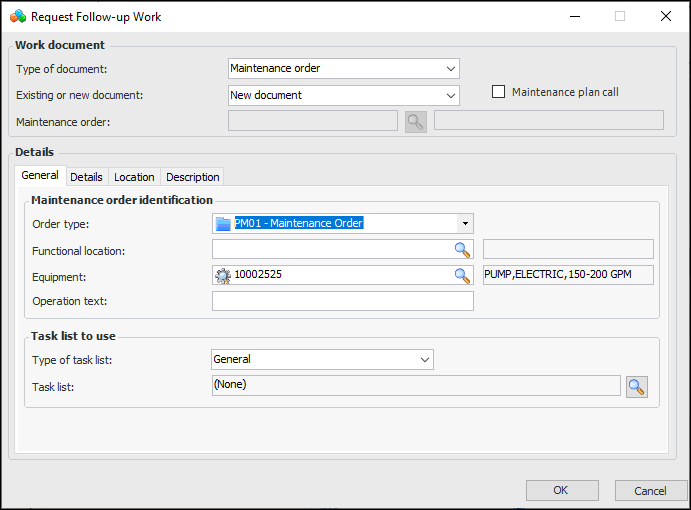
The Request Follow-up Work dialog appears. Here is an example when SAP work documents are used:
2.
To use an existing maintenance order, select the New or existing document list and click “Existing document”.
Select the maintenance order and click OK. The maintenance order number and description are displayed in the dialog.
Click OK to add the follow-up work to the reading.
3.
To create a maintenance call, select Maintenance plan manual order call.
Select the maintenance plan and click OK. The maintenance plan’s identifier and description are displayed in the dialog.
Click OK to add the follow-up work to the reading.
4.
To create a maintenance order, select the New or existing document list and click “New document”.
The following information from the functional location or equipment is displayed:
Planning and maintenance plants
Planner group
Main work center
Location, room, plant section
ABC indicator
The site’s interoperability profile determines which default values you can change for the new maintenance order.
In each of the Details, Location, and Description tabs, review and change the values, as needed.
5.
Click OK. The Request Follow-up Work dialog closes. The maintenance order is created or updated in SAP. The maintenance order is added to the indicator readings’ follow-up work.

To Request a Follow-up SAP Notification
1.
Open the Indicator Reading dialog and select the Follow-Up tab. Select the SAP Work tab and click Create.
In the Checksheet window, select the Readings view, Indicator Readings tab. Right-click the reading and click Request Follow-up Work.
Select the Site’s or asset’s Inspection Management view, Readings tab. Locate the reading on the By Indicator tab. Right-click the reading and click Request Follow-up Work.
The Request Follow-up Work dialog appears.
2.
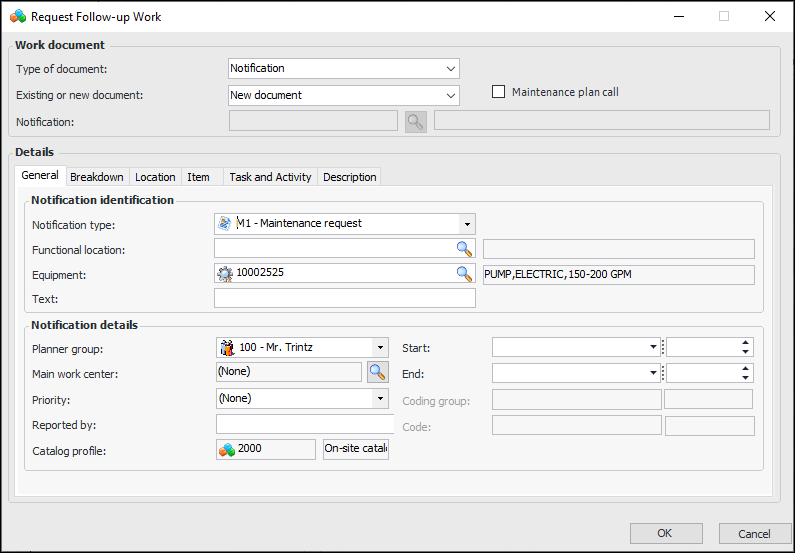
In the Type of document list, select “Notification”. The Request Follow-up Work dialog changes accordingly. For example:
3.
To use an existing notification, select the New or existing document list and click “Existing document”.
Select the notification and click OK. The notification number and description are displayed in the dialog.
Click OK to add the follow-up work to the reading.
4.
To use a new notification, select the New or existing document list and click “New document”.
The following information from the functional location or equipment is displayed:
Planning and maintenance plants
Planner group
Main work center
Location, room, plant section
ABC indicator
The site’s interoperability profile determines which default values you can change for the new notification.
In each of the Breakdown, Location, Item, Task and Activity, and Description tabs, review and change the values, as needed.
Click OK. The Request Follow-up Work dialog closes. The notification is created in SAP and its number and title are returned to the record in APM. The notification is added to the indicator readings’ follow-up work.