|
Requesting a Failure Mode Review for an Indicator
To Request a Failure Mode Review for an Indicator
•
•
2. Right-click the processed reading and click Request Failure Mode Review.Tip: You can also open a failure mode that references an indicator. In the Implementation view, Primary Action Plan or Secondary Action Plans tab, double-click the indicator to open the Indicator window. Click the Tools menu and then Request Failure Mode Review.
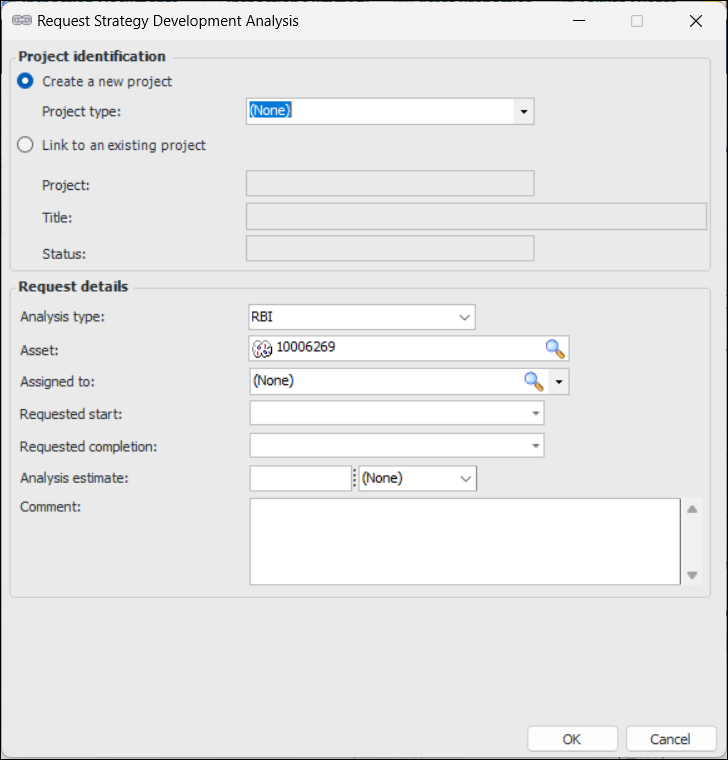
• To link to a new project, select Create a new project. Select a project type from the list.
• To link to an existing project, select Link to an existing project. Click the browse icon () to select the project and click OK. The project’s number, title, and status are displayed.
•
7. Click OK to save the request and close the dialog. The project is created.
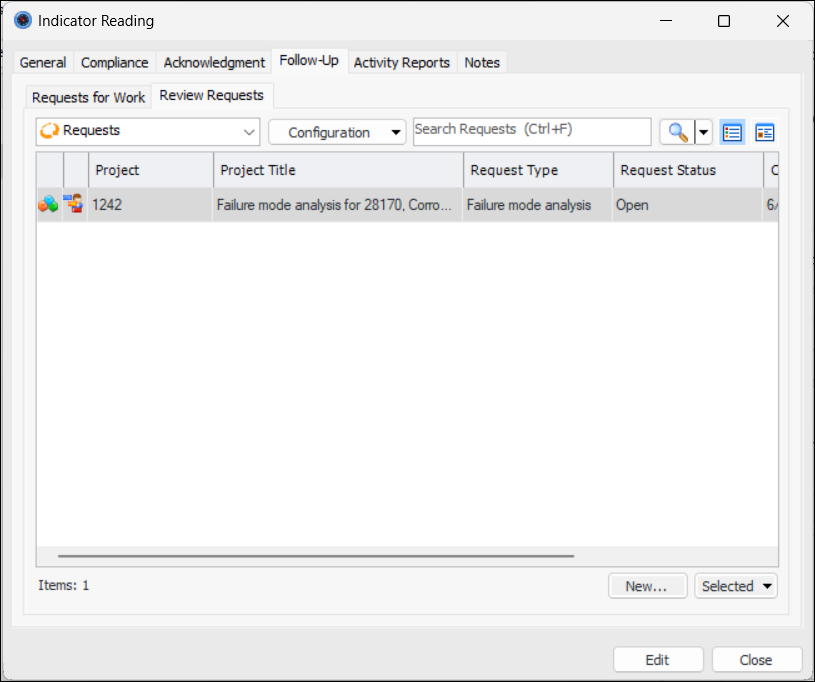
8. You can view the review request and project by double-clicking the reading to open the Indicator Reading window. Select the Follow-Up tab and then the Review Requests tab. For example:Tip: You can also view and create failure mode review requests in the Indicator window. Select the Usage view and Review Requests tab.
9.To Process a Review Request
1.
2. Select the request, click the Selected list and then Process. In the confirmation message that appears, click Yes. The failure mode that references the indicator appears. The request status changes to “Processed”.To Cancel or Reopen a Review Request
1.
2.