|
|


Marking an Asset as Unavailable For Reading
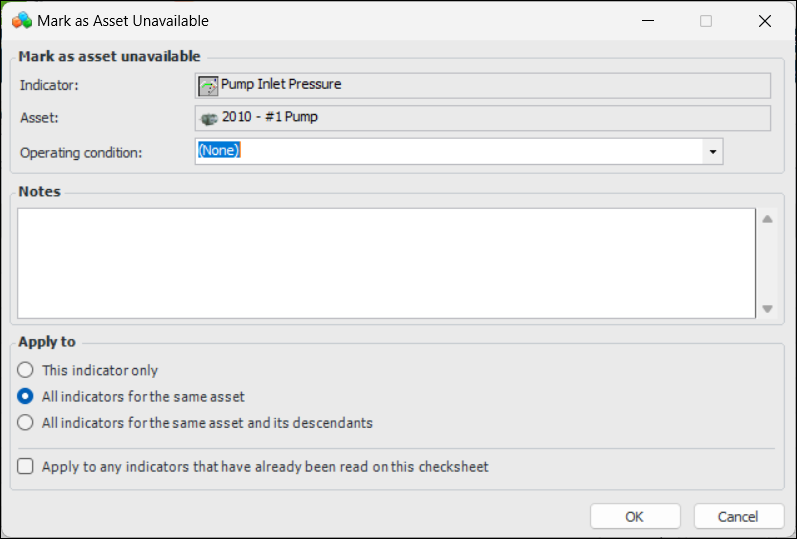
If an indicator reading could not be taken at collection time, you can specify that the asset was not available to be read. For example, if an asset must be operating for the reading to be taken and the asset is shut down at collection time, you can select Asset unavailable for reading and select the asset’s current operating condition. When APM processes the reading, the indicator is registered as having been read, allowing you to complete the checksheet. However:These readings are not included in comparative analyses or on dashboards. To view “asset unavailable” readings, select the site’s Inspection Management view, Readings tab. Select the “Asset unavailable” configuration.This topic explains how to mark an asset as unavailable on a checksheet reading. For information about reversing the setting once the reading has been entered (but before it has been processed), see Undoing the Asset-is-Unavailable Flag.To Mark an Asset as Unavailable on a Checksheet Reading