Sending a Checksheet for Approval

Your site’s approval settings determine if checksheets require approval. The checksheet type properties also indicate if approval is required. The checksheet’s completion status determines the time when the checksheet can be sent for approval, for example, when planning is complete. If approval is required, you must send the document to an approval route for approval.
For more information about setting up approvals, approving documents, redrafting documents, and more, see Document Approvals.

To Send a Checksheet for Approval

1.
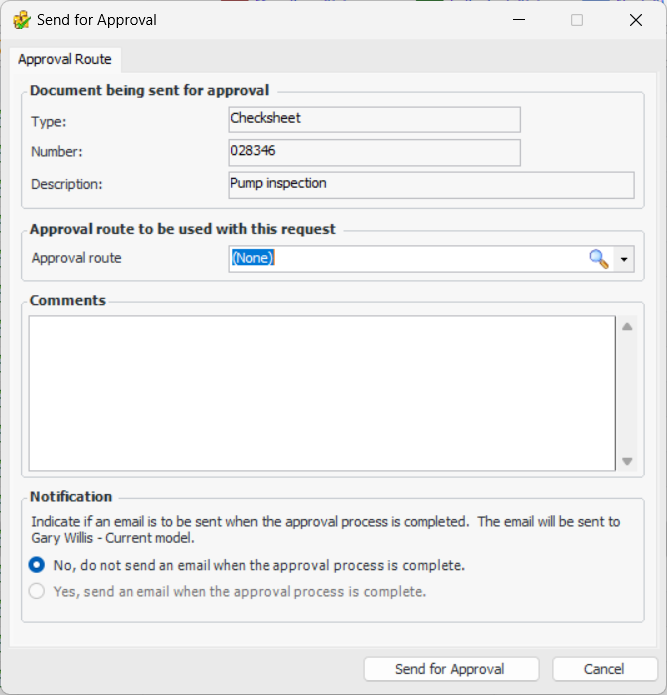
From the site’s Inspection Management view, select the Checksheets tab. Right-click the checksheet and click Send for Approval. The Send for Approval dialog appears.
Tip: You can also open the checksheet, click the Checksheet menu, and then Send for approval.
2.
The Approval Route list contains only routes that are valid for checksheets. Select a route from the list.
3.
Enter a comment, if you wish. Requester comments are displayed in the site’s Approvers view, Requests tab, as well as in the Approval Request window in the Request Info tab.
4.
To have APM automatically send an email to the originator when all approvers have reviewed the request, select Yes, send an email when the approval process is complete.
5.
Click Send for Approval. The approval request is sent to the first approver on the approval route selected, and the document’s approval status is changed to “Waiting for approval”.