Working with Inspection Documents on a Checksheet

Inspectors can attach one or more inspection documents to an indicator checksheet. The documents typically include links to files or generated reports, as well as information about the checksheet source, asset, system asset, and subsystem asset.
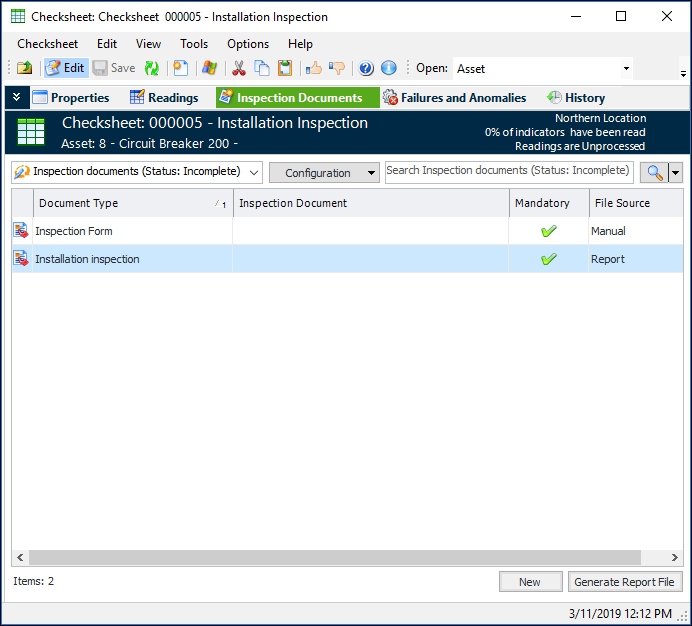
Support for inspection documents is a feature of the checksheet type. Checksheets for which inspection documents are supported or mandatory display the Inspection Documents view, where you can add, view, and open documents as well as generate reports.
Tip: Inspection documents can be viewed from the Site or Asset window by selecting the Inspection Management view and the Inspection Documents tab. At the site level, this tab lists all inspection documents created on the site. The asset’s Inspection Documents tab lists all inspection documents created for the asset on checksheets that reference it.
For information about setting up APM to attach inspection documents, see Setting up Inspection Document Types and Classes.
This topic explains how to review inspection documents and generate attached reports.

To Work with Inspection Documents

1.
When a checksheet is generated, one or more inspection documents can be copied to it from its source. For example, inspection document types can be assigned to task templates. When a checksheet is generated from a standard task that references the template, the inspection documents are added to the checksheet.
In the Inspection documents table, the configuration name is followed by the Inspection Documents status, for example, “(Incomplete)”. The status can be one of:
2.
A confirmation message appears. Click Yes. APM generates the report and displays the file path and name in the table.
3.
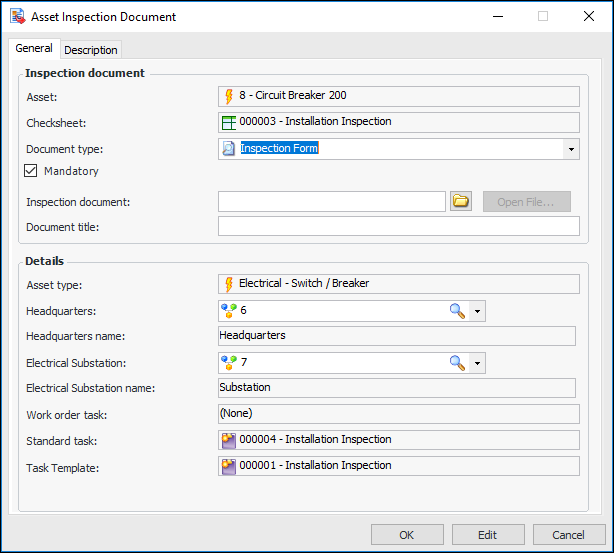
In the Inspection document field, click the folder icon to navigate to the directory and file to attach to the inspection document.
When you are finished, click OK to close the dialog. The path and file name are shown in the table.
4.
When all of the mandatory inspection documents have paths and file names, the Inspection Document status changes to “Complete”. This can change the checksheet status or trigger an event, depending on the site’s checksheet status default settings.