|
Exporting and Importing Checksheet Readings
You can export the indicator readings and measurement points on a checksheet to a Microsoft Excel® workbook that can be used to record readings for the purpose of importing them back into APM. This is especially useful when an inspector does not have access to APM but is required to record indicator readings while completing a route.
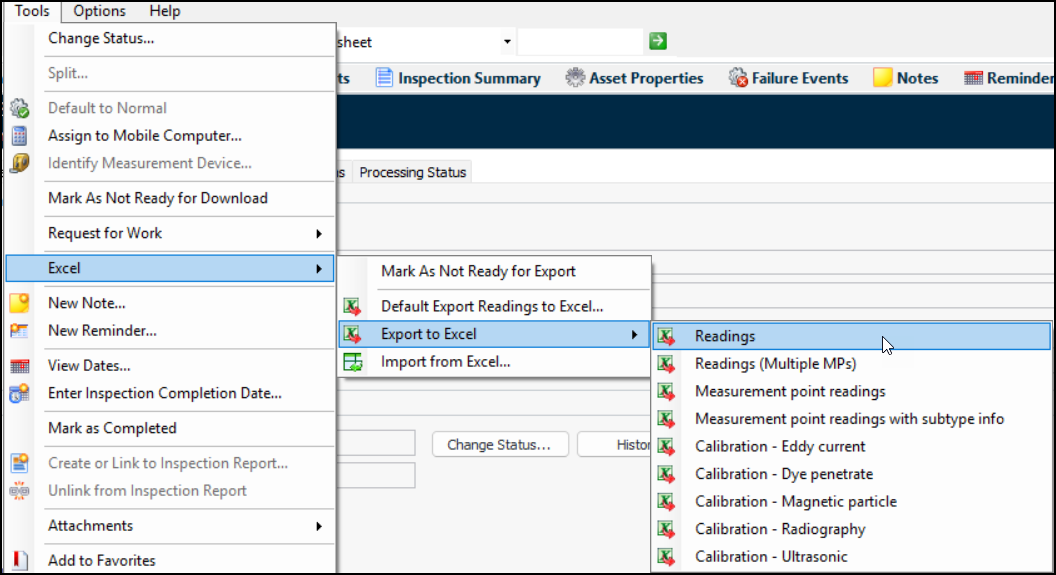
• Readings – For indicators without measurement points. The workbook contains a checksheet header worksheet and one readings worksheet that includes one row per indicator reading
• Readings (Multiple MPs) – For numeric indicators with 2-8 fixed measurement points. The workbook contains a checksheet header worksheet and one readings worksheet that includes one row per indicator reading. The readings worksheet contains up to eight columns for measurement point values
• Measurement point readings – For numeric and/or descriptive indicators with two or more fixed or variable measurement points. The workbook contains a checksheet header worksheet and one readings worksheet that includes one row per measurement point reading. Columns are provided to record values, indicator state, technology, measurement device (if appropriate), date collected, and notes
• Measurement point readings with subtype info – For indicators that support measurement point readings with survey or subtype requirements. The workbook contains one checksheet header worksheet and a separate readings worksheet for each indicator. Each readings worksheet lists the measurement points for the indicator and includes columns for survey and subtype propertiesTo Export a Checksheet to Excel and Enter Readings
Tip: You can also select the checksheet in the Checksheets tab, click the Selected list at the bottom of the tab, and click Export to Excel.
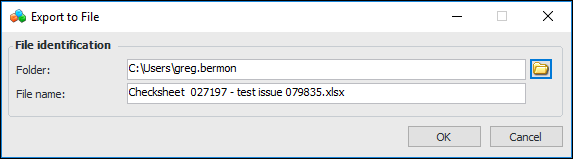
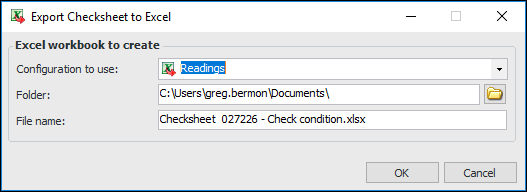
• Click the Tools menu, Excel, and then Default Export Readings to Excel. APM analyzes the readings and selects a configuration, which is shown in the Export Checksheet to Excel dialog. For example:If other configurations are available for this checksheet, you can select one in the Configuration to use list.
•
4. Click to OK to export the checksheet. Click OK. A progress dialog displays the process. Upon completion, you can locate the Excel file in the folder specified.Note: The workbook opens in a protected format; only the cells where values can be entered are active.Note: Exporting subsea inspections can take a considerable time to process. If performance is an issue, it is recommended that APM administrators edit the appropriate class properties, disable cell protection, and remove the check from the Enable pick from a dropdown list option. For more information, see Exporting Table Configurations to Excel.To Import Indicator Readings from a Single Worksheet
2.
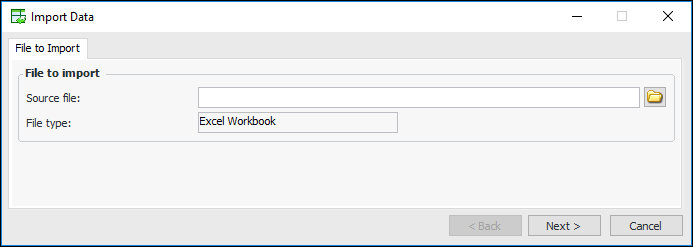
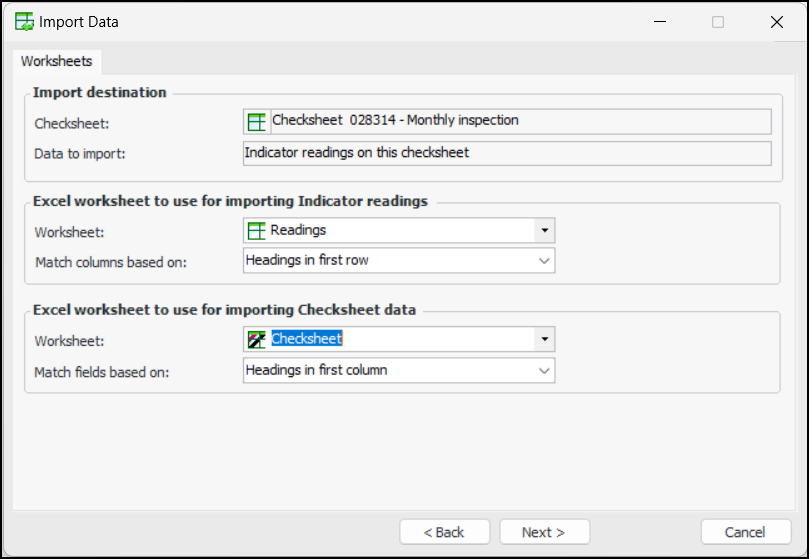
3. Clickto find and select the Excel file to import and then click Next. The Worksheets tab appears, for example:
4. In the Excel worksheet to use for importing Measurement point readings area, select the name of the worksheet that includes the readings, and select whether to match columns based on Headings in first row or Column sequence numbers.
5. In the Excel worksheet to use for importing Checksheet data area, select the worksheet that includes the inspection summary, analysis, and recommendations data, and select whether to match fields based on Headings in first row or Headings in first column.
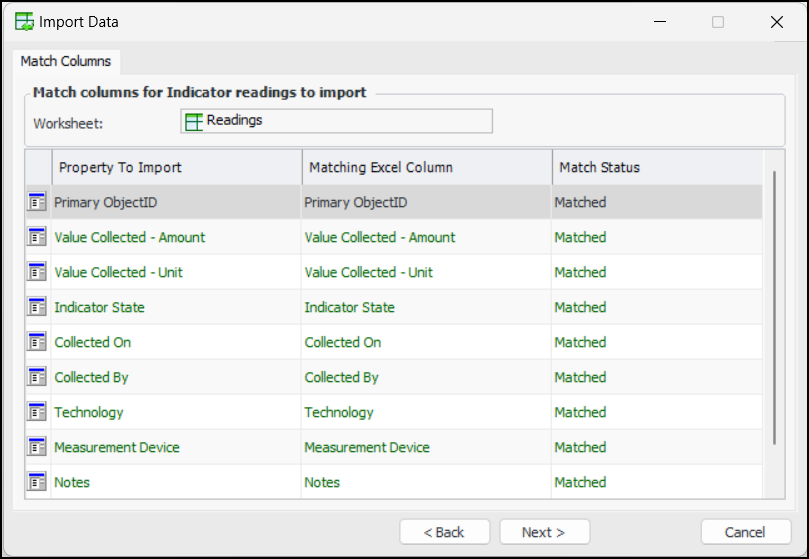
6. Click Next. The Match Columns tab appears. The columns in the readings spreadsheet are matched to the columns in the checksheet. For example:
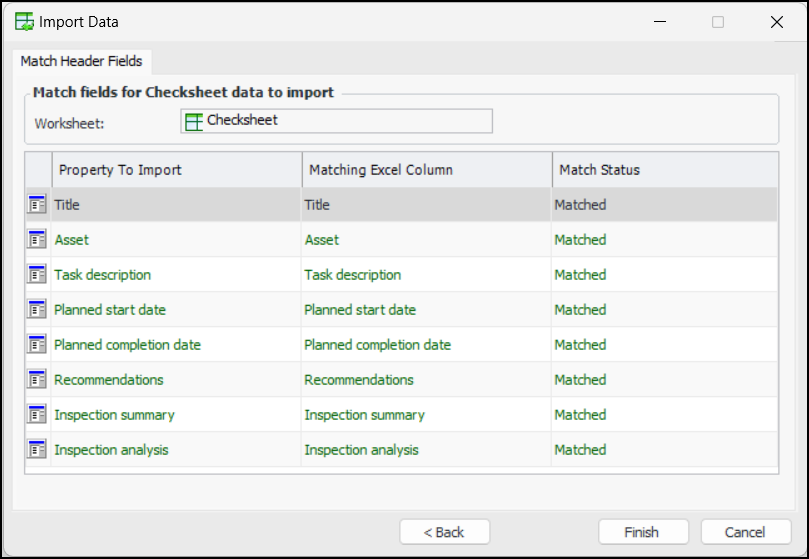
7. Click Next. The Match Header Fields tab appears. The columns in the readings spreadsheet are matched to the columns in the checksheet. For example:
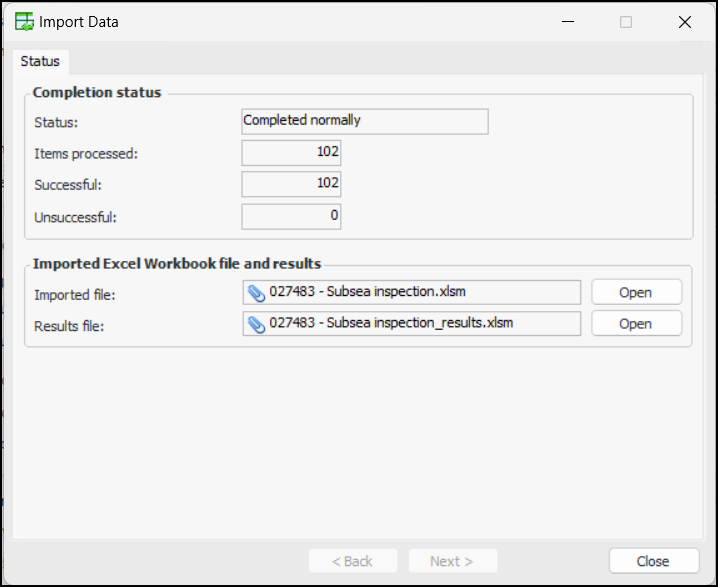
8. Click Finish. A message appears prompting you to confirm that you want to import the readings. Click Yes to continue.Tip: You can view the contents of the imported or results files in Excel by clicking the appropriate Open button.
11. Click Close. The dialog closes and you are returned to the Checksheet’s Readings view, Indicator Readings tab.
12. Acknowledge any alarms or warnings or click Mark as Completed.To Import Indicator Readings from Separate Worksheets
2. Tip: You can also select the checksheet’s Readings view, Indicator Readings tab, and then click Tools, Import from Excel.
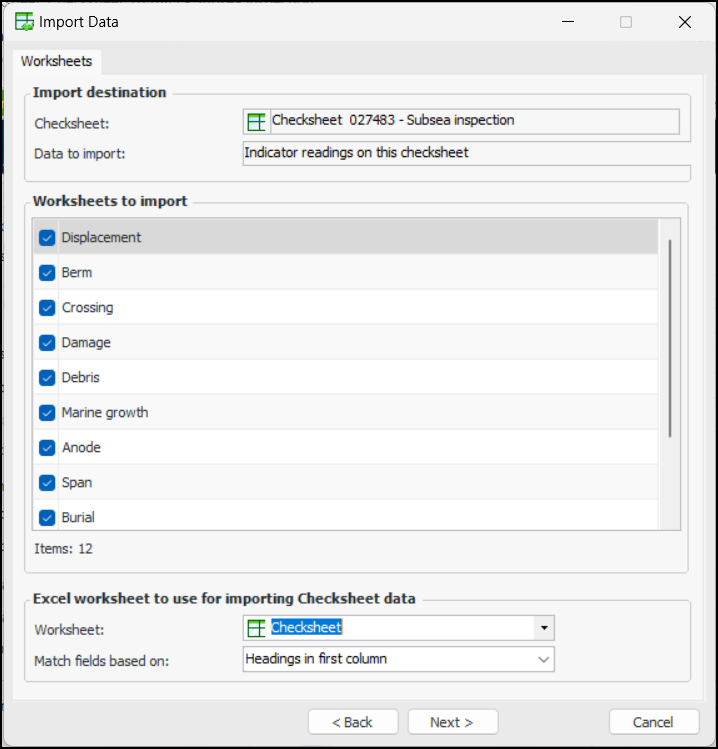
3. Clickto find and select the Excel file to import and then click Next. The Worksheets tab appears, for example:
4. By default, all worksheets are selected, in the Worksheets to import section. If you want to exclude a worksheet from the import file, remove the check for the appropriate worksheet.
5. In the Excel worksheet to use for importing Checksheet data area, select the worksheet that includes the inspection summary, analysis, and recommendations data, and select whether to match fields based on Headings in first row or Headings in first column.
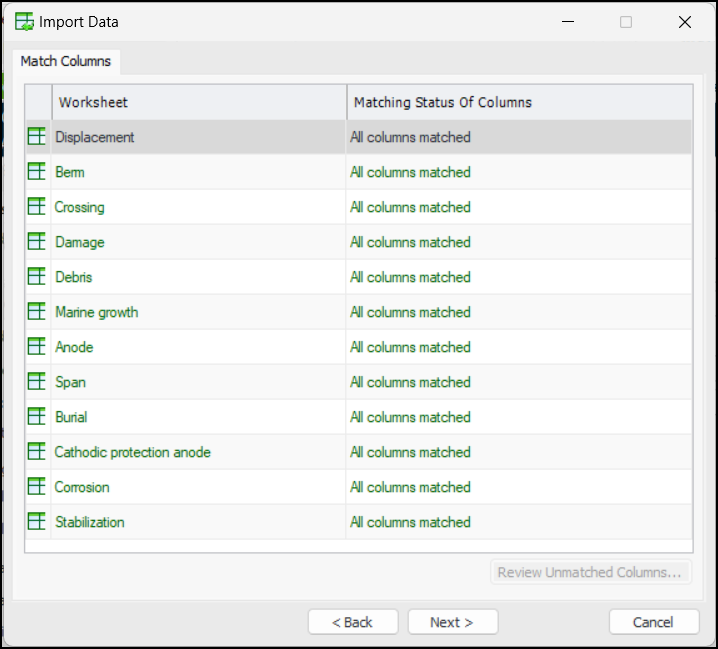
6. Click Next. The Match Columns tab appears. The columns in the readings spreadsheet are matched to the columns in the checksheet. For example:
7. Any unmatched columns are highlighted in red, and can be corrected by clicking Review Unmatched Columns and correcting each worksheet’s issues via the Review Unmatched Columns dialog. When finished, click Done.
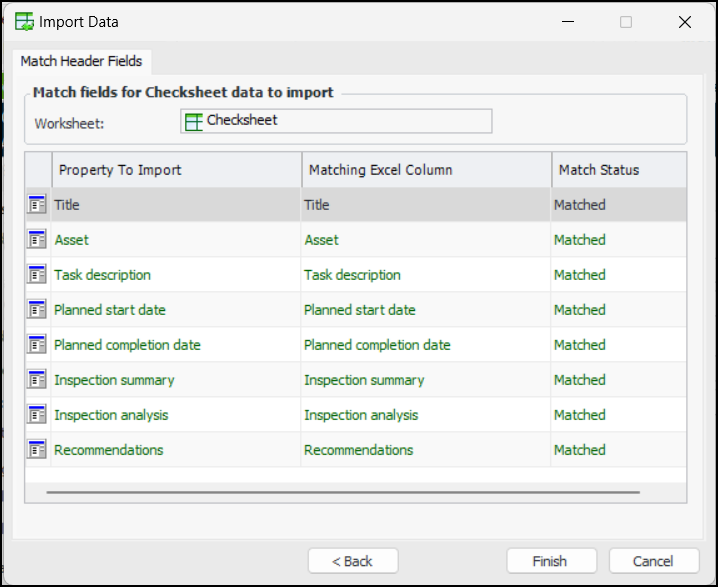
8. Click Next. The Match Header Fields tab appears. The columns in the readings spreadsheet are matched to the columns in the checksheet. For example:
9. Click Finish. A message appears prompting you to confirm that you want to import the readings. Click Yes to continue.
11. Click Close. The dialog closes and you are returned to the Checksheet’s Readings view, Readings tab.
12. Acknowledge any alarms or warnings or click Mark as Completed.