Entering Ad Hoc Indicator Readings

Indicator readings are used to enter the actual value of an indicator at a specific moment in time. You can enter ad hoc readings for an indicator without creating a work order or a checksheet.
Whenever you save an ad hoc reading or process a checksheet, APM records the date and time of the readings and evaluates any triggering rules or calculations based on the indicator. APM can use the readings you collect to trigger standard jobs or PM routes.
This topic explains how to enter ad hoc readings and provides background information about measurement point readings. It explains:

Measurement Point Readings

You can collect ad hoc readings for indicators with measurement points, which are locations on the asset, such as a pipe segment, where measurements are taken. The readings from numeric points are aggregated to arrive at one reading for the indicator. The reading from descriptive points is determined as the most severe reading.
APM provides a few ways to enter measurement point readings. Although the same information is collected by each method, each has its own benefits, depending on the situation or your preference. You can enter measurement point readings using the following tabs on the Ad hoc Indicator Reading dialog:
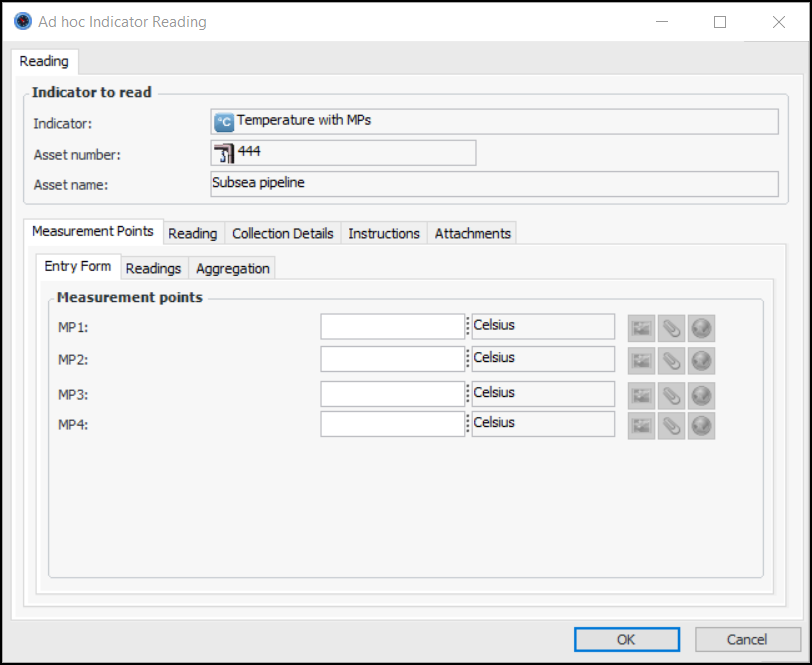
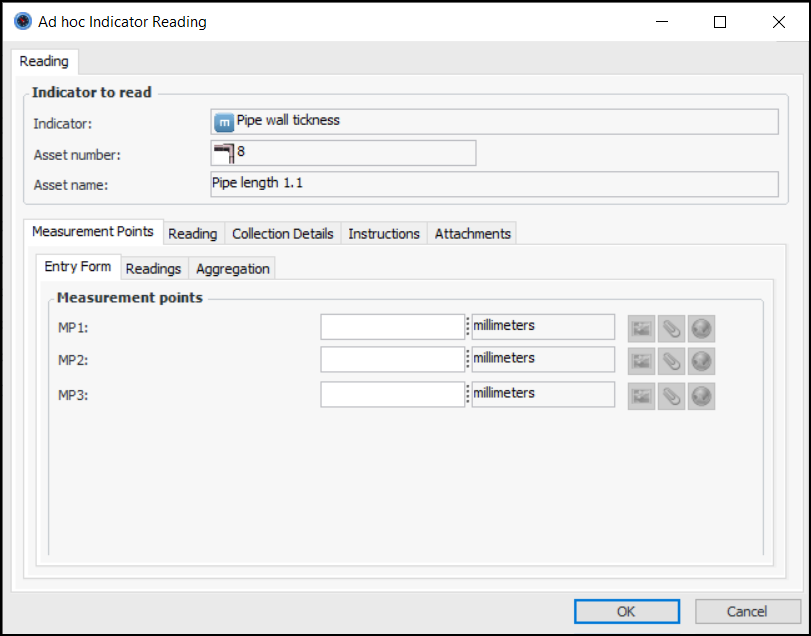
Entry Form tab: This tab appears if there are fewer than nine fixed measurement points on the indicator. For example:
You cannot create additional measurement points from the Entry Form tab. This method allows quick entry of basic data for the reading, especially if there are notes, attachments, or survey/subtype information. Each measurement point has an icon for entering additional information: Notes , Attachments , and Survey and Subtype information , where applicable.
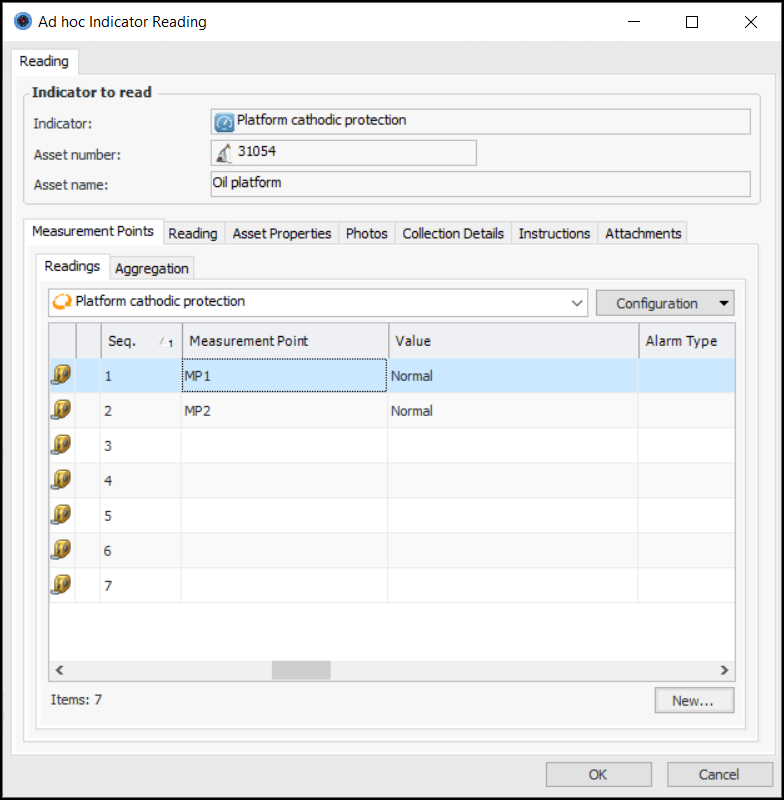
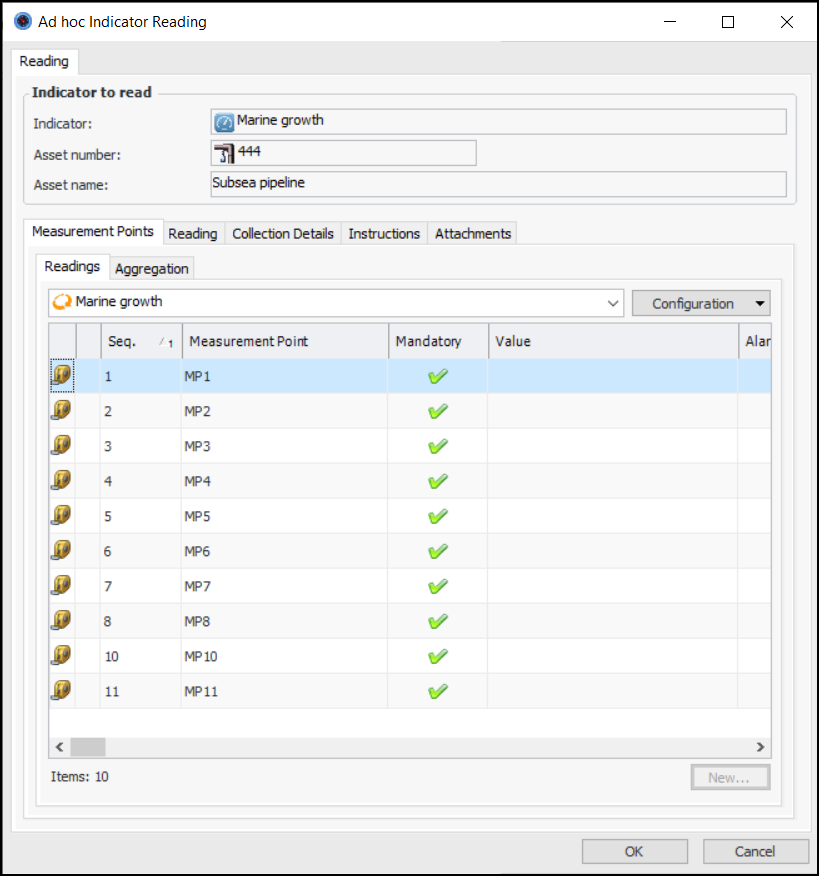
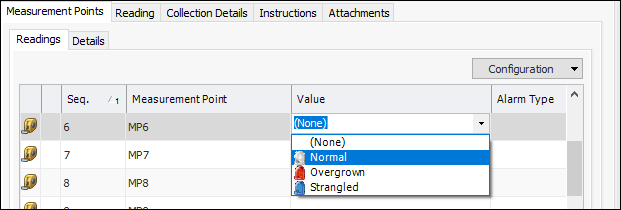
Readings tab: This tab displays all readings in a list format and allows measurement point readings to be entered using in-place editing. For example:
This method is suited for data entry where screen size is not an issue or for keyboard use only. This method is not ideal for measurement points with multiple subtypes and survey data because entering data in this manner can be tedious.
Tip: You can also double-click a measurement point on the Readings tab to open the Measurement Point Reading dialog.
Note: If you enter a reading for an indicator that predates the indicator’s most recent reading, the reading does not trigger any alarms, standard jobs, or calculated indicators.

To Enter a Single Ad Hoc Indicator Reading

1.
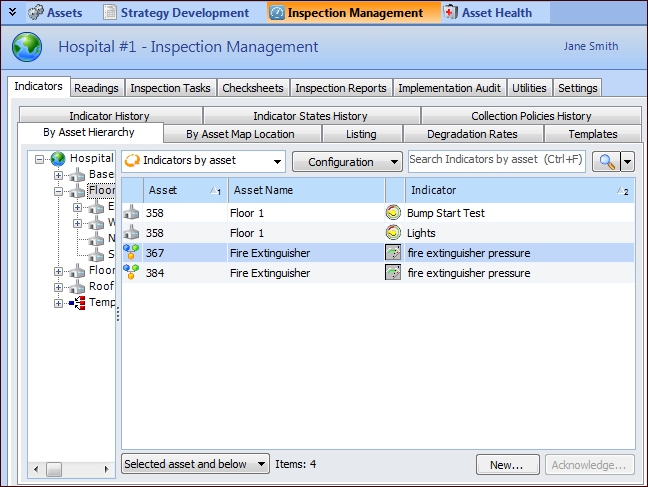
Select the site’s Inspection Management view, Indicators tab, By Asset Hierarchy tab.
2.
Tip: To expand the hierarchy and see more assets, click the plus signs ().
For example:
 
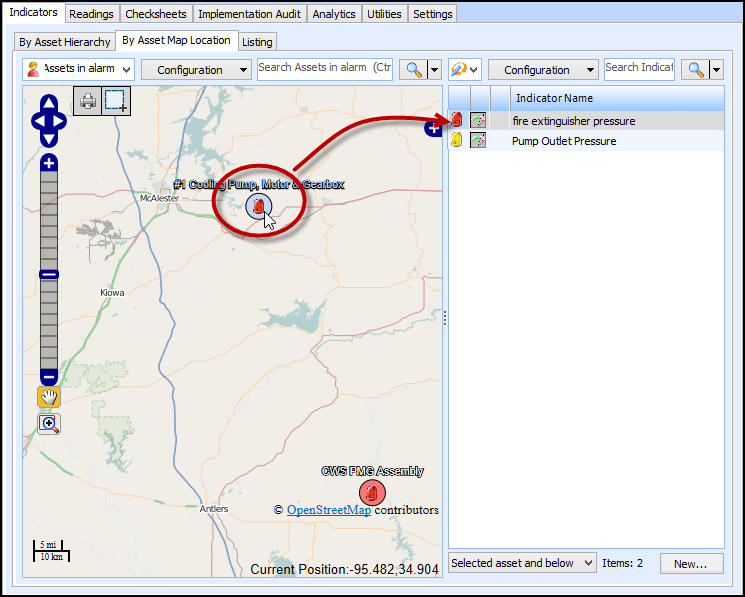
Tip: You can also select an asset on the map from the By Asset Map Location tab. By default, indicators for the selected asset and below are listed in the table. For example:
3.
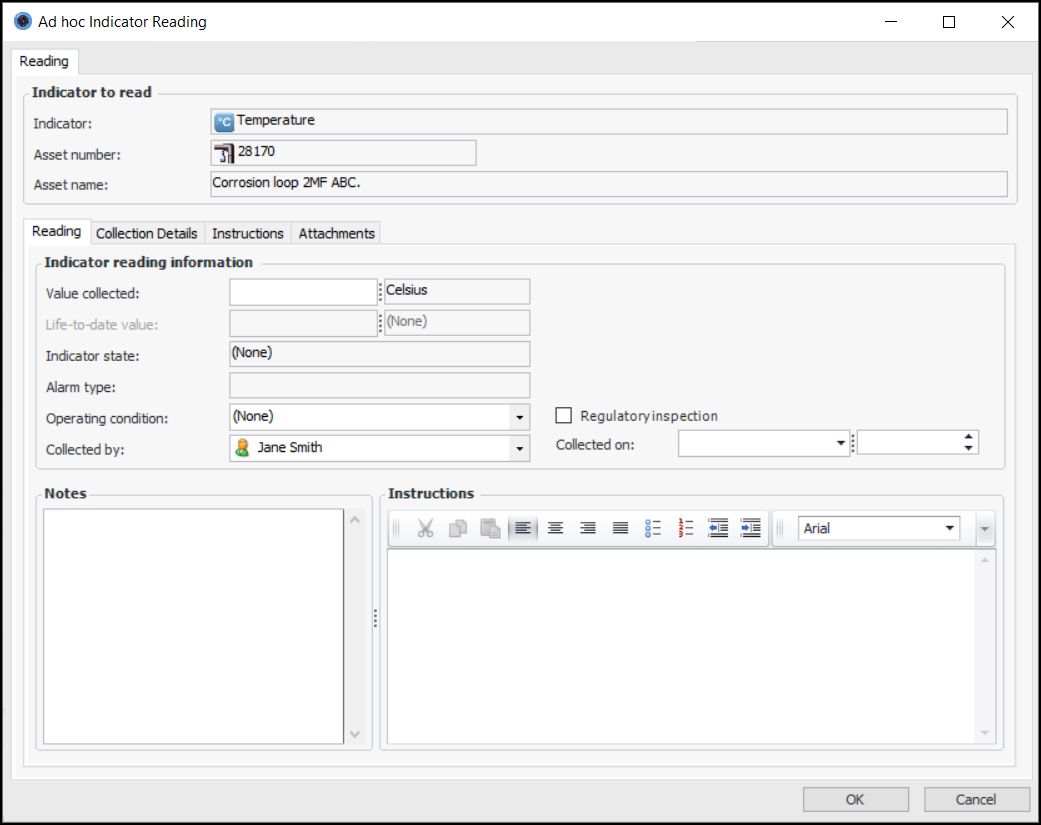
Right-click the indicator and click Enter Reading. The Ad Hoc Indicator Reading dialog appears.
4.
Refer to the Instructions box for any information needed to collect the reading.
5.
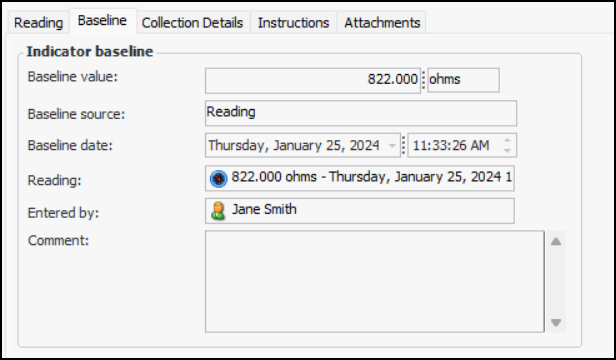
If the Baseline tab is available, select it to see the indicator baseline information. For example:
6.
On the Reading tab, enter the value for the reading.
Note: Numeric indicators that are manually collected can have minimum and maximum readings. If you enter a reading that is outside the allowed range, a message appears indicating the limit.
Note: The indicator reading’s map coordinates are automatically populated with the coordinates from the indicator; otherwise, the system populates the reading’s coordinates with non-null map coordinate values from the nearest parent asset in the hierarchy.
If you are entering a reading for a cumulative indicator with an accumulated value (for example, an odometer), the system checks that the current reading is higher than the previous reading. If you enter a reading that is lower than the previous value, the system displays a warning and prompts you to select a reason for the lower value: either “meter roll-over” or “previous reading incorrect”. You must select a reason before you can save the reading. The life-to-date value is set appropriately, depending on the selected reason.
7.
8.
9.
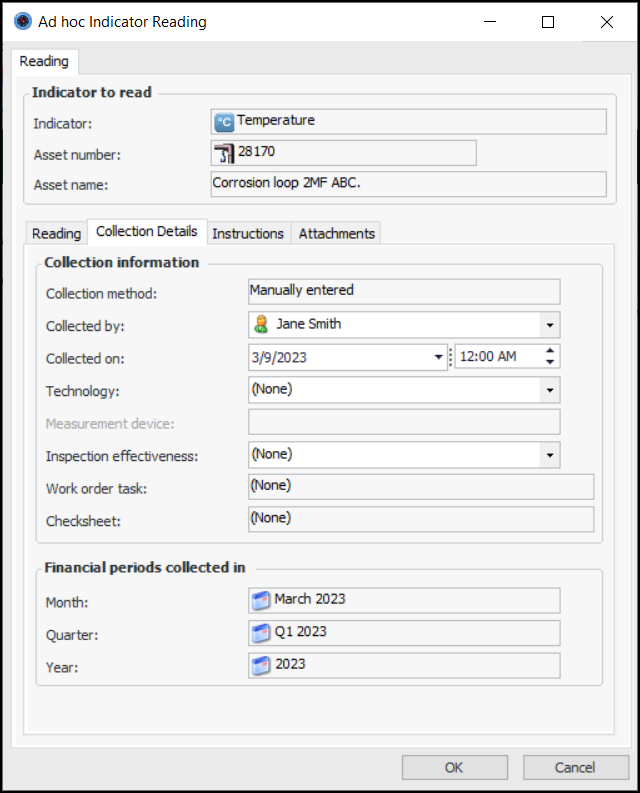
Select the Collection Details tab, for example:
10.
11.
The effectiveness evaluation reviews processed readings that identify an inspection effectiveness value and that were recorded within a specified time period. Using the rules set up for the site, the evaluation calculates the inspection effectiveness value for each indicator.
12.
Select the Photos tab and click Browse to add inspection photographs to the reading. For more information, see Adding Inspection Photographs to Objects.
Tip: You can also drag and drop photograph files into the list.
13.
Select the Attachments tab to add separate documents to the reading.
14.
Click OK to save the reading and close the dialog.

To Enter Ad Hoc Readings for Measurement Points

1.
Select the site’s Inspection Management view, Indicators tab, By Asset Hierarchy tab.
2.
Tip: To expand the hierarchy and see more assets, click the plus signs ().
3.
Right-click the indicator and click Enter Reading. The Ad Hoc Indicator Reading dialog appears. Here is the dialog for an indicator with fixed measurement points; that is, the points are named:
 
Any required points have check marks in the Mandatory column when they are shown in a table.
For variable measurement point, the number of points in the table is determined by the number of points expected to be measured, as set on the indicator. When you enter readings, you can name the points.
Note: If there are less than nine fixed measurement points, they are displayed individually on the Entry Form tab. If there are 10 or more points, they are displayed in a table. Here is an example of an indicator reading with three fixed measurement points:
Note: You must enter measurement point values before the photographs icons , attachments icons , and survey and subtype information icons are available. Click an icon to launch a dialog to select the photograph, attachment, and/or survey and subtype information to include with the measurement point.
The Aggregation tab displays information about the indicator and the readings, including the aggregated value of the readings, the aggregated state, the method of aggregation (sum, average, median, maximum or minimum), and the measurement point used to determine the overall reading if a single point is used.
4.
Refer to the Instructions tab for any directions for taking the measurements.
5.
6.
On the Readings tab, select a row and press F2. The row is opened for editing. For example:
When you have entered a value, press Tab to move to the next field. When you are finished editing a row, press Enter to close it for editing.
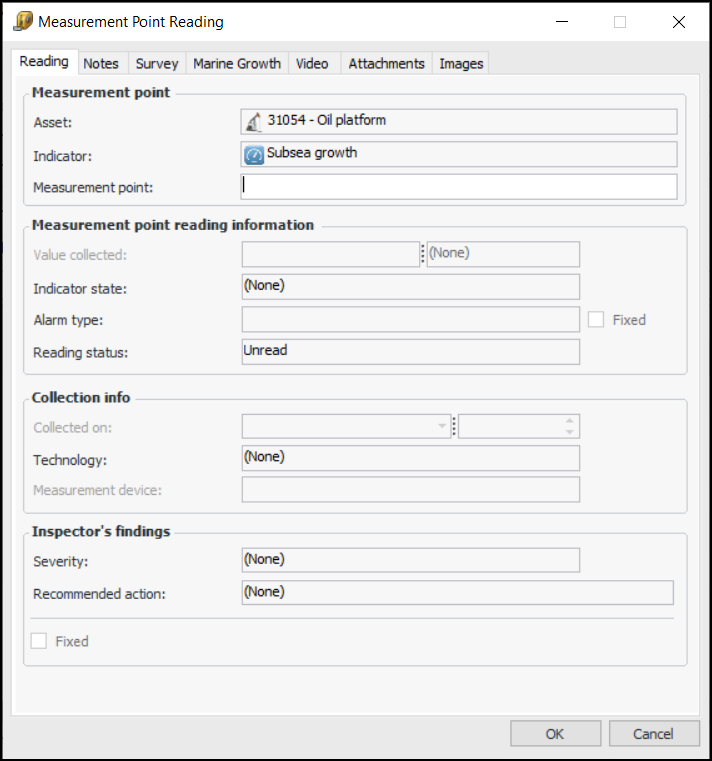
On the Readings tab, double-click a row to open the Measurement Point Reading window. Fill in the information required and click OK. The information is added to the Readings tab.
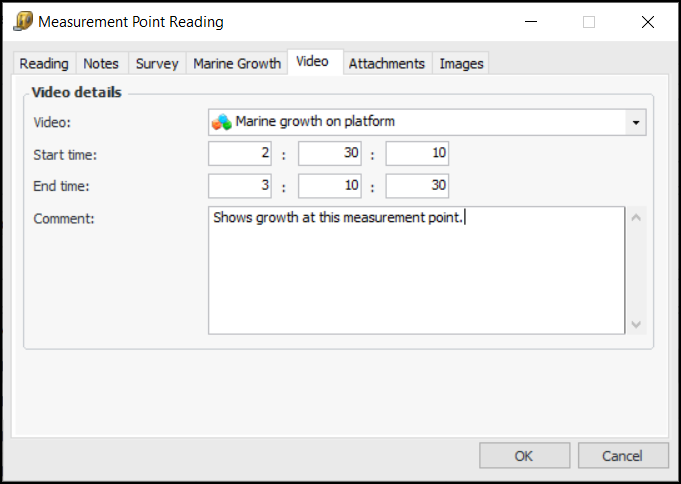
Tip: If the checksheet type supports videos, in the Measurement Point Reading window you can select the Video tab to add a link to a video file. In the Video list, select one of the files assigned to the checksheet. Specify the start and end times (hours:minutes:seconds) for the footage that pertains to the reading. For example:
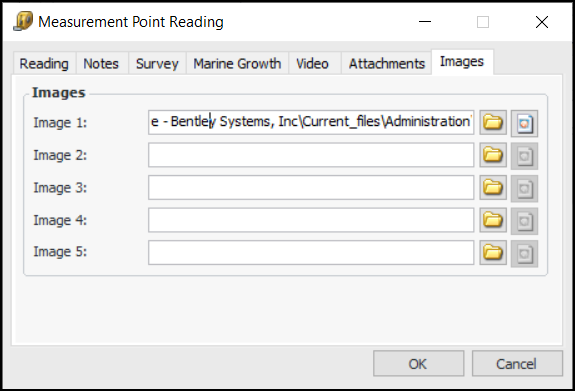
Tip: In the Measurement Point Reading window, select the Images tab to add a link to an image file by clicking . You can view the image by clicking . The path to each file is shown. For example:
7.
From the Readings tab, you can also add variable measurement points. Click New. The Measurement Point Reading dialog appears. For example:
Click OK. The Measurement Point Reading dialog closes and the measurement point is added to the table.
8.
9.
On the Photos tab, you can click Browse to add inspection photos to the reading.
Tip: You can also drag and drop photograph files into the list.
10.
On the Collection Details tab, you can modify the date and time the reading was collected, if necessary. If the indicator uses a technology associated with measurement device assets, you can select the measurement device used to take the reading.
11.
Select the Attachments tab to add separate documents to the reading.
12.
When you have finished entering readings, click OK to save the reading and close the dialog.