Creating Checksheets

A checksheet is a form that allows you to enter a set (or sample) of indicator readings in APM. The checksheet form contains information about the origin of the indicators, the list of indicators to be read, and space to record readings, make notes, and add inspection photographs and documents. You can create checksheets from a standard task, standard job, PM route, or work order task. You can also create ad hoc checksheets from a Site or Asset window and add the indicators to read.
Tip: You can create a checksheet from a work order task, standard task or template, or standard job by opening the source document’s window, clicking the Tools menu, Indicators, and then Create Checksheet.
Tip: Checksheets can also be generated from standard tasks at regular intervals. For more information, see Generating Checksheets from Standard Tasks.
When planning a checksheet, you are not limited to the indicators specified by the source document or route asset. You can browse for indicators to add to any checksheet, and you can add individual readings for any eligible indicator.
You can remove indicators that have been added manually or that come from a source standard task. However, you cannot remove indicators from the source work order task, and you cannot remove entered or processed readings.
Note: Indicator readings cannot be entered directly for a standard job that contains a task template.
If you have not yet collected the indicator readings and want a printed form to record readings, see Printing a Checksheet Form or Inspection Summary Report.
Your organization might use checksheet statuses defined in APM to control work flow and processes. The status defines the actions that you can perform on the checksheet. For example, a status of “New” might allow you to add or remove indicators, enter readings, and process readings in the checksheet.
When the checksheet status changes, one or more events might occur, for example, process readings, create an inspection report, or update readings as regulatory. In some cases, you can change the status manually. Status changes can also occur in response to system events. For example, a status can be applied to the checksheet when it is created, its readings are exported, or its readings are entered.
For more information about what checksheet statuses can do, see Setting up Checksheet Statuses.
For information about changing a checksheet’s status, see To Set Properties for the Checksheet in this topic.
This topic explains how:
For information about recording readings, see Entering Readings on a Checksheet.

To Create a Checksheet

1.
Select the site’s or asset’s Inspection Management view.
2.
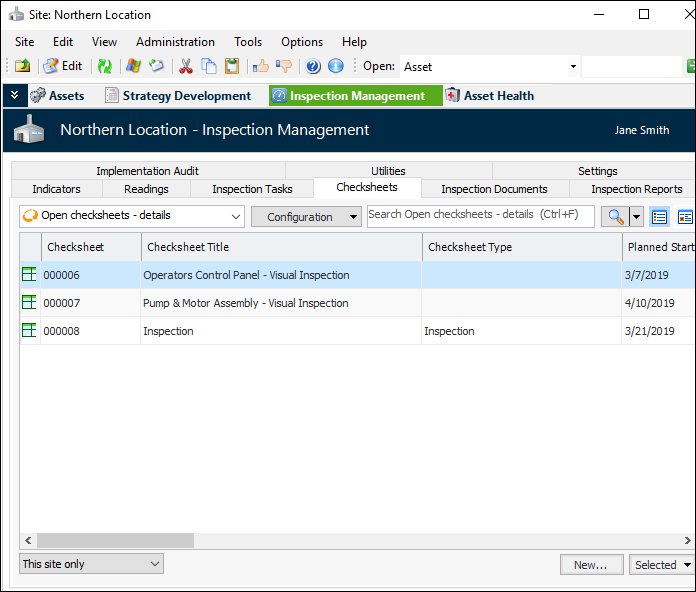
Select the Checksheets tab. This tab shows the checksheets for the site or asset. In this example, the “Open checksheets - details” configuration is selected:
3.
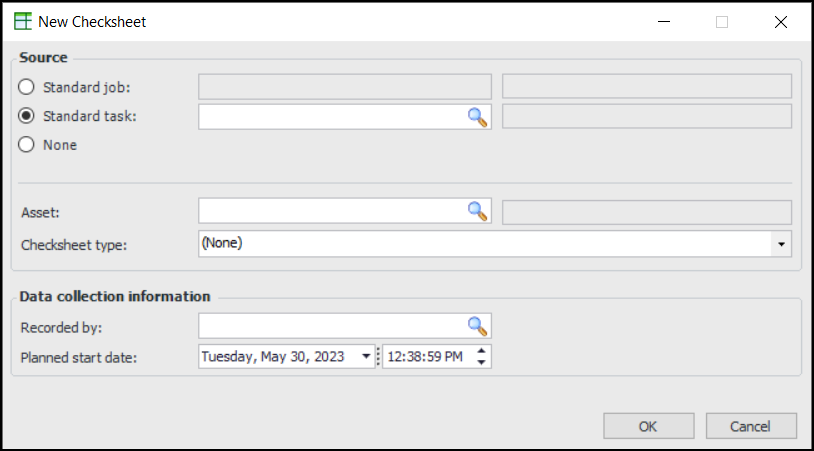
Click New. The New Checksheet dialog appears.
If you created the checksheet from an asset, the Asset box displays the asset number and name.
4.
To create checksheets for all of the tasks on a standard job, select Standard job and click . The Standard Job Selector dialog appears. Select the standard job and click OK.
To create a single checksheet from a standard task, select Standard task and click . The Standard Task Selector dialog appears. Select the standard task and click OK.
Select None to create an ad hoc checksheet. In the blank checksheet, you can select the indicators to read. You can also link the checksheet to a work order task on the Properties view, Source tab.
5.
If you created the checksheet from the site, the Asset box is available when the source is a standard task or “none”. You can browse for an asset if needed.
6.
7.
In the Recorded by box, click to open the Employee Selector dialog, listing only employees with the Inspector, data collection role. Select the employee to collect the indicator readings and click OK.
8.
The Planned start date box shows the current date and time by default. You can change this information, if required.
9.
Click OK. APM creates one or more checksheets, depending on whether a standard job, standard task, or PM route was selected. If you create a single checksheet, the Checksheet window appears.
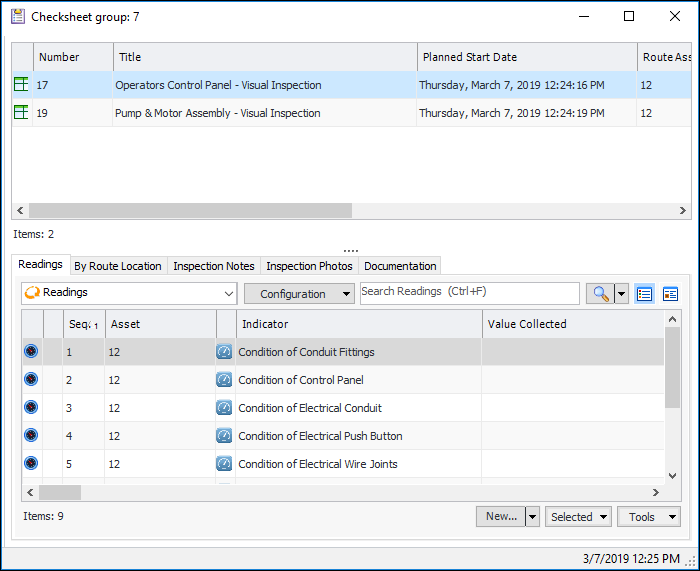
When you create a checksheet for a standard job or PM route with two or more tasks that can be started on the same date, the Checksheet Group window appears. For example:
Select a checksheet in the top table to view its information in the bottom part of the window. You can enter readings using this window, or you can double-click a checksheet to open the Checksheet window.

To Set Properties for the Checksheet

1.
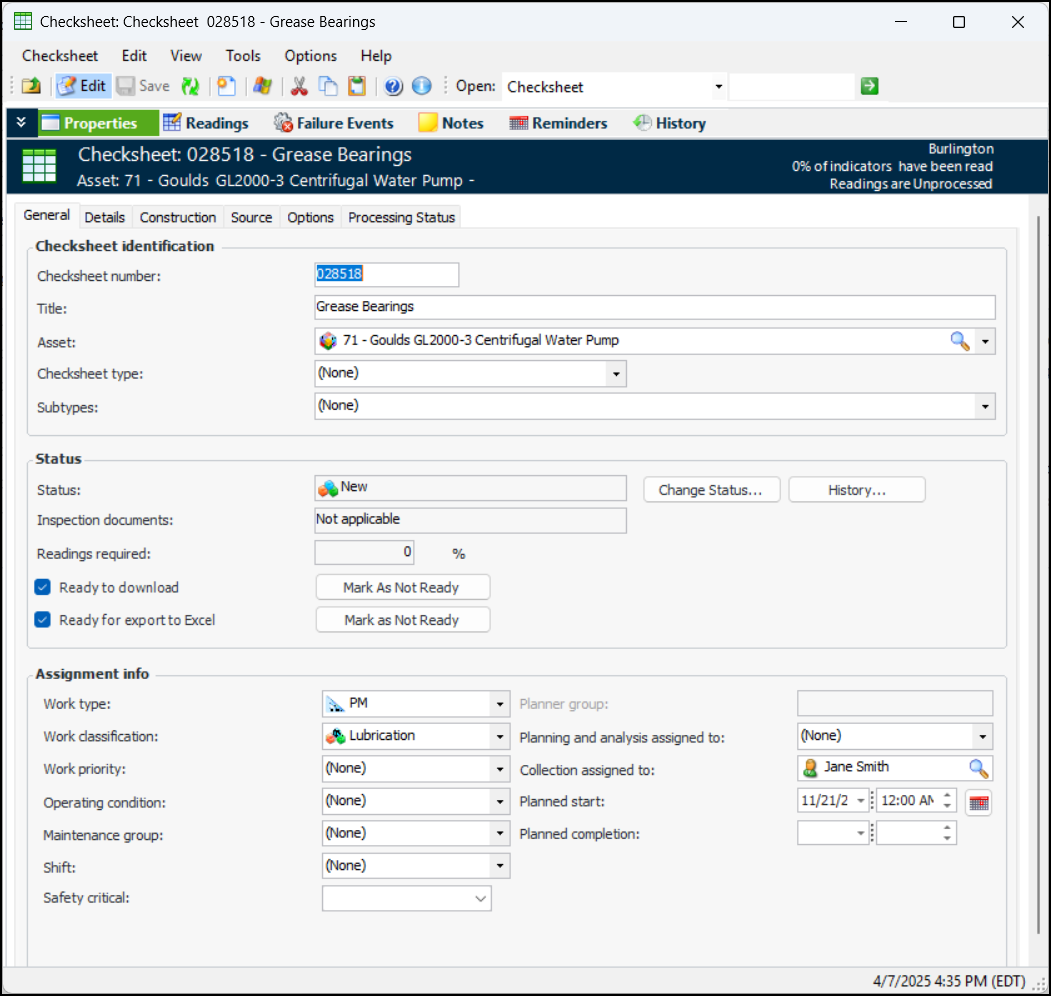
In the Checksheet window, select the Properties view, General tab. This tab includes identification and assignment information for the checksheet, which can be copied from the source object. Here is an example of a checksheet created from a standard task:
2.
3.
In the Title box, provide a descriptive name.
Note: If the checksheet was created from a standard task or job, the standard task title is copied to the checksheet title. If a work order task is the checksheet’s source, its title is copied to the checksheet. In any of these cases, you can change the checksheet title.
Note: On the Source tab, you can associate the checksheet with a work order task. The task’s title is copied to the checksheet and can be changed.
4.
5.
6.
Note: If the checksheet was created from a standard task, the checksheet subtypes selected on the task are selected by default on the checksheet.
7.
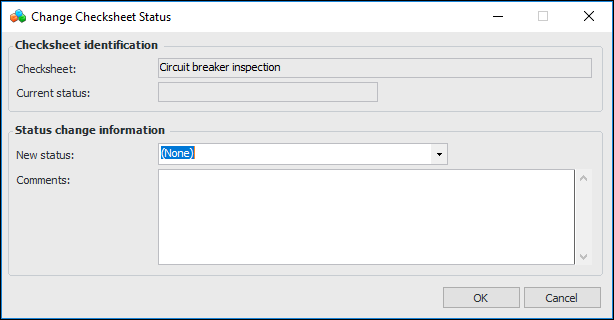
The New status list contains statuses that can be assigned manually. Select the status.
Click OK. The dialog closes and the new status is displayed in the Status box.
Tip: You can view a chronological list of status changes by clicking History. The Checksheet Status Change History window shows the checksheet number, title, status, comments, change date, and the user who made the change. The History view, Status Changes tab also shows this information.
8.
The Inspection documents read-only box displays the Inspection Document Status, which can be one of:
9.
If the checksheet type and checksheet status support downloading the checksheet to APM Remote or APM Mobile Inspections, Ready to download is selected. You can click Mark as Not Ready to clear the option.
10.
If the checksheet type and status support exporting the checksheet to Excel, Ready to export to Excel is selected. You can click Mark as Not Ready to clear the option.
11.
In the Assignment info area, select the appropriate options:
12.
The Planned start can be automatically set to the current date and time. Or, the checksheet type can specify that the standard task’s due date is defaulted to the checksheet’s planned start or completion date. You can change this information if required.
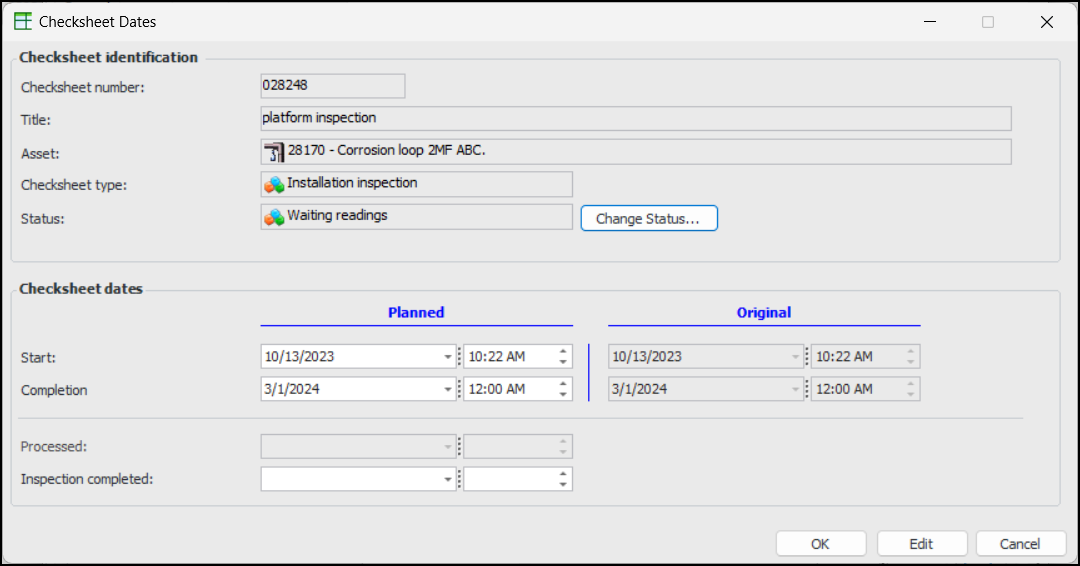
Tip: Click to open the Checksheet Dates dialog, where you can compare the planned and original dates. You can also record the date on which the inspection was completed. For example :
13.
The Planned completion date can be defaulted to the standard task’s due date or to the standard task’s due date plus inspection time. The checksheet type determines how planned completion date is calculated. You can change this information if required.
14.
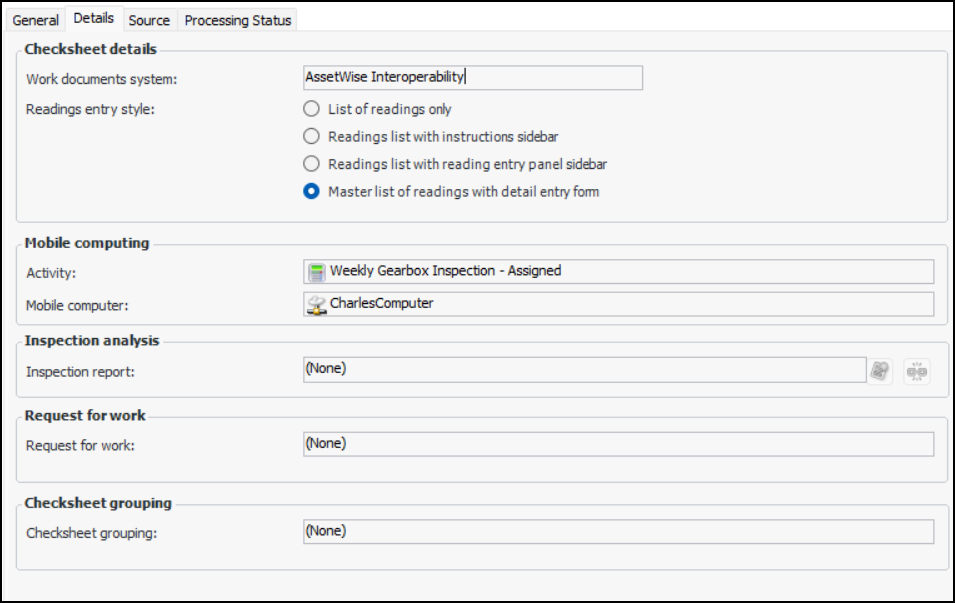
Select the Details tab:
The Work documents system box displays the master system for work documents. For example, if AssetWise Enterprise Interoperability has been implemented to exchange data with an external CMMS, “AssetWise Interoperability” is displayed.
15.
List of readings only (default) – Readings are listed in a table. You can use in-line editing to add values or double-click a reading to open the Indicator Reading dialog. You can view the table as a form to navigate between individual readings
List of readings with instructions sidebar – Readings are listed in a table on the left. Instructions for the selected indicator are shown in the sidebar on the right
Readings list with reading entry panel sidebar – Readings are listed in a table on the left. You can enter readings in the right-hand panel and use the navigation buttons to move from one indicator’s reading to the next
Master list of readings with detail entry form – Readings are listed in a table on the left. You can select a reading in the table to view and enter information in the panel on the right
The Mobile computing area shows the mobile activity and computer to which the checksheet is assigned.
16.
For more information, see Creating an Inspection Report.
Each checksheet can link to only one inspection report, although a report can contain many checksheets. If you need to analyze the checksheet on a different report, click to break the link. You can then link to another report.
The Requests for work area displays the request for work created from the checksheet, if any
The Checksheet grouping area displays the grouping, if any, with which the checksheet is associated
17.
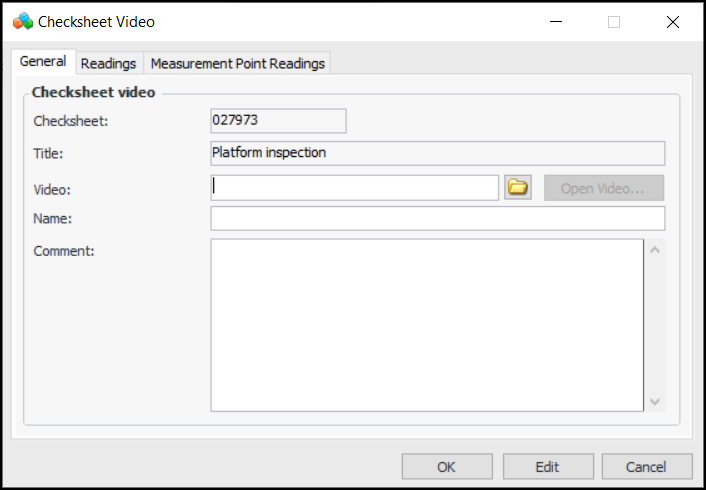
If the checksheet type supports videos, the Videos tab is available. You can select it and click New to open the Checksheet Video dialog:
18.
19.
Provide a name to identify the file and information or instructions. The Readings and Measurement Point Readings tabs will display the items that reference the video.
20.
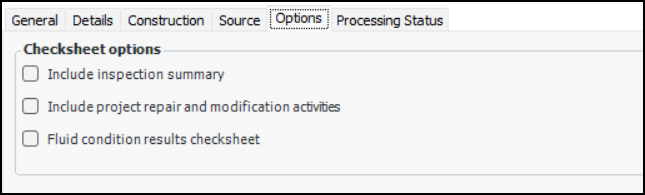
Select the Options tab:
21.
Select Include inspection summary to add the Inspection Summary view to the checksheet, where you can record a summary of findings, analysis, and recommendations. The view includes a summary of actions taken, such as alarm acknowledgments, follow-up tasks, follow-up work requests, failures and anomalies, and failure mode review requests.
22.
Select Include project repair and modification activities to add the Modifications view to the checksheet. Modification and repair inspection (MRI) checksheets are used to inspect an asset after a major construction project has reached a milestone or completion. Inspection activities ensure that the modifications or repairs are done according to the appropriate standards and codes.
Note: This information can be copied to a linked inspection report, depending on the report type assigned to the inspection report.
Note: Fluid condition results checksheet is selected and read-only if the checksheet was populated with fluid sample analysis results by a data loader.

To Add Indicators to a Checksheet

1.
2.
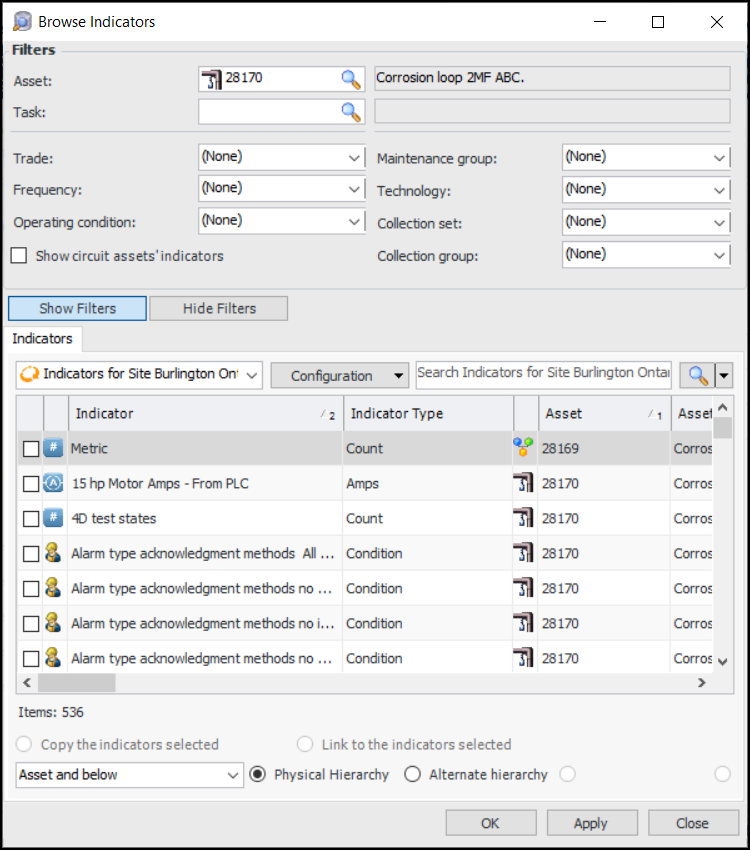
In the New list, click Browse Indicators. The Browse Indicators dialog appears.
The default configuration lists indicators for the current site. In the configurations list, you can select the configuration for all available sites.
Note: Show circuit assets’ indicators is available and selected when the asset that you are filtering on represents a circuit. When selected, the option filters the list to include only indicators for assets included in the circuit.
3.
4.
Select the indicators to add and click OK. The dialog closes and the indicators are added to the Readings tab.

To Remove an Indicator Reading from a Checksheet
1.
2.
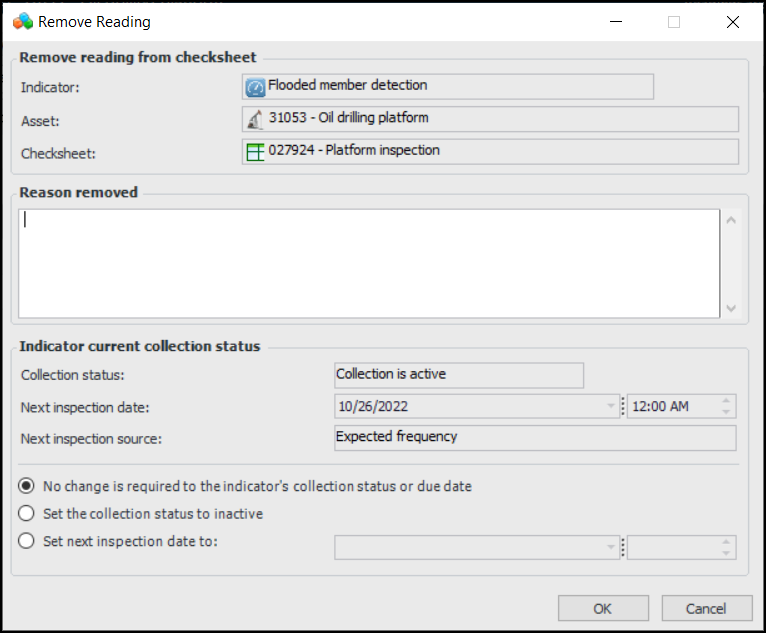
Select the reading, click the Selected list, and click Remove. The Remove Reading dialog appears. For example:
The current collection status information is displayed for your reference.
3.
Enter a reason for the removal. In the Indicator Readings tab, this information will appear in the Reason Removed column.
4.
5.
6.
Click OK. The Remove Reading dialog closes. The reading continues to be displayed in the Readings tab, but it is shown as gray and scored through. Note that the reading will not appear in printed checksheet reports or asset activity reports. The checksheet’s percent complete is recalculated.
Tip: To include an excluded reading, select it in the table, click the Selected list, and click Include. The Include Reading dialog appears, where you can set the collection status back to active and set the next inspection due date.