|
Entering Readings on a Checksheet
A checksheet is a form that allows you to enter a set (or sample) of indicator readings in APM. The checksheet form contains information about the origin of the indicators, the list of indicators to be read, and space to record readings, make notes, and add inspection photographs and documents. You can create checksheets from a standard task, standard job, PM route, or work order task. You can also create ad hoc checksheets from a Site or Asset window and add the indicators to read.For more information, see Creating Checksheets and Printing a Checksheet Form or Inspection Summary Report.You can also add failure or anomaly records to a checksheet, as well as view failures created from the alarm acknowledgments for the checksheet’s indicators. For more information, see Creating a Failure Record from a Checksheet.You can add one or more requests for work to a checksheet. For more information, see Creating a Request for Work from a Checksheet.Checksheet Planning View
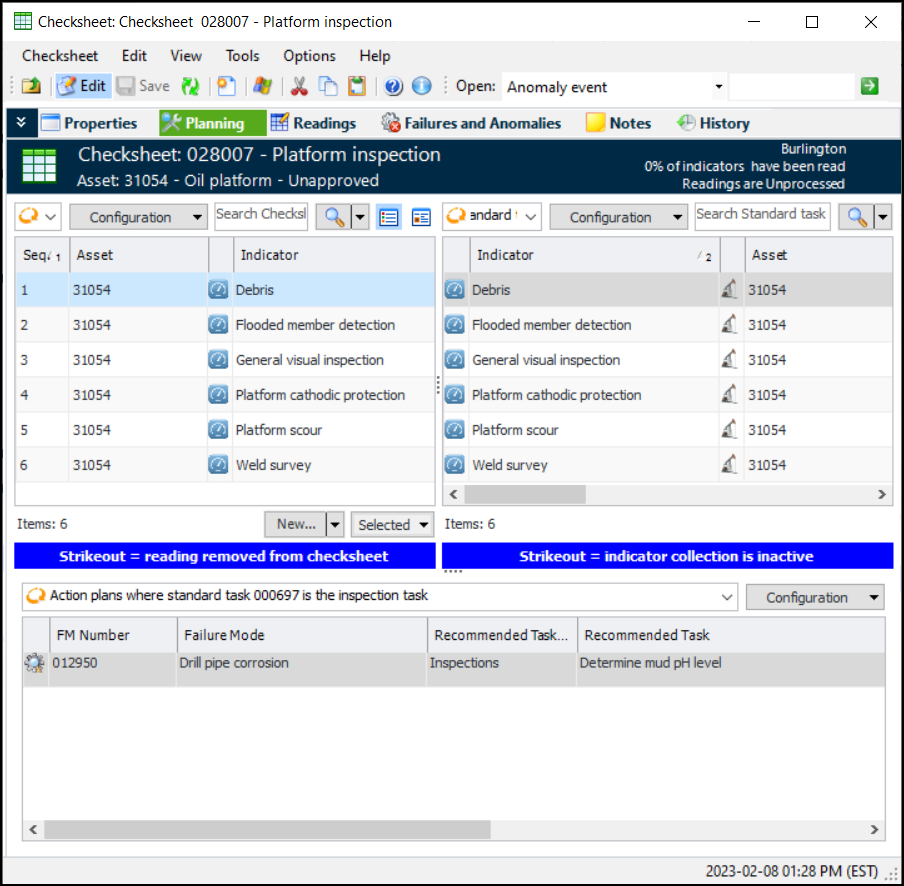
The Planning view is available in the Checksheet window for checksheets that have been generated from a standard task. The checksheet type and checksheet status must support the Planning view feature.The Planning view shows three tables: indicators in the checksheet, the standard task’s indicators, and maintenance action plans that cite the checksheet’s standard task as their inspection task.Adding and Removing Indicator Readings
Conditional Indicator Readings
When the Asset is Unavailable
If an indicator reading cannot be taken at the time of collection, you can specify that the asset was not available to be read and select the asset’s operating condition at the time. For example, if an asset must be operating normally for the reading to be taken and the asset is shut down at the time, you can select Asset unavailable for reading and select the asset’s current operating condition. When the reading is processed, the indicator is registered as having been read, allowing you to complete the checksheet. However:To view “asset unavailable” readings at the site level, select the Inspection Management view and the Readings view and tab. In the Configuration list, select “Asset unavailable”.To view “asset unavailable” readings for an indicator, open its Indicator window and select the Readings view. The “Readings history” table displays “asset unavailable” readings as gray text. The “Asset Unavailable” column displays a check mark. In chart view, “asset unavailable” readings are identified by blue markers.Minimum Number of Readings
The standard task from which a checksheet is created can specify the minimum percentage of indicators that must be read. That percentage of readings must be recorded before you can process the checksheet. The minimum percentage of readings requirement is shown in the Checksheet window in the Properties view, General tab, Processing Status tab.Mandatory Readings
The standard task or work order task from which a checksheet is created can specify that one or more indicators are mandatory. This means that the checksheet cannot be processed until readings exist for all mandatory indicators. The checksheet’s Indicator Readings tab contains a Mandatory column. If an indicator is mandatory, you will see a check mark in this column.ODC Checksheets
Readings Entry Style
Checksheet properties include the readings entry style, which is either defaulted from the checksheet type or set manually on the Details tab. The options are:
• List of readings only (default) – Readings are listed in a table. You can use in-line editing to add values or double-click a reading to open the Indicator Reading dialog. You can view the table as a form to navigate between individual readings
• List of readings with instructions sidebar – Readings are listed in a table on the left. Instructions for the selected indicator are shown in the sidebar on the right
• Readings list with reading entry panel sidebar – Readings are listed in a table on the left. You can enter readings in the right-hand panel and use the navigation buttons to move from one indicator’s reading to the next
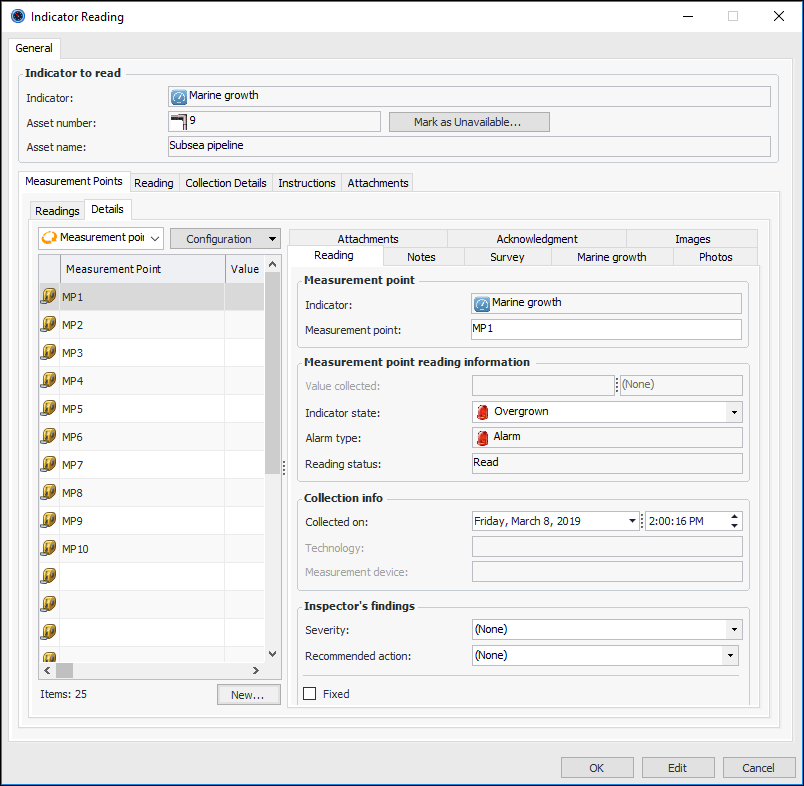
• Master list of readings with detail entry form – Readings are listed in a table on the left. You can select a reading in the table to view and enter information in the panel on the rightMeasurement Point Readings
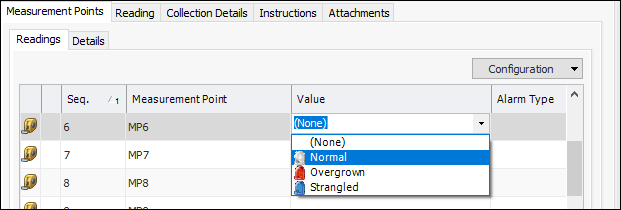
• Readings tab: This tab displays all readings in a list format and allows measurement point readings to be entered using in-place editing. For example:
• Details tab: Select the measurement point in the left table to enter information in the tabs on the right. For example:Tip: You can also double-click a measurement point on the Readings or Details tab to open the Measurement Point Reading dialog.To Plan a Checksheet
In the Checksheet window, select the Planning view. This view is only available in checksheets generated from a standard task. The checksheet type and checksheet status must support the feature.Use the New list to browse for indicators to add or to add a new reading for the selected indicator. Use the Selected list to remove the selected indicator from the checksheet.To Add Indicators to a Checksheet
1. In the Checksheet window, select the Readings view and tab.
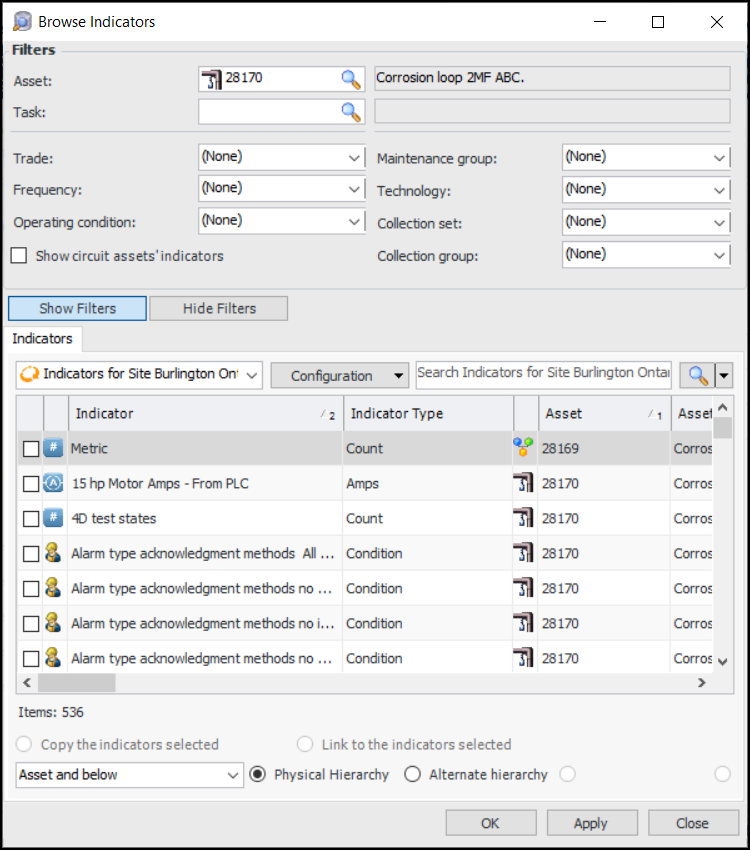
2. Note: Show circuit assets’ indicators is available and selected when the asset that you are filtering on represents a circuit. When selected, the option filters the list to include only indicators for assets included in the circuit.
4. Select the indicators to add and click OK. The dialog closes and the indicators are added to the Readings tab.Tip: You can also create a single indicator reading by clicking the New list and then Reading. The Report New Indicator Reading dialog allows you to select from a list of eligible indicators and then enter the reading and additional information.To Remove an Indicator Reading from a Checksheet
1. In the Checksheet window, select the Readings view and tab.
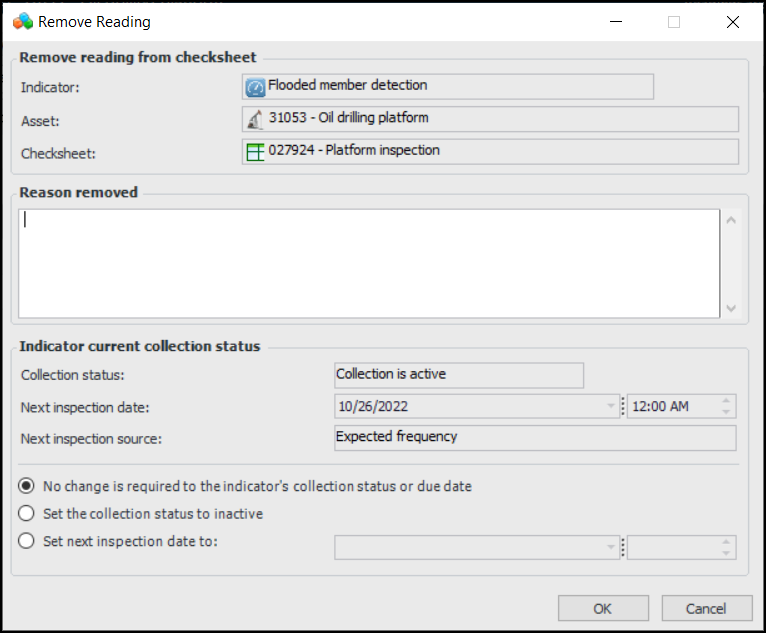
2. Select the reading, click the Selected list, and click Remove. The Remove Reading dialog appears. For example:
3. Enter a reason for the removal. In the Indicator Readings tab, this information will appear in the Reason Removed column.
6. Click OK. The Remove Reading dialog closes. The reading continues to be displayed in the Readings tab, but it is shown as gray and scored through. Note that the reading will not appear in printed checksheet reports or asset activity reports. The checksheet’s percent complete is recalculated.Tip: To include an excluded reading, select it in the table, click the Selected list, and click Include. The Include Reading dialog appears, where you can set the collection status back to active and set the next inspection due date.To Mark an Asset as Unavailable
1. Open the checksheet. Select the Readings view and tab.
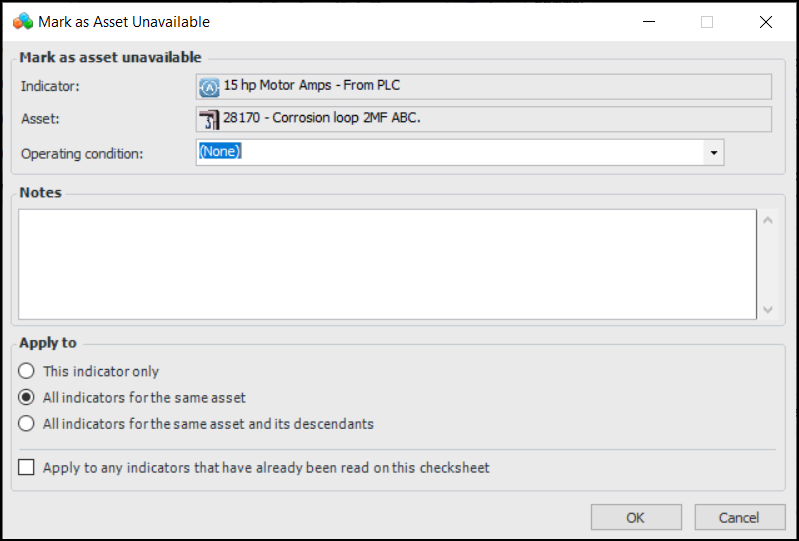
2. Right-click the indicator in the table and click Mark as Asset Unavailable. The Mark as Asset Unavailable dialog appears:Complete the options and click OK. A check mark appears in the Unavailable column, the date and time are filled in, and the operating condition and note that you entered in the dialog are shown.To Enter Indicator Readings on a Checksheet
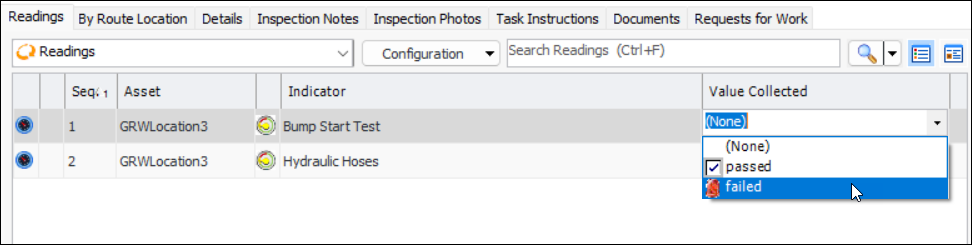
2. Select the Readings view and the Readings tab. This tab shows all of the indicators for which readings are to be collected.
3. If you wish to enter the normal value for all descriptive indicators, click the Tools list and then Default to Normal.
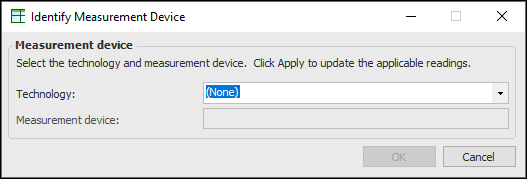
4. If one or more indicators uses a technology that is associated with measurement device assets, you can apply a measurement device to all applicable indicator readings. Click the Tools list and then Identify Measurement Device. The Identify Measurement Device dialog appears.Select a technology and measurement device. When you click OK, only indicators that use that technology are updated.If you enter an input for a calculated indicator, the information appears in the table at the bottom of the window. Click Calculate to view the result. If necessary, you can change the input and click Calculate again. After you process all of the checksheet readings, the calculated indicator’s value is read-only.
8. Use the Tab and arrow keys to move through the list of indicators and enter the readings. As you enter readings, APM updates the % of indicators have been read notification in the checksheet banner.
9.
10. Select the Inspection Photos tab and then click Browse to include inspection photographs with the checksheet. For more information, see Adding Inspection Photographs to Objects.
11. Select the Task Instructions tab to view the instructions from the work order task or standard task where the checksheet originated. You can add and format text here.
12. Select the Documents tab to view any standard documents that were included with the linked work order task or standard task. You can browse to link documents to the checksheet or click New Document in the New list to create a standard document.
13. If you have finished entering all of the indicator readings, you need to process the data. On the Readings tab, click the Tools list and then Mark as Completed. In the confirmation message that appears, click Yes.To Enter Measurement Point Readings
2. Select the Readings view and the Readings tab. This tab shows all of the indicators for which readings are to be collected.Tip: You can also use the checksheet’s readings entry style to add a sidebar panel to the Readings tab: either a form view of individual readings or instructions. In the Properties view, select the Details tab to change the default entry style.
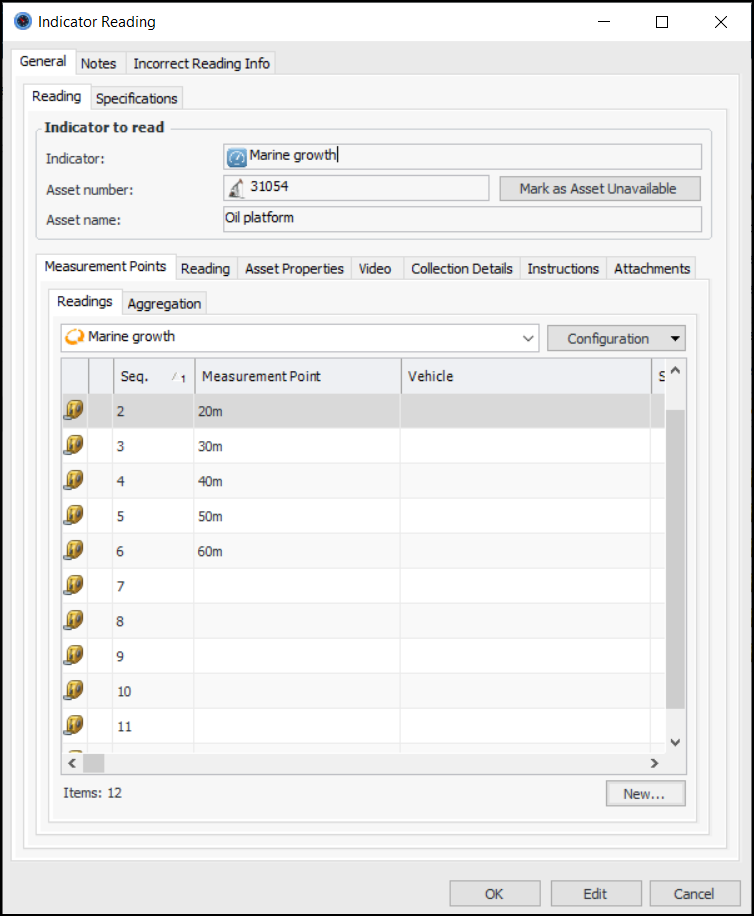
5. On the General tab, select the Measurement Points tab, and then the Readings tab. This tab shows all of the measurement points for the indicator. Here is an example for an indicator with fixed points (named) and variable points (unnamed):The Aggregation tab displays information about the indicator reading’s state, and the method of aggregation (sum, average, median, maximum or minimum).
6. Refer to the Instructions tab for any directions for taking the measurements.
• On the Readings tab, select a row and press F2. The row is opened for editing. For example:
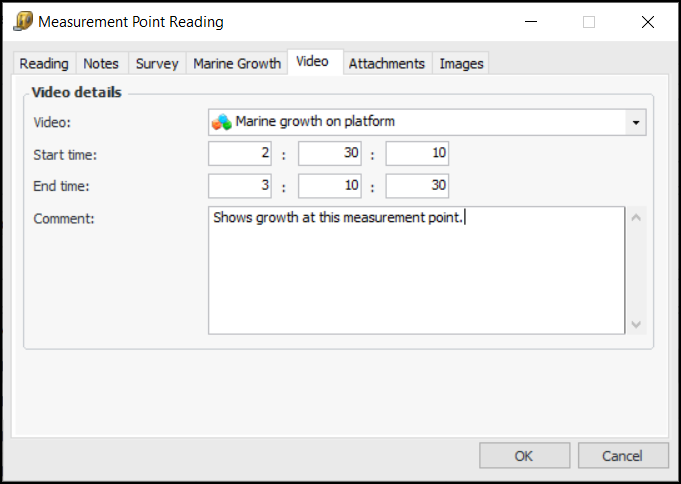
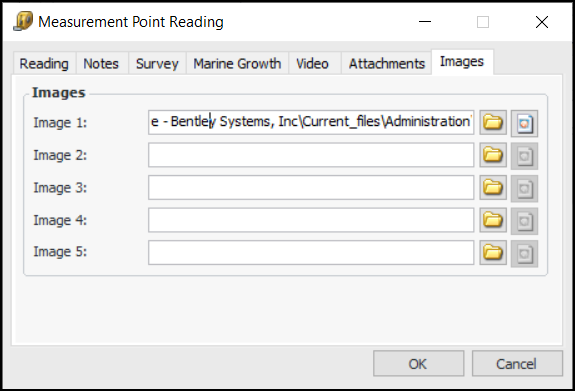
• On the Readings tab, double-click a row to open the Measurement Point Reading window. Fill in the information required and click OK. The information is added to the Readings tab.Tip: If the checksheet type supports videos, in the Measurement Point Reading window you can select the Video tab to add a link to a video file. In the Video list, select one of the files assigned to the checksheet. Specify the start and end times (hours:minutes:seconds) for the footage that pertains to the reading. For example:Tip: In the Measurement Point Reading window, select the Images tab to add a link to an image file by clicking. You can view the image by clicking
. The path to each file is shown. For example:
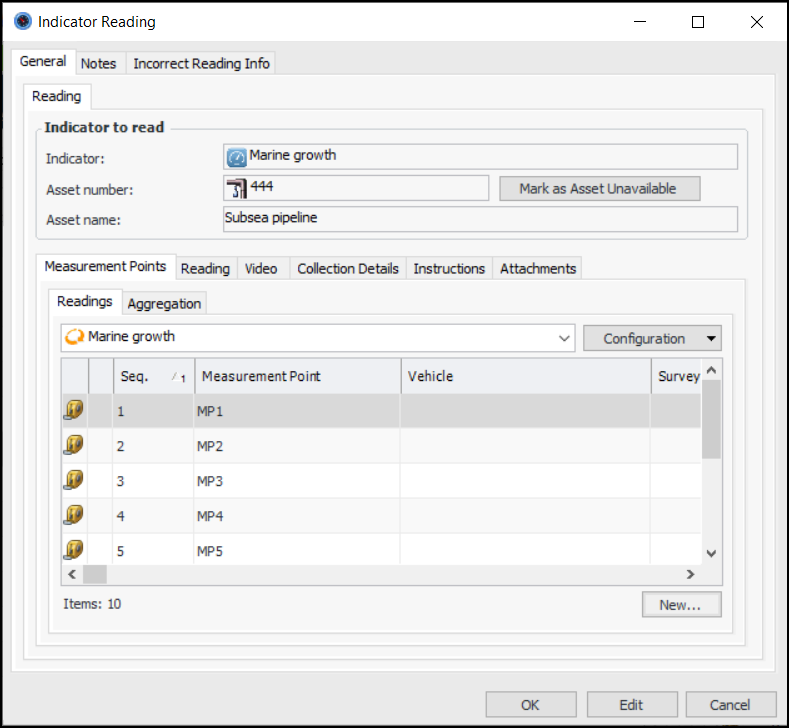
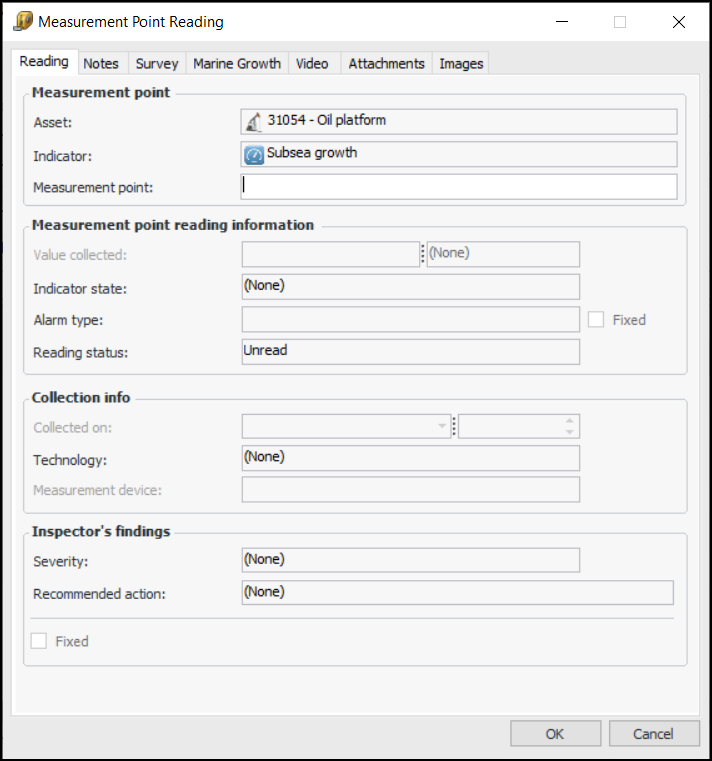
8. From the Readings tab, you can also add variable measurement points. Click New. The Measurement Point Reading dialog appears. For example:Click OK. The Measurement Point Reading dialog closes and the measurement point is added to the table.
9. On the Reading tab, you can modify the date and time the reading was collected, if necessary.
10. On the Collection Details tab, you can modify the date and time the reading was collected, if necessary. If the indicator uses a technology associated with measurement device assets, you can select the measurement device used to take the reading.
11. Select the Attachments tab to add separate documents to the reading.
12. When you have finished entering readings, click OK to save the reading and close the dialog.
13. On the Readings tab, if a reading puts an indicator in an alarm or warning state, a flashing icon appears beside the reading. The alarm will be posted to the system after you process the readings. If the alarm or warning was fixed during the inspection, you can indicate this on the checksheet by clicking the check box in the Fixed column.
14.
15. Select the Inspection Photos tab to browse for photographs.
16. If you have finished entering all of the indicator and measurement point readings, you need to process the data that you have entered. Click Mark as Completed. In the confirmation message that appears, click Yes to close the checksheet for editing.