Acknowledging Indicator Alarms and Warnings

It is possible to acknowledge indicator warnings and alarms in the following ways:
Note: One or more of these acknowledgment methods might be unavailable if they have been turned off in the site’s indicator settings.
SAP work documents are available instead of APM work documents when CMMS interoperability is enabled for the SAP Plant Maintenance system. The site’s interoperability profile specifies whether APM or CMMS documents are in use.
When you acknowledge the warning or alarm, you are asked to record any notes about the alarm or warning. Your name and the date and time when the acknowledgment took place are also recorded. Once the alarm or warning is acknowledged, APM turns off the alarm notification on the indicator and on the asset (if applicable).
When you acknowledge an alarm with an SAP document, the maintenance order or notification’s description includes the collection note from the primary indicator reading and the acknowledgment notes.
Tip: Once an SAP maintenance order or notification is used to acknowledge an alarm in APM and the document has been created in SAP, you might need to exit APM and start it again to see further changes made in SAP to the document.
Note: If AssetWise Enterprise Interoperability (AWEIS) is active for the site, you can use requests for work instead of APM work documents to acknowledge alarms. For more information, see Acknowledging Indicator Alarms with AWEIS.
Tip: After creating an acknowledgment, you can view information about it in the site’s Inspection Management view, Readings tab, Acknowledgments tab. This tab lists the acknowledgments by date and includes columns for asset, indicator, reading date, indicator state, acknowledgment method, and status. Double-click an acknowledgment to open its dialog.
This topic includes the following background information and procedures:

Follow-up Readings

When you acknowledge an alarm or warning, you can specify that a follow-up reading is required and a time limit (for example, 10 days). If the indicator’s collection policy allows it, the indicator’s next reading due date is based on the acknowledgment date plus the follow-up time period.
Note: Requesting a follow-up reading on an acknowledgment relies on the use of indicator due date triggering on standard tasks and jobs. If the tasks and jobs are triggered on set frequencies (for example, annually), the task or job will not be triggered. The indicator will become overdue, and it will require manual intervention to trigger the task or job, or to create a work order or checksheet.

Failure Tracking

If failure tracking is set up in your environment, a failure record can be created automatically when you acknowledge an alarm with a work document, by monitoring, or with the “fixed during inspection” flag. When acknowledging the alarm, you can provide information about the failure, for example, its severity and description.

Escalation and Automatic Acknowledgment of Alarms

Your site can use more than one alarm type with different levels of seriousness, such as warning, alarm, and critical. If this is the case, APM notifies users when an indicator has moved from a less serious alarm state (warning) to a more serious alarm state (alarm or critical).
When you acknowledge an alarm by creating a work document, if another reading is then entered for the indicator that creates an alarm state, the system does the following:
Note: The site’s interoperability profile must identify SAP completed and canceled system statuses (and, optionally, user statuses) for this functionality to work. See APM Interoperability Guide for SAP Plant Maintenance.
For all other acknowledgment options, the alarm is turned on again when a new reading is entered that creates an alarm state.
For example, the temperature indicator might have a warning flag that a user acknowledged by creating a work document. As long as indicator readings come in that are within the warning range, APM does not ask users to re-acknowledge the warning. However, if the readings cross over into the alarm range, APM uses the alarm notification feature to warn users of the more serious alarm.

Most Recent Reading or Most Severe Unacknowledged Alarm

The acknowledgment policy for the site determines whether the alarm state of an indicator reflects the alarm state of its most recent reading or that of its most severe unacknowledged alarm.

To Start the Acknowledgment

1.
Locate the indicator in the site’s or asset’s Inspection Management view. Select the Indicators tab, By Asset Hierarchy tab. In the list of configurations, select “Indicators currently in alarm”. The indicator’s warning or alarm state is signaled with a flashing icon.
Tip: You can also acknowledge an alarm from these locations:
Indicator window – Select the Readings view and tab. Select the reading in the table and click Acknowledge Alarm.
Inspection Report window – Select the Inspection Report view, Readings tab. Select the reading in the table and click Acknowledge.
2.
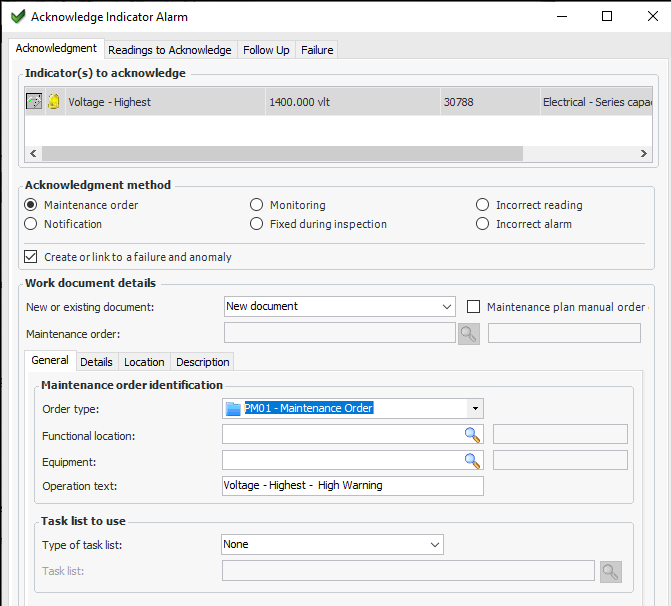
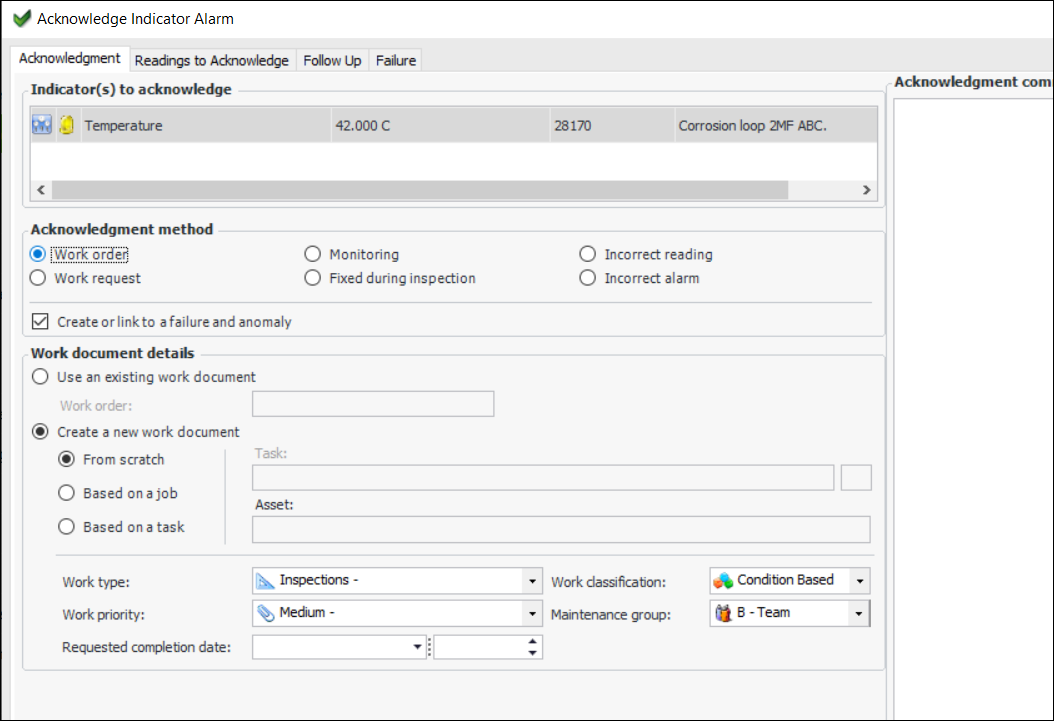
Right-click the indicator and click Acknowledge Alarm. The Acknowledge Indicator Alarm dialog appears. In this example, APM work documents are in use:
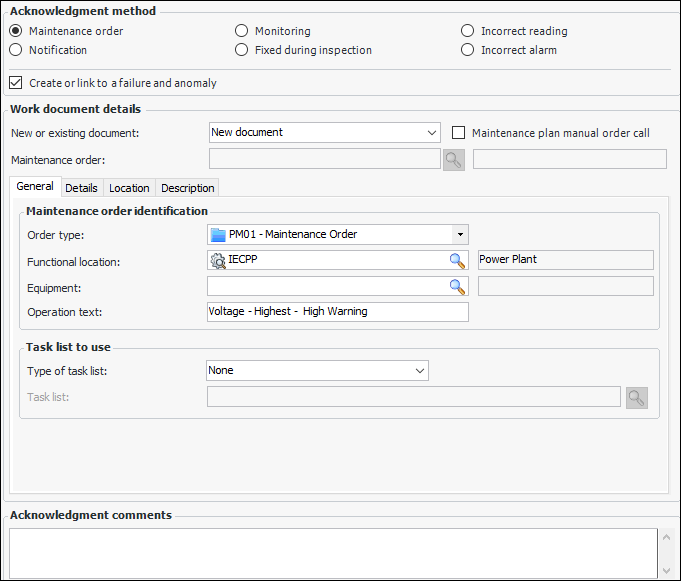
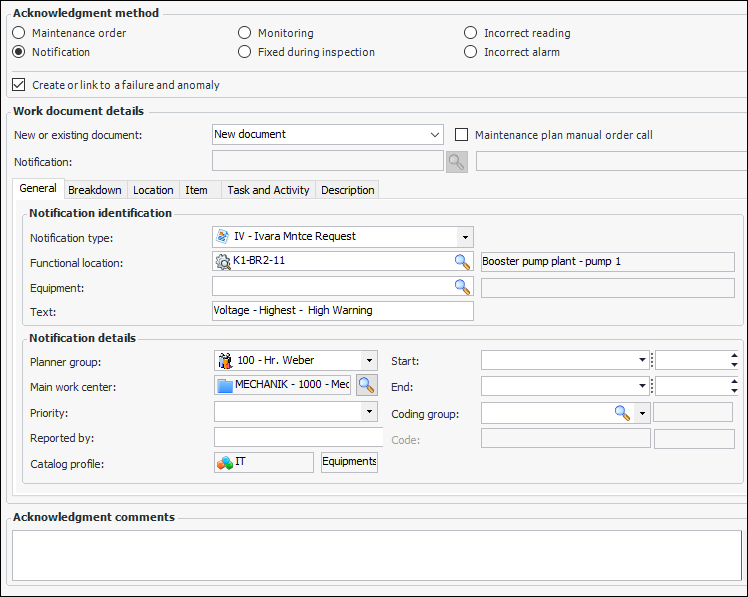
When SAP work documents are in use, Work order and Work request are replaced by Maintenance order and Notification:
3.
The Indicator(s) to Acknowledge table lists the alarm to be acknowledged. If your site uses the most “severe unacknowledged alarm” policy, the most severe alarm is shown in this table. Select the Readings to Acknowledge tab to view all unacknowledged alarms for the indicator. By default, all of the alarms are selected.
Tip: You can acknowledge an alarm individually by selecting it, returning to the Acknowledgment tab and continuing with the following steps. The alarms that you did not acknowledge remain in affect until they are acknowledged.
4.
Work order or Maintenance order: Creating or linking to an existing work order or SAP maintenance order
Work request or Notification: Creating or linking to an existing work request or SAP notification
Monitoring: Indicates that the indicator will be monitored
Fixed during inspection: Stating that the problem that caused the alarm was fixed during inspection
Incorrect reading: Stating that the indicator reading was incorrect
Incorrect alarm: Stating that the alarm settings were incorrect and an inappropriate alarm was triggered
5.
If you are using a different acknowledgment method, take the following steps.
6.
The site’s indicator settings (acknowledgment policies and indicator state) can specify that the default behavior is to create a failure when an alarm is acknowledged with the selected method. In this case, Create or link to a failure and anomaly is selected and the Failure tab appears in the Acknowledge Indicator Alarm dialog. If this option is not selected, you can click it to show the Failure tab and link the acknowledgment to a new or existing failure record. For more information, see Creating a Failure when Acknowledging an Alarm.
7.
Enter any applicable notes in the Acknowledgment comments box.
8.
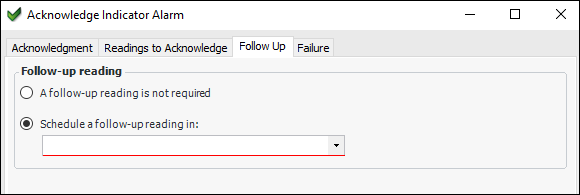
If you wish to request a follow-up reading, select the Follow Up tab and select A follow up reading is required.
Select a time period from the Follow up reading is required in list. The indicator’s collection due date changes to the date of the acknowledgment plus the follow-up time.
Tip: To view the next collection due date in the Indicator window, select the Readings view and the Next Reading tab.
9.
Click OK. APM closes the dialog, creates the required objects, and turns off the warning or alarm on the indicator.

To Acknowledge with an APM Work Document

1.
To acknowledge the alarm with an existing work order or request, select Use an existing work document and click the browse icon. APM opens a selector dialog. Select the work order or work request that you want to use and click OK.
2.
To acknowledge the alarm with a new work request or work order, select Create a new work document. Select how you want to create the document:
From scratch: When you click OK, a new work document is created.
Based on a job: select a suggested standard job from the Job list or click the browse icon to select a job, job template, or PM route.
Based on a task: select a suggested standard task from the Task list or click the browse icon to select a standard task or task template.
Note: When creating an indicator, you can select one or more standard jobs, tasks, or both to be suggested when an alarm is acknowledged with a new work document based on a standard job or task.
3.
4.
The site’s indicator settings (acknowledgment policies and indicator state) can specify that the default behavior is to create a failure when an alarm is acknowledged with the selected method. In this case, Create or link to a failure and anomaly is selected and the Failure tab appears in the Acknowledge Indicator Alarm dialog. If this option is not selected, you can click it to show the Failure tab and link the acknowledgment to a new or existing failure record. For more information, see Creating a Failure when Acknowledging an Alarm.
5.
Enter any applicable notes in the Acknowledgment comments box.
6.
If you wish to request a follow-up reading, select the Follow Up tab and select A follow up reading is required.
Select a time period from the Follow up reading is required in list. The indicator’s collection due date changes to the date of the acknowledgment plus the follow-up time.
Tip: To view the next collection due date in the Indicator window, select the Readings view and the Next Reading tab.
7.
Click OK. APM closes the dialog, creates the required objects, and turns off the warning or alarm on the indicator.
Tip: You can view any photos attached to the acknowledged indicator readings. In the work document, select the Photos tab.

To Acknowledge with an SAP Maintenance Order

1.
To acknowledge the alarm with an existing maintenance order, select the New or existing document list and click “Existing document”.
Select the maintenance order and click OK. The document information is displayed in the Acknowledgment tab.
2.
Select the maintenance plan and click OK. The maintenance plan’s identifier and description are displayed in the dialog.
3.
To acknowledge the alarm with a new maintenance order, select the New or existing document list and click “New document”. The Work document details area appears as follows:
The following information from the functional location or equipment is displayed:
Planning and maintenance plants
Planner group
Main work center
Location, room, plant section
ABC indicator
The site’s interoperability profile determines which default values you can change for the new maintenance order.
In each of the Details, Location, and Description tabs, review and change the values, as needed.
4.
The site’s indicator settings (acknowledgment policies and indicator state) can specify that the default behavior is to create a failure when an alarm is acknowledged with the selected method. In this case, Create or link to a failure and anomaly is selected and the Failure tab appears in the Acknowledge Indicator Alarm dialog. If this option is not selected, you can click it to show the Failure tab and link the acknowledgment to a new or existing failure record. For more information, see Creating a Failure when Acknowledging an Alarm.
5.
Enter any applicable notes in the Acknowledgment comments box.
6.
If you wish to request a follow-up reading, select the Follow Up tab and select A follow up reading is required.
Select a time period from the Follow up reading is required in list. The indicator’s collection due date changes to the date of the acknowledgment plus the follow-up time.
Tip: To view the next collection due date in the Indicator window, select the Readings view and the Next Reading tab.
7.
Click OK. APM closes the dialog, creates the required objects, and turns off the warning or alarm on the indicator.
Note: The maintenance order is created in SAP and its number and title are returned to the record in APM.

To Acknowledge with an SAP Notification
1.
To acknowledge the alarm with an existing notification, select the New or existing document list and click “Existing document”.
Select the notification and click OK. The document information is displayed in the Acknowledgment tab.
2.
To acknowledge the alarm with a new notification, select the New or existing document list and click “New document”. The Work document details area appears as follows:
The following information from the functional location or equipment is displayed:
Planning and maintenance plants
Planner group
Main work center
Location, room, plant section
ABC indicator
The site’s interoperability profile determines which default values you can change for the new notification.
In each of the Breakdown, Location, Item, Task and Activity, and Description tabs, review and change the values, as needed.
3.
The site’s indicator settings (acknowledgment policies and indicator state) can specify that the default behavior is to create a failure when an alarm is acknowledged with the selected method. In this case, Create or link to a failure and anomaly is selected and the Failure tab appears in the Acknowledge Indicator Alarm dialog. If this option is not selected, you can click it to show the Failure tab and link the acknowledgment to a new or existing failure record. For more information, see Creating a Failure when Acknowledging an Alarm.
4.
Enter any applicable notes in the Acknowledgment comments box.
5.
If you wish to request a follow-up reading, select the Follow Up tab and select A follow up reading is required.
Select a time period from the Follow up reading is required in list. The indicator’s collection due date changes to the date of the acknowledgment plus the follow-up time.
Tip: To view the next collection due date in the Indicator window, select the Readings view and the Next Reading tab.
6.
Click OK. APM closes the dialog, creates the required objects, and turns off the warning or alarm on the indicator.
Note: The maintenance order is created in SAP and its number and title are returned to the record in APM.