|
|


Creating Variable Filter Criteria
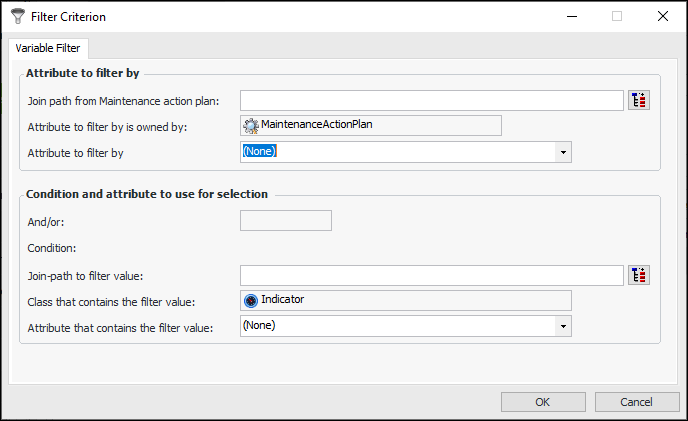
A variable filter allows you to filter a group of objects based on a variable value. The value used in the filter is only determined at the time the filter is used by looking up the current value of the selected attribute or relationship. A specific, fixed value cannot be selected. For example, you might want to filter employee names based on the name of the employee currently logged in, rather than a specific employee name.To do this, you can filter the Work Request class’s Requestor attribute by the Current Employee. Since this data is not part of the Work Request class, you would use a relationship (or join path) to capture that data. In this case, you would select the relationship Enterprise.CurrentEmployee, and the attribute EmployeeName.This topic describes how to create variable filters on an existing calculation input. For general information about using filtering criteria in a calculation input, see Filtering Criteria. For detailed information about creating filter-based calculation inputs, see Creating Calculation Inputs Based on Filters.Note: To create filter-based calculation inputs, you should a good understanding of APM object modeling concepts. To learn more about the object model, see Object Model Overview.To Create a Variable Filter Criteria
. Expand the hierarchy until you see the class that you want, select it, and click OK. The Class box displays the class you selected.