|
Creating 4D Calculation Inputs Based on Other Reading Data
•
•
This topic explains how to create an indicator reading-based calculation input that uses data other than the indicator reading value. To create a regular indicator reading-based input, see Creating 4D Calculation Inputs Based on Indicator Readings.To Create a Calculation Input
3. Select the Calculation tab. This tab shows the formula to be used for the indicator and any existing calculation inputs.
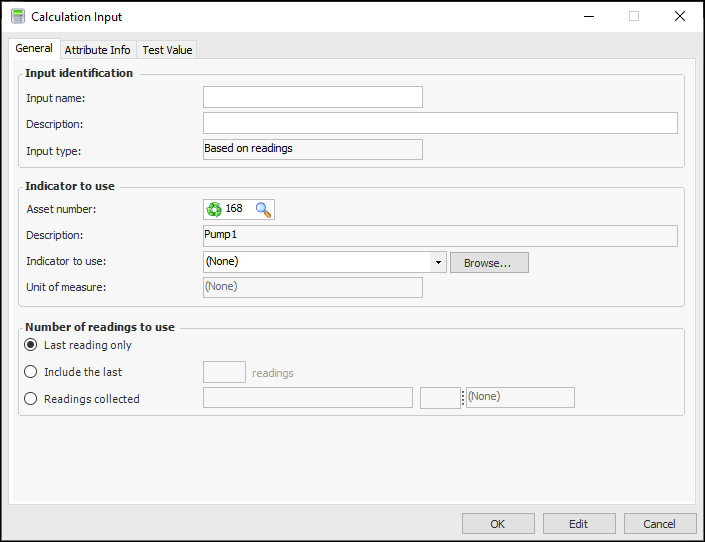
4. To create a calculation input based on an indicator, click New. The Calculation Input dialog appears. For example:
5. In the Input name box, type the name of the corresponding variable in your calculation, for example, “Input1”.
6. In the Description box, enter a detailed description of the indicator this variable represents.
• Beside the Asset number box, click the browse icon. The Asset Selector dialog appears. Select the asset that owns the indicator and click OK.Select an indicator from the Indicator to use list, which contains the selected asset’s 4D indicators.
•
8. Select an option in the Number of readings to use area:
• Use the last reading only: The value of the indicator’s most recent reading is used in the calculation.
• Include the last [n] readings: This setting allows you to indicate the specific number of readings that you want to include to derive the input’s value (for example, use the last 10 readings).
• Readings collected: This setting allows you to specify a moving time period from which all of the readings entered will be used to derive the input’s value (for example, readings collected this month, this week, in the last 10 days, and so on) The possible choices are:
•
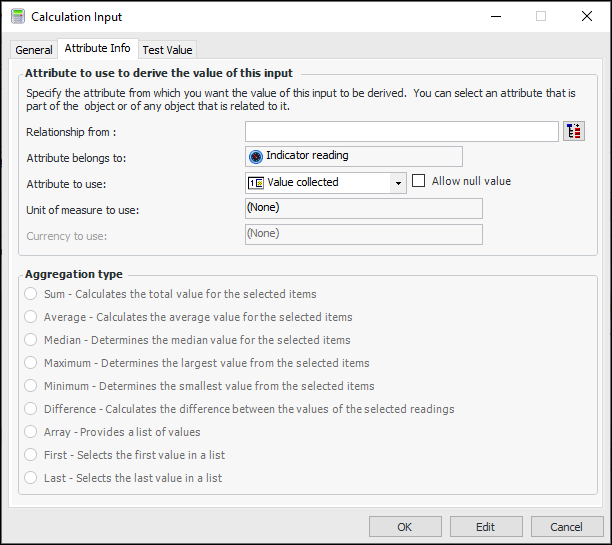
9. Select the Attribute Info tab.On this tab you can select the data that you want to use for the input. The Aggregation type options are available when more than one reading is involved.
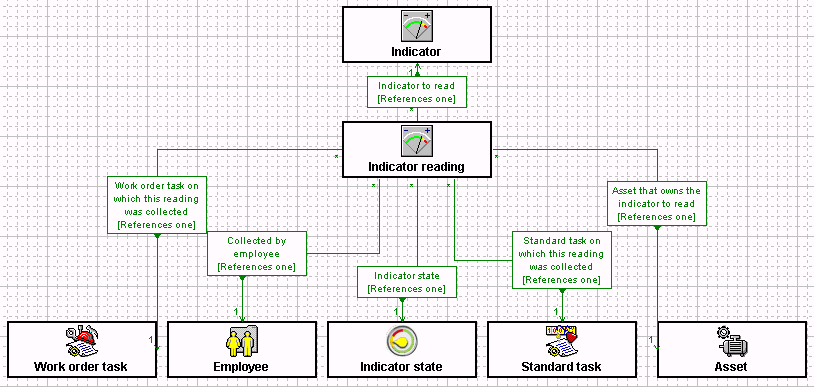
If you want the input value to be based on an attribute that does not belong directly to the Indicator Reading class but to a class that is related to it, you can identify the relationship to the other class in this box. The relationship is specified using a join-path. Clickin the Relationship from box. The Select Join Path dialog appears. Select the class in the hierarchy that owns the attribute you want to use and click OK. For example, to pick an attribute from the Asset that owns the indicator, open the Indicator to Read class and then select Asset. The attributes for the selected class now appear in the Attribute list.
•
•
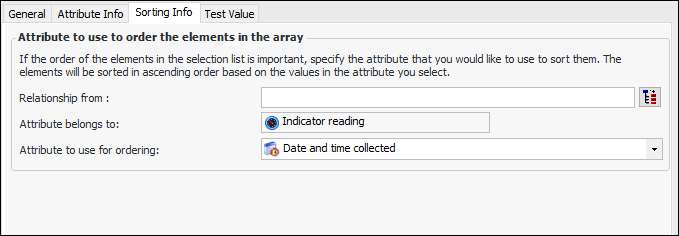
12. If you are using the Array, First, or Last aggregation types, select the Sorting Info tab.
If you want to sort the list by an attribute that belongs to a related class, you can specify the join-path for the relationship here. Clickin the Relationship from box. The Select Join Path dialog appears. Select the class in the hierarchy that owns the attribute you want to use and click OK.
•
•
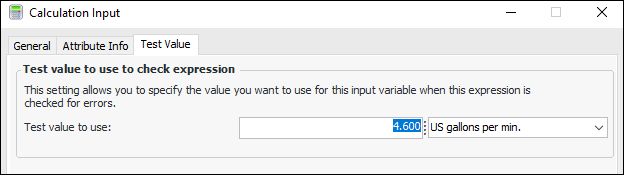
14. Select the Test Value tab. For example:
You can test the calculation by clicking the Check (Test) button on the Calculation tab of the Indicator window.