Copying Indicators to Assets

An indicator is an APM object that lets you record data that you can measure on your equipment. Using indicators, you can monitor equipment performance or condition. For example, typical indicators on a car include the engine temperature gauge, the odometer, the brake system warning light, and tire condition.
You can create an indicator template and then copy it to one or more assets. For example, when you create an indicator template for an odometer for a truck, you can copy asset-level odometer indicators to all of the trucks at your site on which you want to track this statistic.
For cumulative indicators, you can specify that the copied indicator cascades to all of the child assets of the selected assets. For example, if you copy an odometer indicator to all trucks, you can also track the mileage on each subcomponent, such as the transmission or motor, by indicating you want cascaded indicators for each truck’s child assets.
Note: You can copy properties from one indicator to a group of other indicators using the Indicator Mass Update wizard. For example, you could modify indicator states on an indicator template and then copy the states to all of the indicators that are based on that template. Or you could copy search values, such as trade, maintenance group, or PdM technology from one indicator to several other indicators. For more information, see Indicator Mass Update Wizard.
This topic explains how to copy indicators to individual and multiple assets.

To Copy Indicators to an Individual Asset

1.
Open the asset that you want to copy the indicators to. Click the Tools menu, Indicators, and Browse Indicators to Copy. The Browse Indicators dialog appears.
2.
Select the indicators, templates, or both to copy and click OK. Indicators are created and added to the asset.

To Copy Indicators to Multiple Assets

1.
From the site’s Inspection Management view, Indicators tab, select the Listing tab.
2.
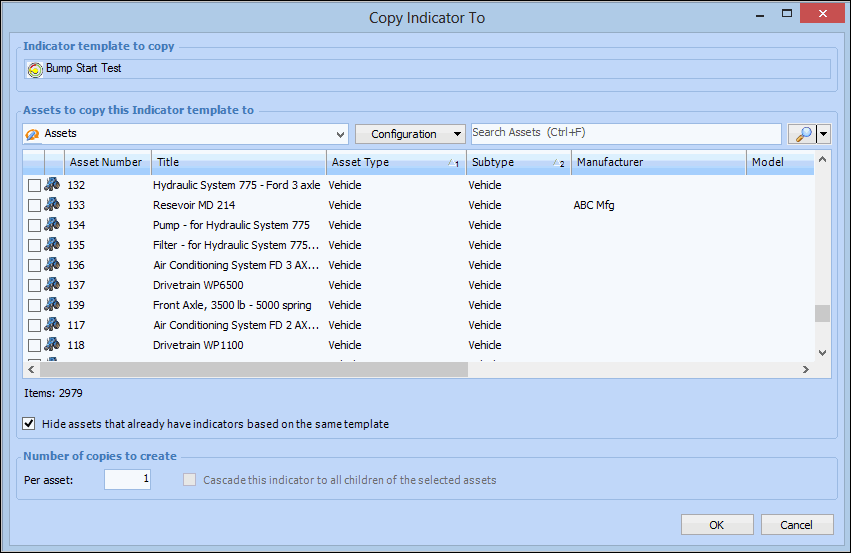
Right-click the indicator that you want to copy and click Copy Indicator To. The Copy Indicator To dialog appears.
3.
4.
5.
6.
7.
Click OK. APM creates a new indicator on each of the assets that you selected. An indicator that cascades is created on each child of each asset.

To Copy Indicator Templates to Multiple Assets
1.
From the site’s Inspection Management view, Indicators tab, select the Templates tab.
2.
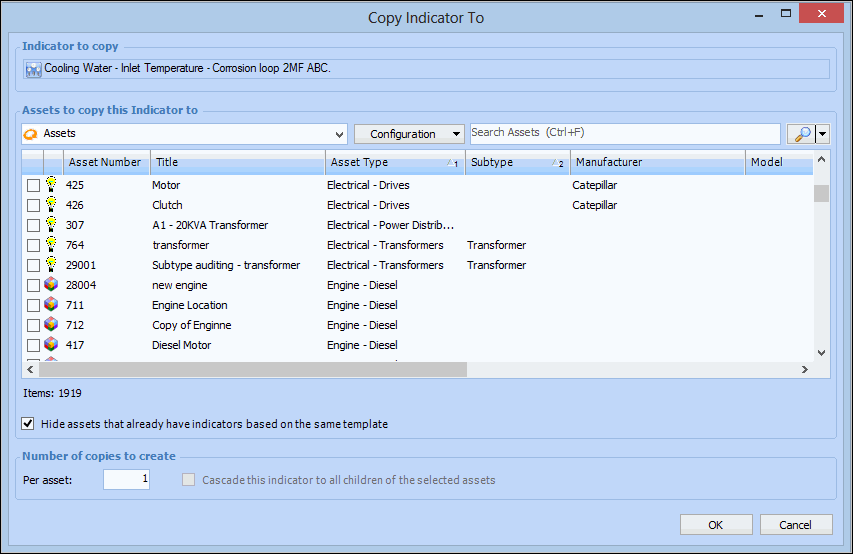
Right-click the indicator template that you want to copy and click Copy Indicator To. The Copy Indicator To dialog appears.
3.
4.
5.
6.
7.
Click OK. APM creates a new indicator on each of the assets that you selected. An indicator that cascades is created on each child of each asset.