|
Importing Bid Information From an Excel® Spreadsheet
• This topic explains how to import bid information from an Excel spreadsheet. To manually enter bid information from a supplier, see Entering Bid Information on an RFQ.To Import a Bid to an RFQ
3.
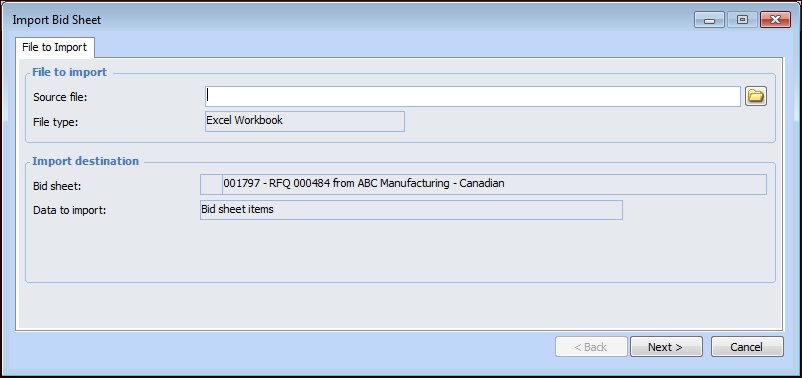
4. The Import Bid Sheet dialog appears, open to the File to Import tab.
5.
6.
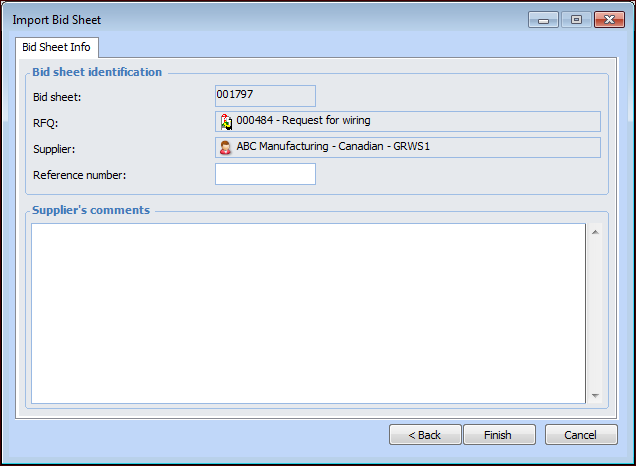
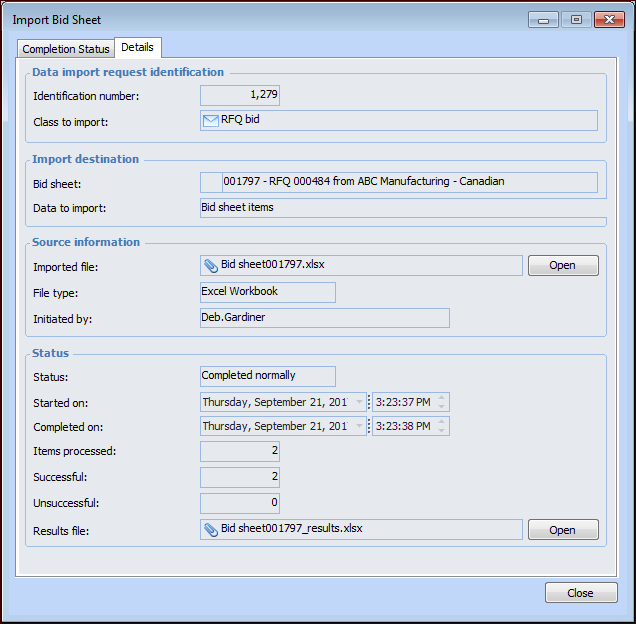
7. Click Finish to import the selected bid sheet. A message appears advising that the RFQ bid data based on the selected Excel spreadsheet will be imported.Click Yes to continue. A dialog appears showing the import progress. A message is displayed when the import is completed, including whether or not errors were encountered during the import. Click OK to close the message.The Import Bid Sheet dialog now shows a Completion Status tab that shows the number of items processed, the number if items imported successfully, and the number of unsuccessful imports.
8. Click the Details tab to view the source file name and type, the name of the employee who initiated the import, and the import status, date, and time. The number of items processed is also shown, along with the number of successful and unsuccessful imports.
9. You can click Open to view the imported bid sheet.Note: If necessary, you or the supplier can fix any the errors on the spreadsheet and then re-import it. To re-import the spreadsheet, you must first delete the supplier’s bid from the RFQ. For more information, see Deleting Supplier Bids from an RFQ.
10. Click Close to close the Import Bid Sheet dialog.