Importing Criticality Evaluations into Failure Modes

In the process of evaluating a failure mode, you can quantify the relative risk (criticality) associated with the failure by evaluating the consequences (severity of the effect) and the probability of the failure occurring, assigning values for each factor. APM then calculates the relative risk by multiplying the severity number by the probability value.
For failure modes in RBI, MTA2, RCM2, and SIF analyses, you can expedite the process of performing and recording criticality evaluations. Use the Criticality Evaluations view in the Strategy Development Analysis window to quickly generate evaluations for the analysis’ failure modes. The following evaluation types are supported:
Simple and detailed evaluations, and questionnaires with as many as 15 categories, are supported.
You can export the generated evaluations for all of an analysis’ failure modes to a Microsoft Excel® file. Populate the exported spreadsheet with data and import the file into the analysis, where the evaluation results are processed.
Note: The criticality evaluation export/import feature is generally available. You must first enable feature 134 to use the functionality in APM. In the Enterprise window, select the Features view and the Enabled Features tab. Click Browse, select “Ability to import Risk Evaluation values from a spreadsheet for analysis failure modes” and click OK. If APM is running as a smart client, click Refresh Enabled Features on the server. Then restart the client to use the functionality.
You can also complete individual evaluations in the analysis window’s Criticality Evaluations view using “flattened” versions of the evaluation forms.
This topic explains how:
For information about setting up criticality evaluations, see Consequence Severity Settings. For information about setting up probability of failure evaluations, see Setting up Probability of Failure Questionnaires.

To Generate and Export Criticality Evaluations

1.
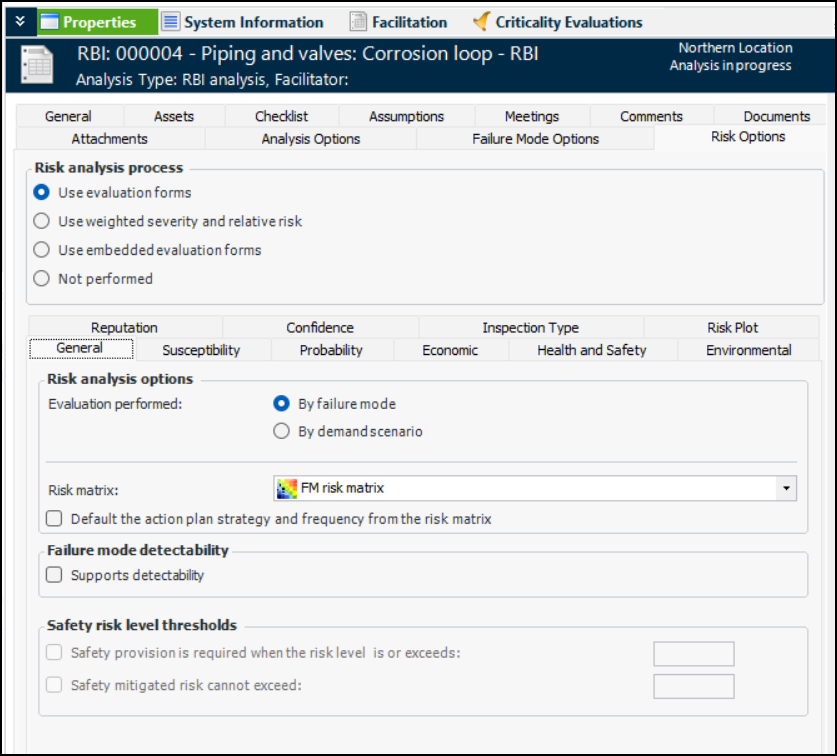
Open the analysis and select the Properties view, Risk Options tab. For example:
2.
Ensure that Use evaluation forms is selected.
3.
In the Probability, Health and Safety, Environmental, and Reputation tabs, select the appropriate evaluation forms and evaluation types (Simple or Detailed, if available).
Note: Failure modes copied from the Damage Mechanisms Library override the selections made here.
4.
Select the Facilitation view, Info Worksheet tab. Add the failure modes.
5.
Select the Criticality Evaluations view and click Generate in the lower right-hand corner. A confirmation message appears informing you that, depending on the number of failure modes and evaluations being performed, this might take a few minutes. Click Yes.
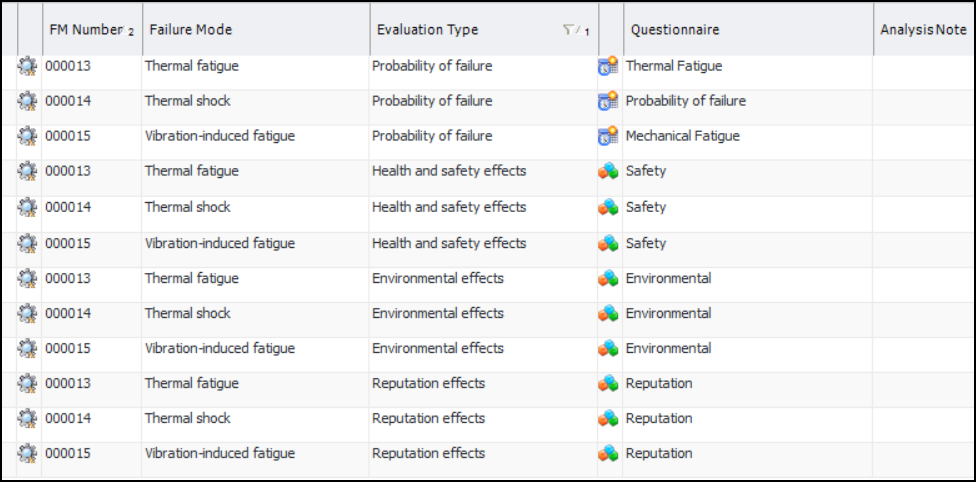
When the process has finished, the table is populated with the evaluations. For example:
6.
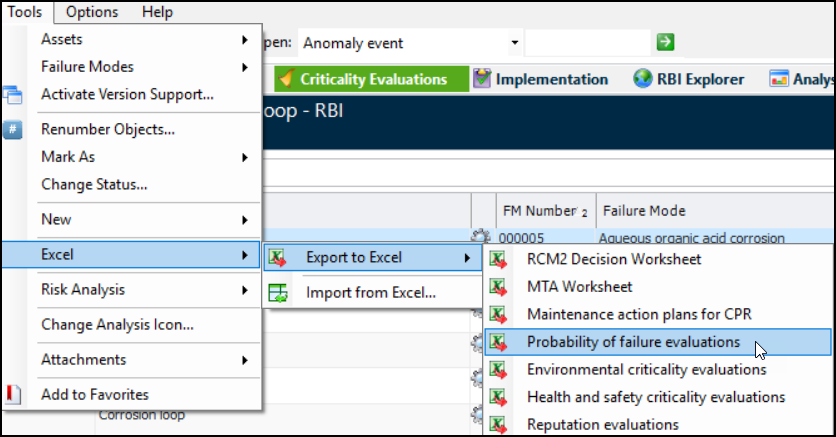
Click the Tools menu, Excel, Export to Excel, and then the type of evaluation. For example:
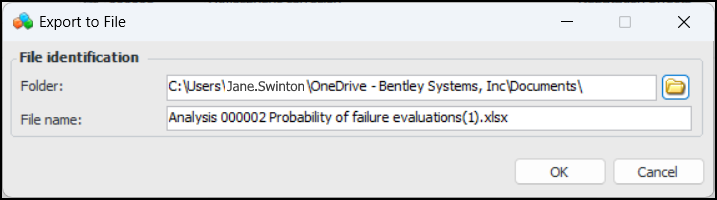
The Export to File dialog appears:
7.
8.
Click OK to export the evaluations. The Excel file opens. The Analysis tab displays the analysis number, title, and asset.
9.
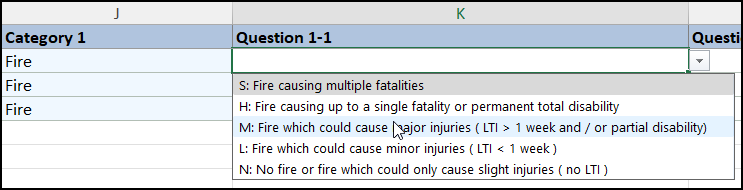
Tip: The Analyzed By column contains a list of the analysis team members.
10.
Note: Do not change the text of the questions (Categories) in the Excel file. If you do, the answers will not be included when the file is imported into the analysis.
11.

To Import Criticality Evaluations

1.
2.
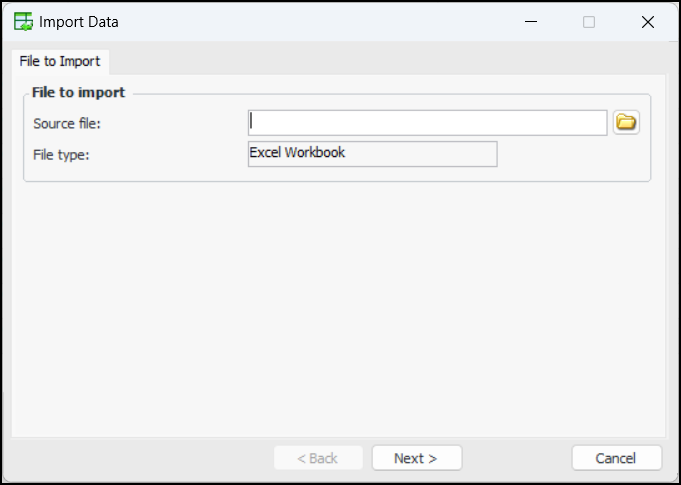
Click the Tools menu, Excel, and Import from Excel. The Import Data dialog appears.
3.
Browse to and select the Excel file. Click Next. The Worksheets tab appears.
4.
Click Next. The Match Columns tab appears. If you are importing a file you previously exported, all of the columns should match.
5.
Click Next. The Match Header Fields tab appears. If you are importing a file you previously exported, all of the properties should match.
6.
Click Finish. A confirmation message appears. Click Yes.
7.
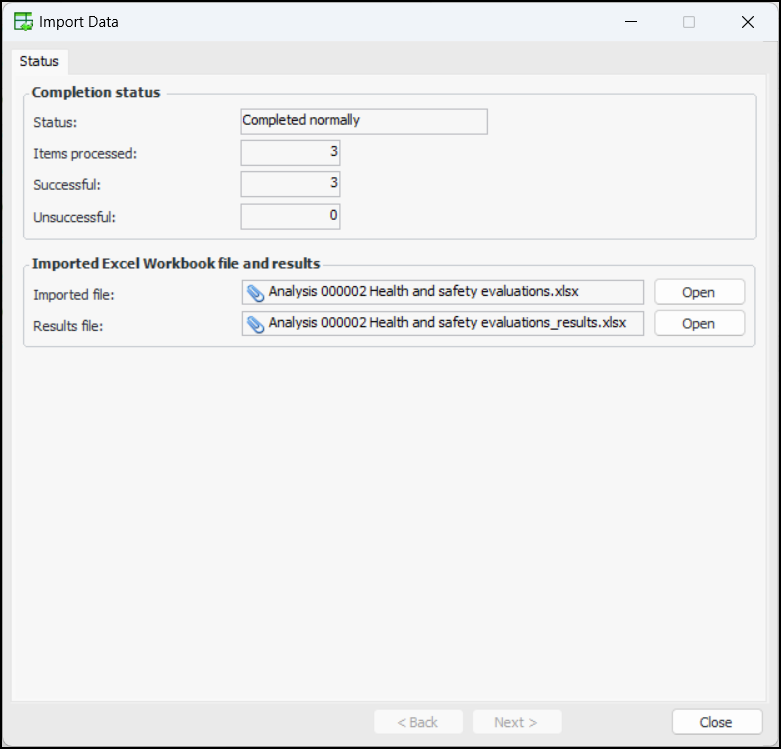
The Status tab appears. For example:
The Imported and Results files are temporary files that you can open to check that the data was imported correctly.
8.
Click Close. The Import Data dialog closes and the imported data is shown in the Criticality Evaluations view.
9.
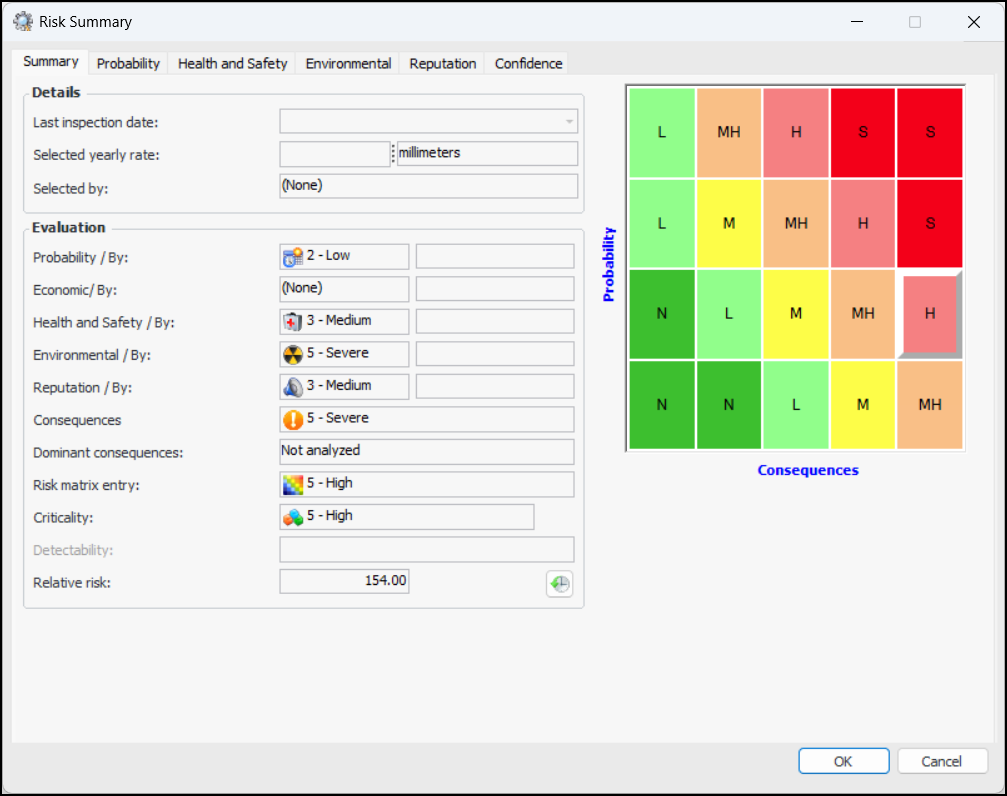
To view the results, open a failure mode. In the Maintenance Action Plan window, select the Criticality view and click Summary. The Risk Summary window appears. For example:
10.

To Use “Flattened” Evaluations

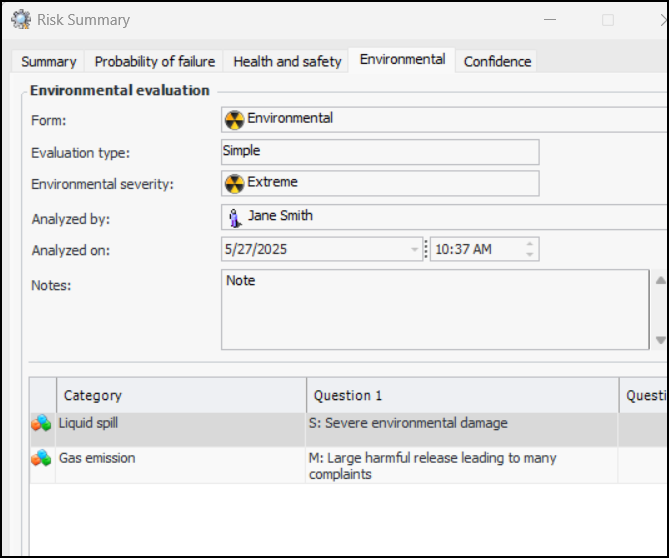
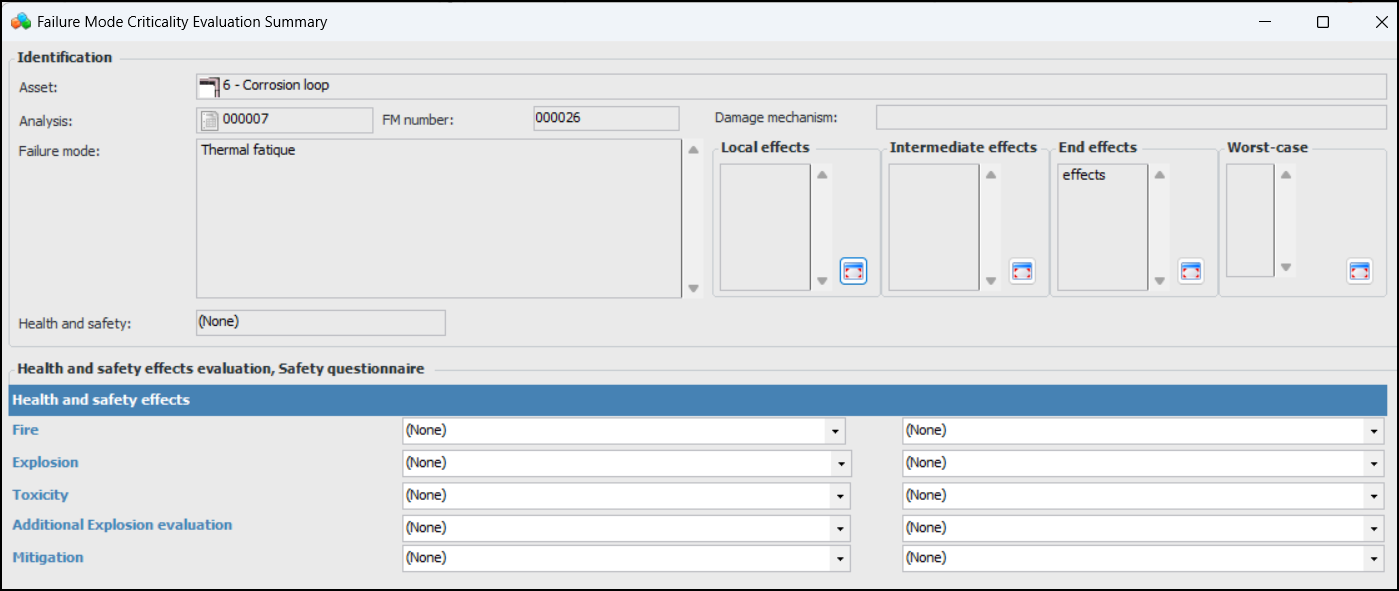
You can work with “flattened” versions of criticality evaluations. After generating evaluations in the Criticality Evaluations view, select one or more of the rows and click Open. The summary window opens for the first row of your selection. (When the window is closed, the next one opens.) Here is an example of a Health and Safety evaluation:
In this example, for each of the categories for Fire, Explosion, Toxicity, Additional explosion evaluations, and Mitigation, you can select one or more answers. The resulting severity is calculated and shown in the Health and safety box.