Using the Implementation Assistants

When setting up or updating an implementation of APM, you can use Implementation Assistants to simplify the setup of selected APM functions. For example, implementing degradation tracking involves selecting settings or adding values for site, asset type, indicator type, calculations, and structural minimum thickness value lists. These settings and value lists are spread over multiple views on site and enterprise. The Assistant brings them all together in one location.
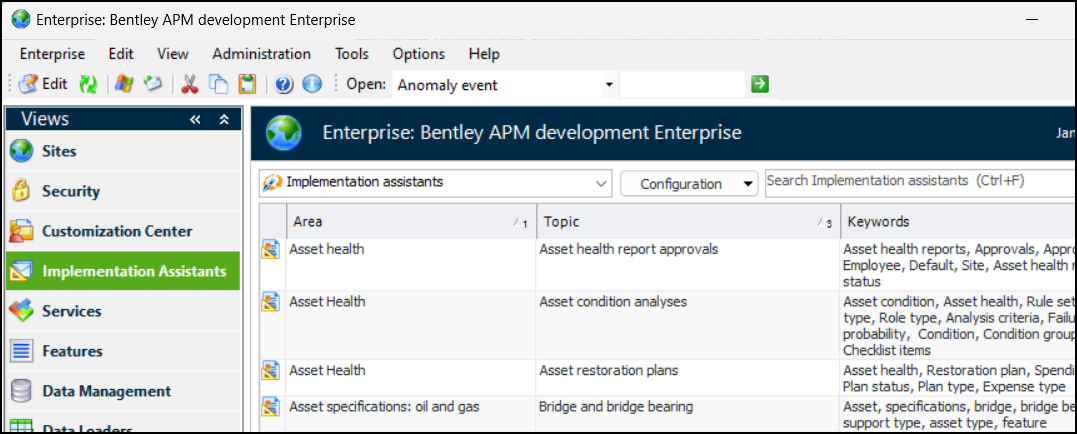
To view and use assistants, open the Enterprise window and select the Implementation Assistants view:
The list is ordered alphabetically by area and then by topic. In addition, you can use the Quick search control to locate a target string in the list.
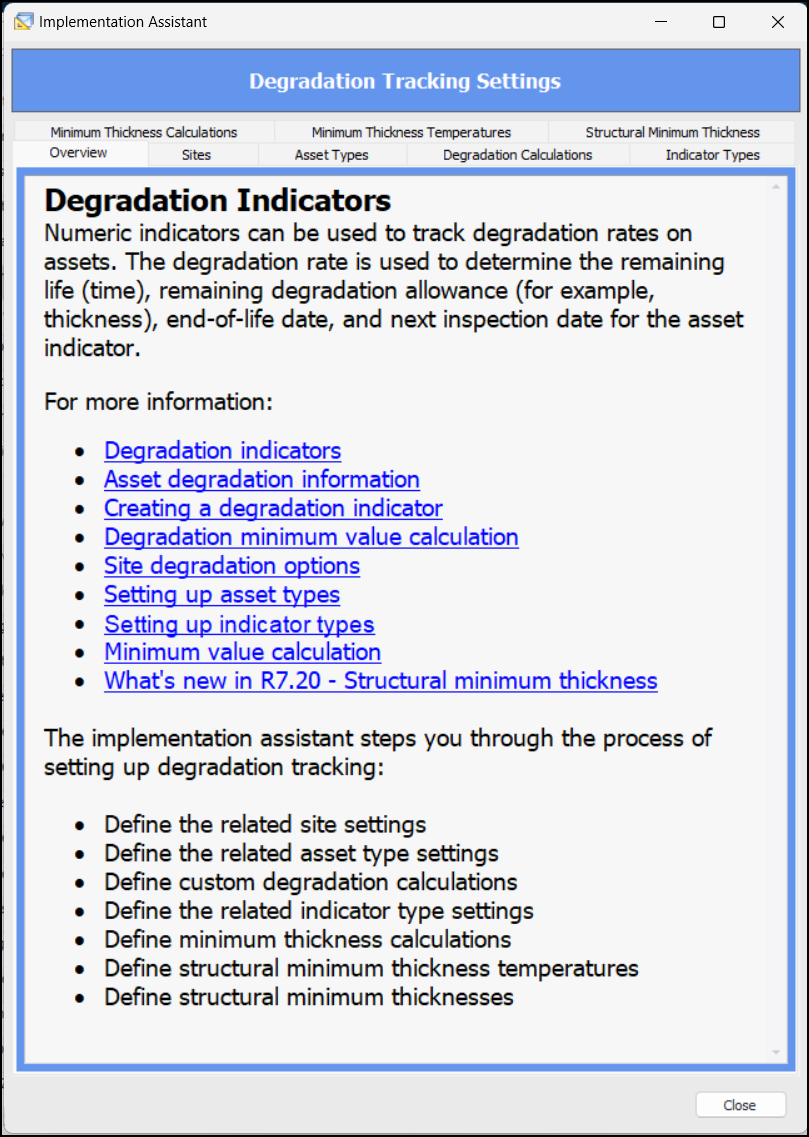
Double-click an assistant to open its window, showing the Overview tab. The Overview tab provides a list of setup tasks, as well as links to related topics in APM Help. For example:
If the functionality is controlled by an application feature, the Features tab is available, listing your currently enabled features. The tab’s introduction identifies which features must be enabled. You can click Enable Features, select them, and click OK.
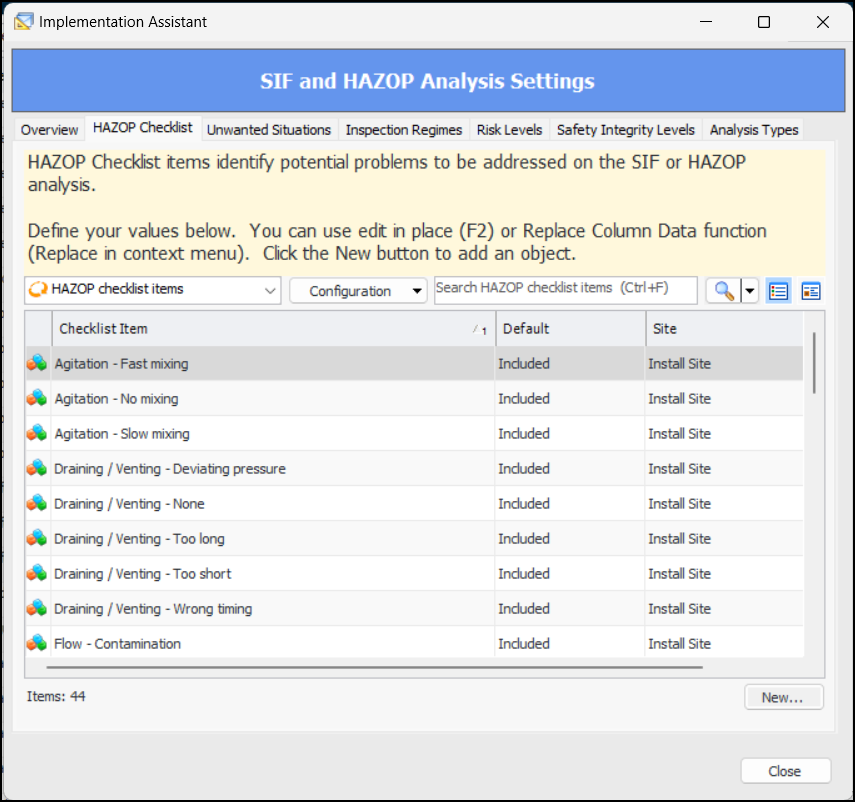
Select the other tabs to create values or to open objects and set options. For example, in the HAZOP Checklist tab shown below, you can:
Click New to create a checklist item
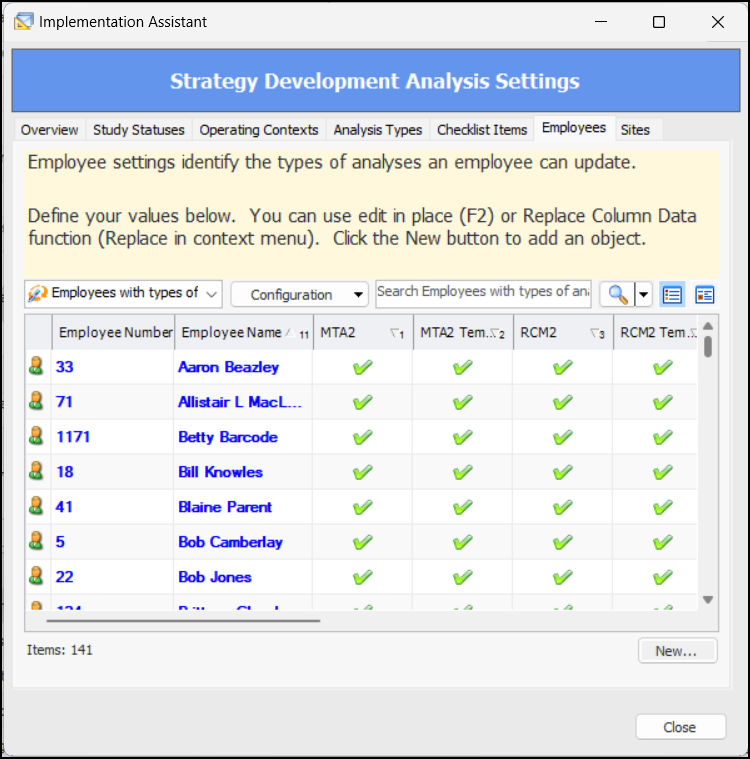
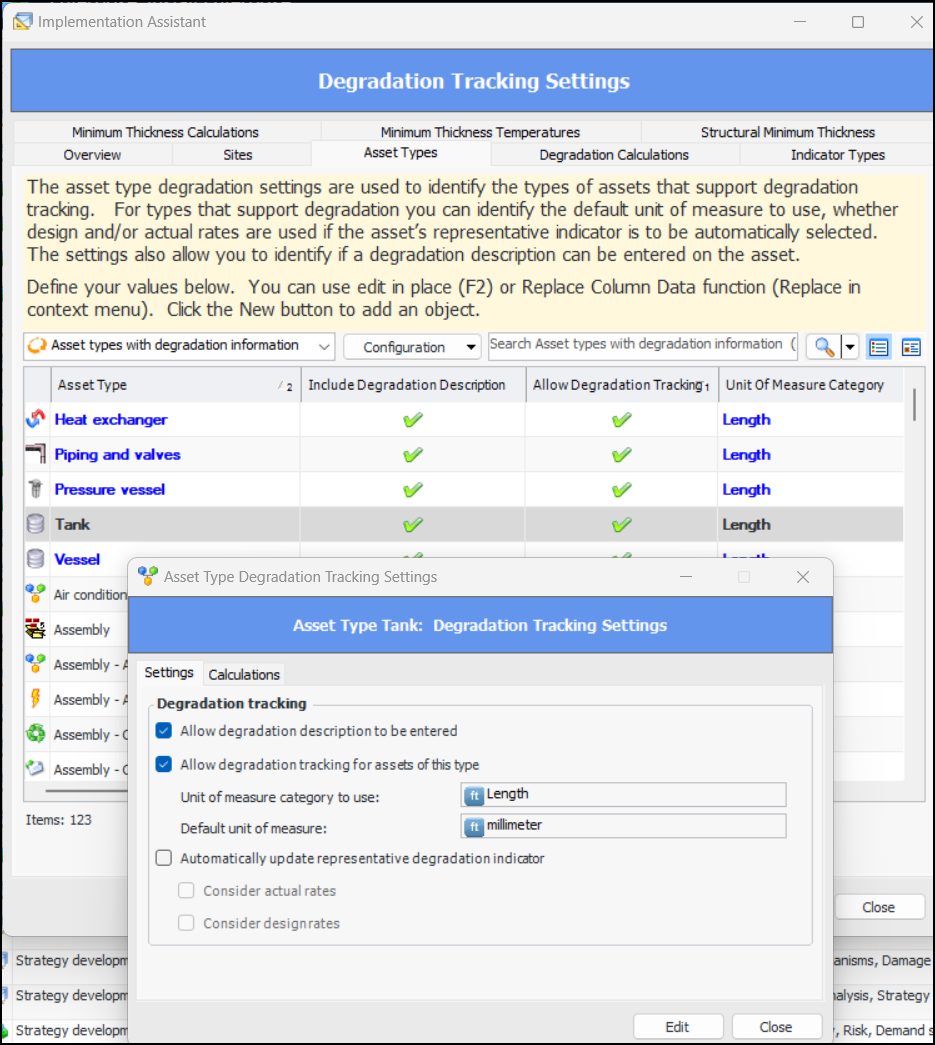
For more complex objects, such as sites, asset types, indicator types, alarm types, approval routes, and so on the tabs display only information that is specific to the function being implemented. For example, in the Strategy Development Analysis Settings assistant, the Employees tab lists employees, shows their sites, and indicates the types of analyses they are allowed to update:

Double-click an item to open an abbreviated version of its object window. In this example, the Asset Type Degradation Tracking Settings dialog contains only attributes related to degradation tracking: