|
|


Assigning Checksheets to a Mobile Device
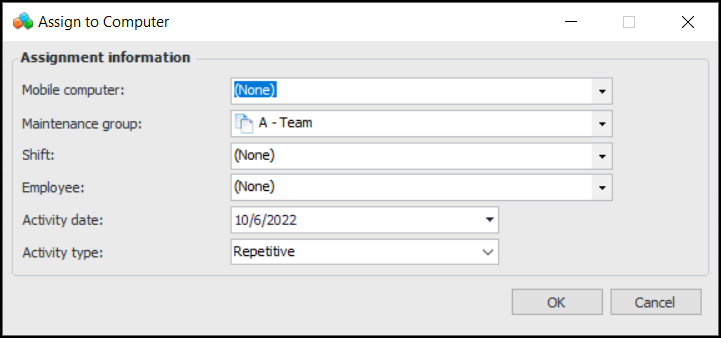
When assigning a checksheet activity, you can select a specific mobile device or you can assign the computer later from the Mobile Computing view. You can specify any of the maintenance group, shift, employee, and date values. You can also update assignment information for an existing checksheet mobile activity.Alternatively, you can have APM automatically create a checksheet activity at the same time that a work order is created from a standard task. For more information, see Setting Mobile Computing Options on a Standard Task.Another option is to set up standard tasks to automatically generate checksheets and mobile activities on a regular basis (using the Generate Standard Task Checksheets scheduled action) without the need for work orders. This is useful in integrated environments where it is not convenient to generate work orders in the CMMS. For more information, see Generating Checksheets from Standard Tasks.To Create a Mobile Checksheet Activity
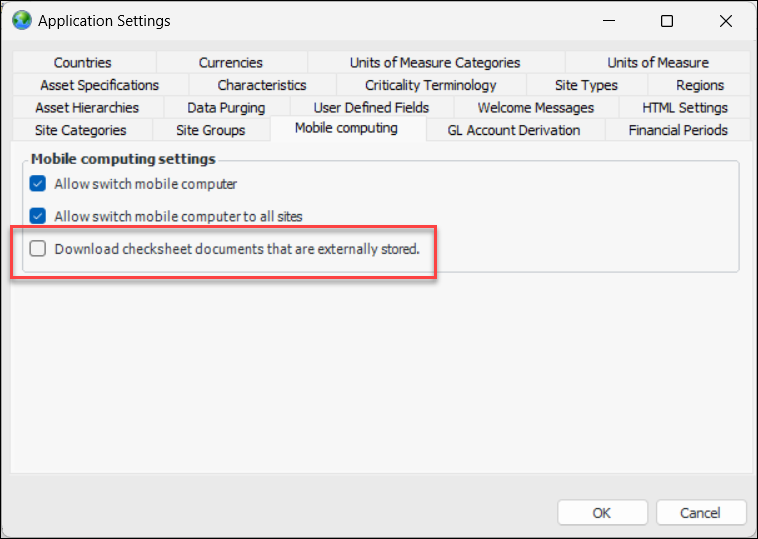
To Enable Checksheet Document Downloads
 on the tool bar. The Enterprise window appears.