
|
Generating PM Work Orders for the Site
This topic explains how to create PM work orders for all of the assets on the site. You can also generate PM work orders for an asset and its descendants. See Generating PM Work Orders for an Asset and Its Descendants.To Generate PM Work Orders for All Assets
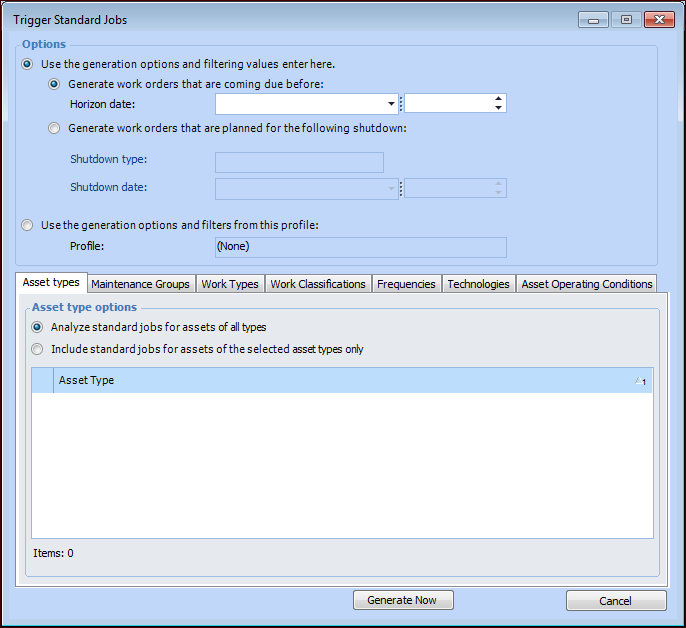
1. From the Site window, select the Tools menu, Reliability Program, and then Generate PM Work Orders. The Trigger Standard Jobs dialog appears.Tip: You can also select the site’s Reliability Program view, PM tab, and then the PM Profiles tab. Right-click the profile you wish to use and select Generate Work Orders.
2. To generate work orders for a specific period of time, select Generate work order tasks that are coming due before and enter the due date in the Horizon date box. For example, to generate work orders for PM jobs coming up in the next month, enter the last day in the month in the Horizon date box.
3. To generate work orders for a shutdown, select Generate work orders that are planned for the following shutdown. Then select the shutdown type and the date the shutdown will occur. APM creates work orders for standard jobs that are triggered by the shutdown you select. The generated work orders are assigned to the next shutdown associated with that shutdown type. In addition, work orders are created for time-based standard jobs that come due during the shutdown.
4. To generate work orders from a profile, select Use the generation options and filters from this profile. Then select the appropriate profile.
5. You can refine the standard jobs to be analyzed by specifying values in the Asset Types, Maintenance Groups, Work Types, Work Classifications, Frequencies, Technologies, or Asset Operating Conditions tabs.
6. Click Generate Now. APM reviews all standard jobs that are triggered by dates or shutdowns or that meet the criteria in the profile and generates the appropriate number of work orders for each. This process can take a few minutes to complete. A message appears stating that all appropriate work orders were created. Click OK.