Setting up Welcome Messages

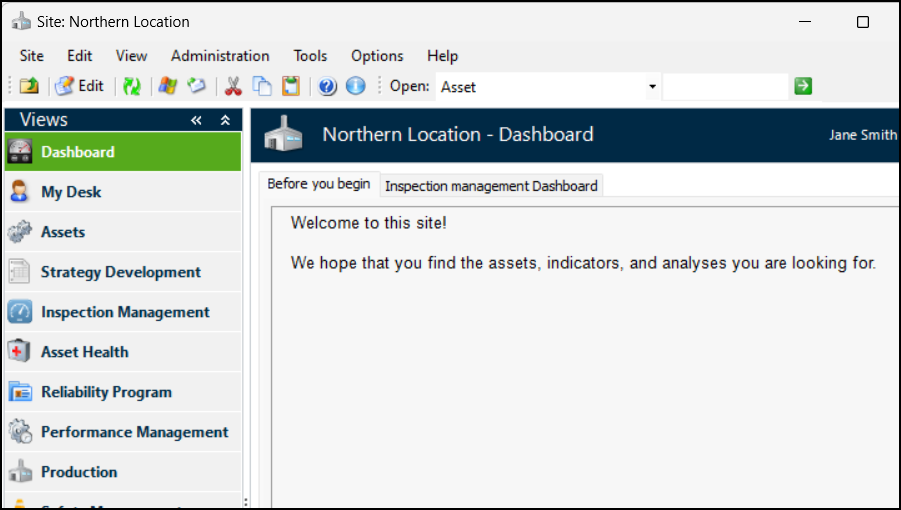
You can create messages to be displayed on users’ My Desk or Dashboard views in the Site window. Create a message in application settings and then add it to a site’s properties, along with a tab name of your choice.

To Set up a Welcome Message

1.
2.
Click the Administration menu and then Application Settings.
3.
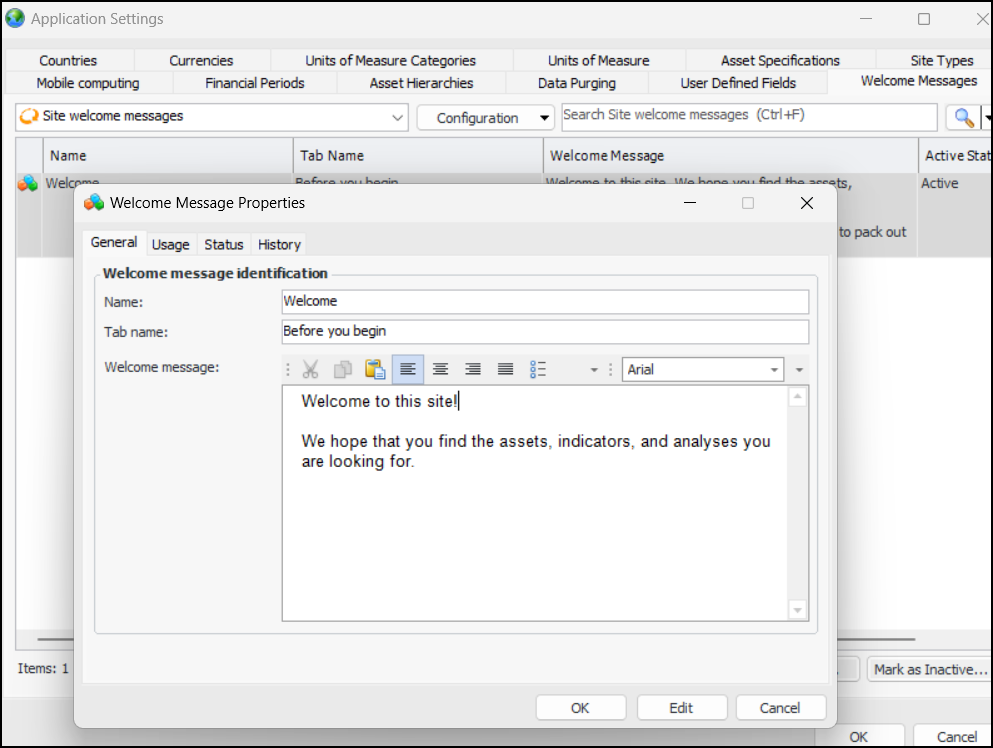
In the Application Settings window, select the Welcome Messages tab. Click New to open the Welcome Message Properties, where you can name the message, add a tab name, and enter the message text. For example:
4.
Click OK to close the dialog.
5.
In the Site window, click the Site menu and then Properties.
6.
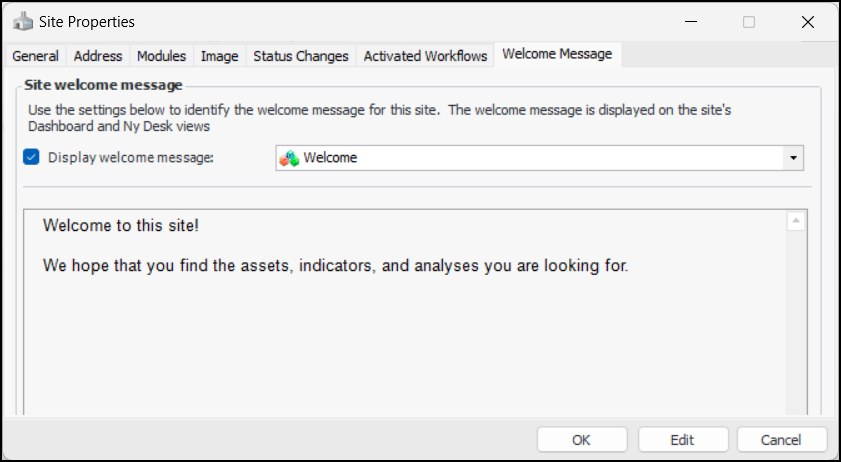
In the Site Properties window, select the Welcome Message tab. Click Display welcome message and select the message from the list. For example:
7.
Finally, select the Personnel view, open the Employee record, and select the Options tab. Select dashboard, my desk, or both types of settings.
When users log into APM and open the Site window, their Dashboard, My Desk, or both views contain the tab and your message.