**Setting Cost Types for a Site

To view accurate cost summaries on views (such as the work order’s Costs view, Costs tab), you must set the summary cost types for each site in the site’s Accounting Settings dialog. If you need to compare costs for each site, you can select different cost types for each site.
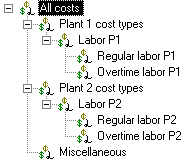
Tip: If you will be setting different cost types for each site, you might want to create a summary cost type for each site in the cost type hierarchy. This will help you to organize your site-based cost types in the hierarchy, and might make it easier to view cost type summaries. For example:
You can also designate default cost types. When a non-cataloged part or service is added to a work order task, for example, the default cost type for the resource type is used.

To Set Total Cost Types

1.
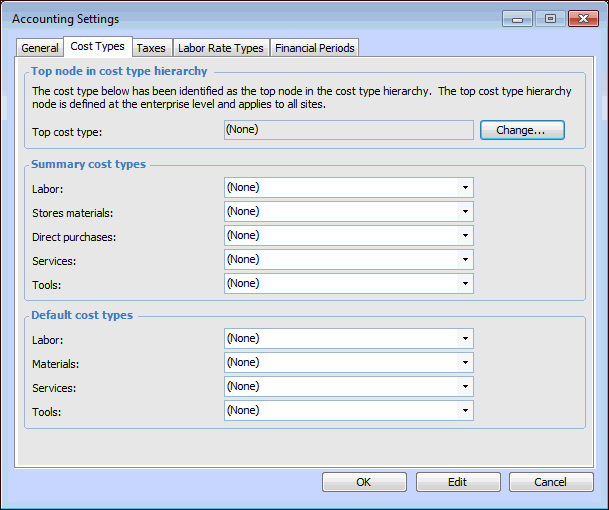
From the Site window, select the Administration menu and then Accounting Settings. The Accounting Settings dialog appears.
2.
Select the Cost Types tab.
3.
To change the top cost type for the site, click Change. The Change Top Cost Type dialog appears. Click Edit, select the cost type, and click OK.
4.
5.
In the Default cost types area, select a cost type for each of the resource types.
6.