Setting up Taxes

You can enter taxes that commonly apply to items that you purchase, and indicate the country, state or province, or locality that has jurisdiction over the tax. Once you enter your taxes, APM can determine which taxes are applicable based on the policies you set on the tax, or you can select the taxes manually for each supplier resource.

Tax Prompting Rules

On each tax, you can select a rule that determines whether or not the tax is added by default to supplier resource prices, purchase order lines, contract prices, and so on. The prompting rules are based on the jurisdiction of the tax. However, a tax will only be prompted when the purchasing site is in the same jurisdiction as the tax, regardless of the prompting setting. For example, Ontario taxes can only ever be prompted for sites that are in Ontario.
When determining which taxes to prompt for a purchase, the system filters the list of taxes by:
1.
2.
For example, an organization has this list of taxes:
The first three taxes have the rule “Prompt if the supplier is in the same country as the purchasing site”. The Toronto Tax has the rule “Prompt if the supplier is in the same locality as the purchasing site”.
A site in Toronto, Ontario creates a price for a supplier that is in Burlington, Ontario. In this case, the Canada GST and Ontario PST are prompted. The QST is not prompted because it’s jurisdiction does not match the purchasing site. The Toronto Tax is not prompted based on the prompting rule (the supplier and site jurisdictions don’t match).
Note: Sales taxes are calculated differently in Quebec than in other provinces. To accommodate this, the PST rate for Quebec must be adjusted. For example, the PST in Ontario is 8%, and it is added to the 5% GST. The PST in Quebec is 7.5% and it is charged on top of the 5% GST.
GST = $100 x .05 = $5.00
PST = $100 x .08 = $8.00
Total = $100.00 + 5.00 + 8.00 = $113.00
GST = $100 x .05 = $5.00
PST = $105 x .075 = $7.95
Total = $100.00 + 5.00 + 7.95 = $112.95
The PST for Quebec must be entered as a rate of 7.95% (7.5% + (5% x 7.5%)).

To Set up Taxes

1.
From the Site window, select the Administration menu and then Accounting Settings. The Accounting Settings dialog appears.
2.
Select the Taxes tab.
3.
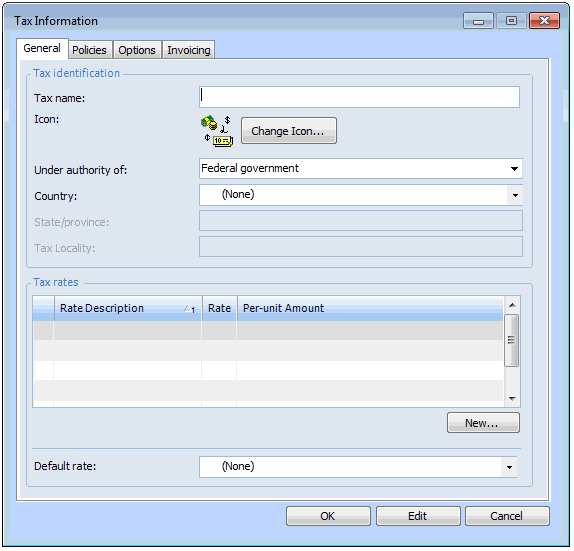
Click New. The Tax Information dialog appears.
4.
On the General tab, enter the following settings:
5.
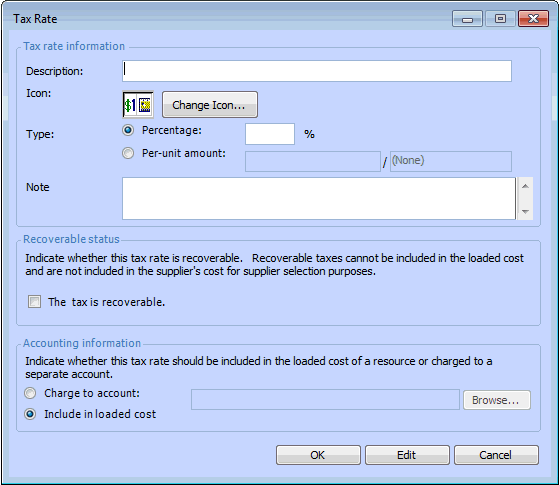
To enter a tax rate, click New. The Tax Rate dialog appears.
6.
Percent: The tax is calculated as a percentage charged on the total cost of the purchase.
Per-Unit amount: The tax is a flat rate charged on each unit of the item.
7.
Click OK to save the tax rate and return to the Tax Information dialog.
8.
9.
Select the Default rate to use for this tax.
10.
On the Policies tab, enter tPolicies tab
Note: The Prompt on all option is only available if the collection policy is Collected by suppliers in any country.
11.
On the Options tab, enter the following settings:
12.
On the Invoicing tab, enter the following settings:
To set up price tolerances specific to this tax, select the option Use the tax specific rules entered below and then enter the appropriate tolerances for price increases and/or decreases.
Example: A supplier issues an invoice for $850; the payment terms are 1% Net 10. The invoice consists of material costs of $800 and tax of $50. If the tax is not included in the discountable amount, the amount eligible for a discount is $800, and the discount is therefore $8. If the tax is set to be discountable, the amount eligible for a discount is $850, and the discount is therefore $8.50.
13.
When you are finished, click OK to close the Tax Information dialog.
14.
Repeat steps 3 to 13 for each tax that you need to enter.
You can now select the site’s locality and default taxes. See Selecting a Locality and Default Taxes for a Site.