**Setting up Site Types

Site types define how objects, such as assets and task templates, are owned at each level in the site hierarchy. A site that cannot own an object might still be able to create objects (for example, task templates), but they will be owned (stored) at a higher site in the hierarchy. How objects are owned determines how data will be partitioned within APM.
Site types at higher levels of the organization own data that is shared by lower sites, such as value lists, resources, and standard documents. Data that higher-level sites wish to control (such as task templates) can be owned and secured at the higher site. This data can then be viewed and used by lower-level sites.
Lower-level site types own data that is unique and not shared between peer sites (that is, sites of the same type and at the same level in the site hierarchy). For example, data that is added and changed on a day-to-day basis, such as work orders, work requests, and assets, are usually owned by lower-level site types.
If you have licensed the Enterprise Asset Management (EAM) module, you can turn it off on individual sites. In a site hierarchy that contains both EAM and non-EAM sites in the same branches, if you are using a central Purchasing site at a higher level, create different site types for EAM and non-EAM sites with different object ownership rules. The non-EAM site type should not include permission to own purchasing objects (purchase orders, RFQs, invoices, contracts, suppliers, and supplier resources). This will prevent purchase orders, for example, from being created at sites that do not support them.
 
When you create sites, select the appropriate site type that matches the object ownership settings required for the site. In most cases, all sites at the same level in the hierarchy have the same type.
Note: When you first install APM, an Install site and Corporate site type are provided. You must make these the top level site and site type. The Install site always owns administrative settings, and it must be used as your top-most site. You can change the names of the Install site and Corporate site type to match your organization’s structure.
Before setting up site types, review the topic Sharing and Partitioning Data Between Sites.
This topic explains how to edit the Corporate site type and create additional site types.

To Set up Site Types

1.
2.
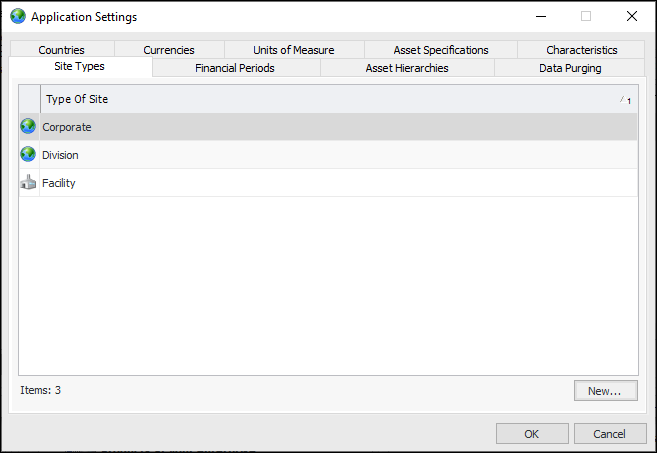
From the Administration menu, select Application Settings. The Application Settings dialog appears.
3.
Select the Site Types tab.

Edit the Corporate Site Type

4.
Double-click Corporate Site Type. The Site Type dialog appears.
5.
6.
7.

Create an Additional Site Type

8.
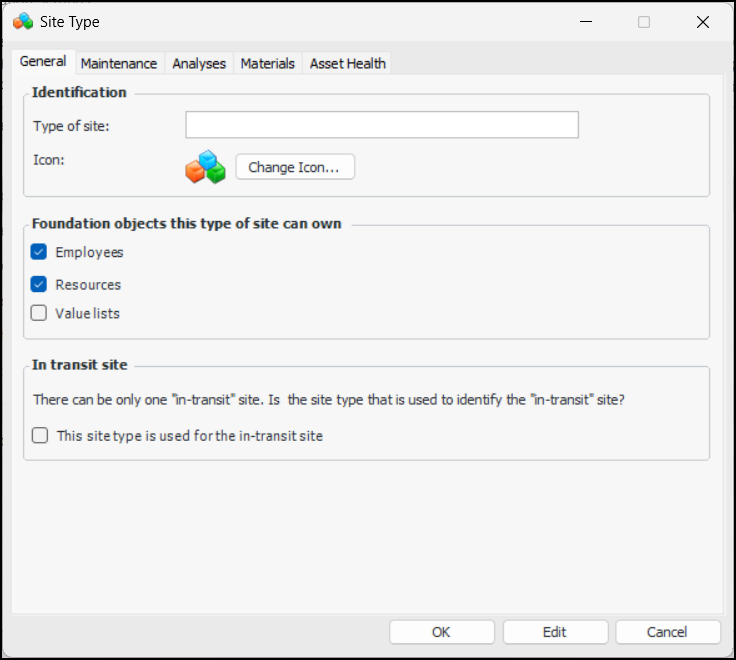
Click New. The Site Type dialog appears.
9.
On the General tab, enter the following information:
To select a different icon for the site type, click Change Icon. Select the new graphic and click OK.
** Indicates a mandatory setting
10.
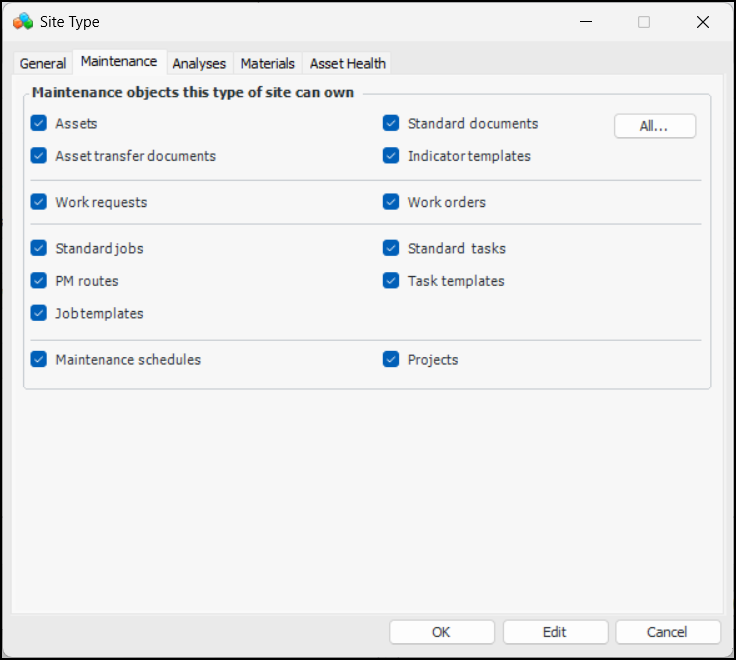
Select the Maintenance tab.
11.
When you select this box, the Asset transfer documents, Work requests, Work orders, Standard jobs, Standard tasks, and PM routes options are automatically selected. It is recommended that these objects be owned by the same types of sites. Except for Asset transfer documents, you can clear any of these options.
Select this option to allow sites of this type to own work requests. The Assets box must be selected before you can select this box.
Select this option to allow sites of this type to own work orders. The Assets box must be selected before you can select this box.
Select this option to allow sites of this type to own standard jobs. The Assets box must be selected before you can select this box.
Select this option to allow sites of this type to own standard tasks. The Assets box must be selected before you can select this box.
12.
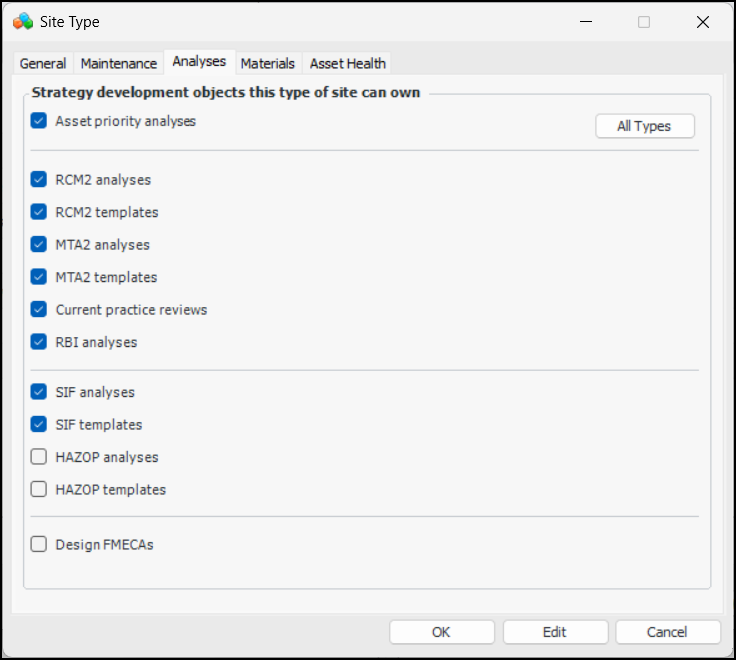
Select the Analyses tab.
13.
14.
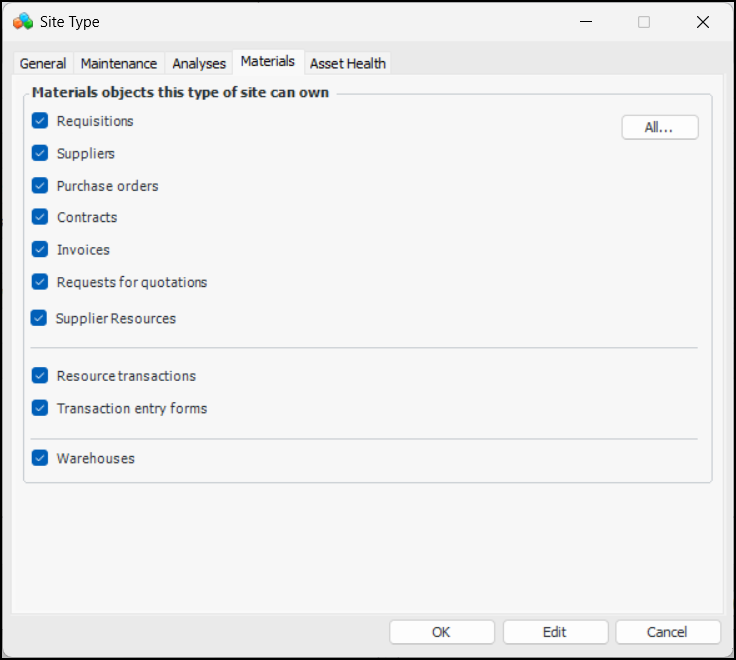
Select the Materials tab.
15.
If you select the Warehouse option, this option will automatically be selected. However, you can clear it if necessary.
Select this box to allow sites of this type to own warehouses. If you select this option, the Resource transactions and Transaction entry forms options are automatically selected.
16.
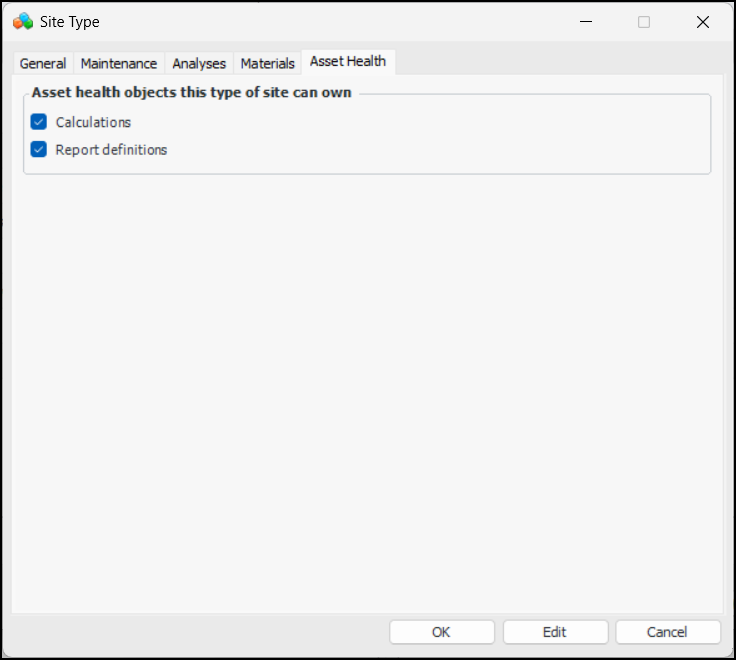
Select the Asset Health tab.
17.
18.
Click OK to save the settings and close the Site Type dialog.
19.
Click OK to close the Application Settings dialog.