Adding Units of Measure

Standard terms to indicate quantities such as volume, length, temperature, dates, times, and currencies are called “units of measure”. APM comes with standard North American styles for displaying and entering units of measure. You can change and add units of measure as required by your organization.
You can add a new unit of measure (UOM) for the enterprise in Application settings. Each UOM must be added in an appropriate UOM category, which must already exist in APM.
Note: A new UOM is not available for use until you exit APM and restart it. If the UOM was created by a Smart client, then the cache files must also be regenerated for the UOM to be available. For APM Remote, the synchronization and remote server instances must be restarted before new UOMs and categories are available.
Each UOM must have a unique name. If you add two UOMs with the same name (regardless of the case) you will not be able to create conversions for them.
For each UOM that you add, you must supply at least one conversion formula. For example, for the Month unit of measure, you might add a conversion factor of Day multiplied by 30 and another for Week multiplied by four. You can specify if the conversion is based on multiplication or addition to the unit of measure. For example, to convert an Each UOM to a Baker’s Dozen, you would multiply the Each by twelve and then add one.
Note: When adding a unit to the “Non convertible unit” category, enter a conversion factor with values of “multiply by 1.0” and “add 0.0”.
If you are adding a UOM that does not fall into an existing UOM category, you will first need to create the proper UOM category. See Adding UOM Categories.
This topic explains how to add a UOM and specify conversion factors for it.

To Add a Unit of Measure

1.
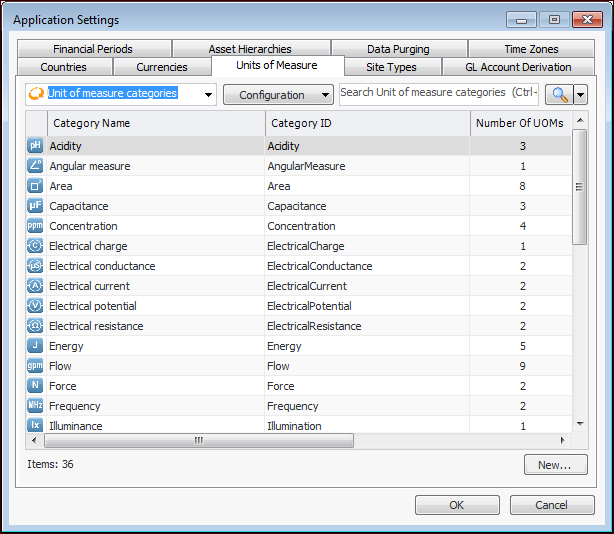
From the Enterprise window, select the Administration menu and then Application Settings. The Application Settings dialog appears.
2.
Select the Units of Measure tab.
Tip: You can select “Units of measure” in the configuration list to view UoMs and their categories.
3.
4.
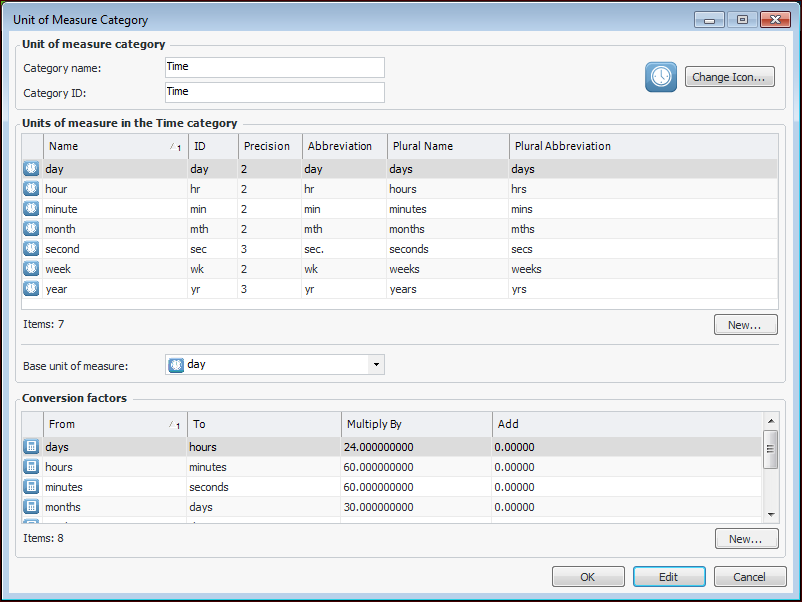
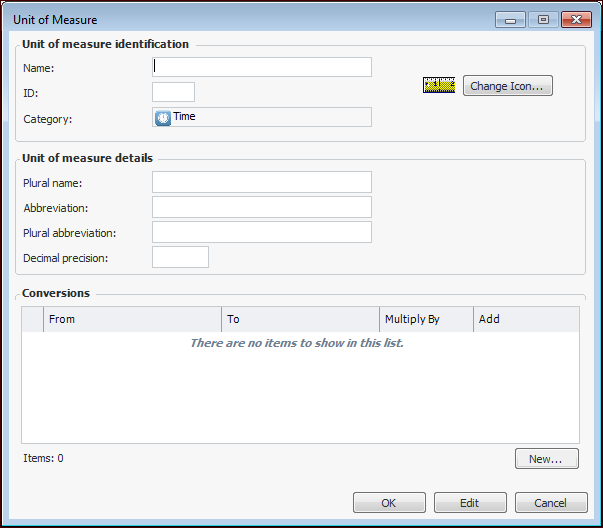
Click New below the Units of measure table. The Unit of Measure dialog appears. For example:
5.
6.
You can change the icon that is displayed with the unit of measure. Click Change Icon and select the appropriate icon from the Change Icon library.
7.
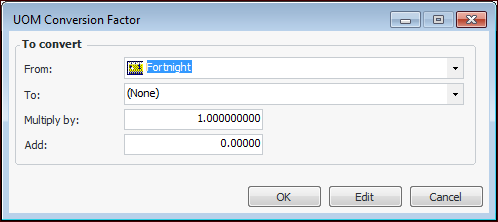
Click New to add a conversion rate. The UOM Conversion Factor dialog appears. For example:
 
8.
9.
Click OK to close the UOM Conversion Factor dialog.
10.
Repeat steps 7 to 9 for each conversion factor that you want to specify for the UOM.
11.
Click OK to close the Unit of Measure dialog.
12.
Click OK to close the Unit of Measure Category dialog.