**Setting up Countries

You can enter the names of the countries where you do business. States or provinces, taxes, and masks are all linked to countries.

To Set up Countries

1.
From the Enterprise window, select the Administration menu and then Application Settings. The Application Settings dialog appears.
2.
On the Countries tab, click New. The Country dialog appears.
 
3.
Enter the following settings:
4.
Click New to add states or provinces to the country. For details see **Setting up States and Provinces.
5.
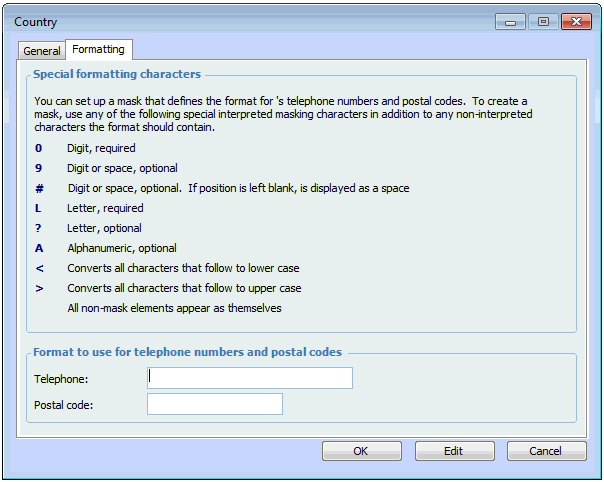
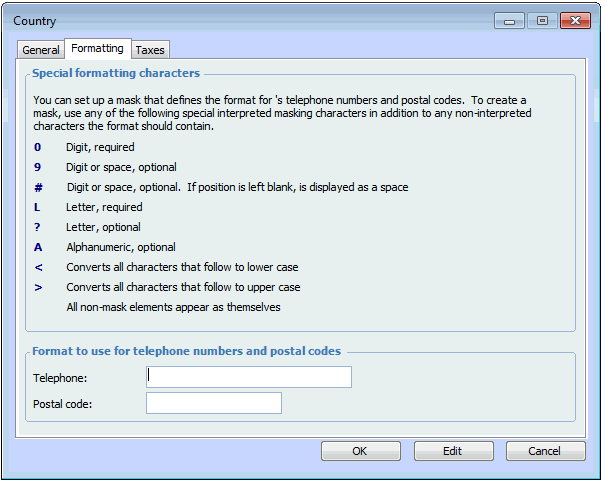
Select the Formatting tab.
6.
0 – Digit, required
9 Digit or space, optional
# Digit or space, optional. If the position is left blank, it is displayed as a space
L Letter, required
? Letter, optional
A Alphanumeric, optional
< Converts all characters that follow to lower case
> Converts all characters that follow to upper case
0 – Digit, required
9 Digit or space, optional
# Digit or space, optional. If the position is left blank, it is displayed as a space
L Letter, required
? Letter, optional
A Alphanumeric, optional
< Converts all characters that follow to lower case
> Converts all characters that follow to upper case
7.
Select the Taxes tab. If necessary, enter the taxes over which this country has jurisdiction. For details see Setting up Taxes.
8.
When you are finished, click OK to close the Country dialog.
9.
Repeat steps 2 to 8 for every country where you do business.
10.
Click OK to close the Application Settings dialog.